
For far too long, the recording and transcription banner in Microsoft Teams was a rigid, “one-size-fits-all” solution. Organizations had minimal control over the language used to inform participants that a meeting was being recorded. This often created headaches for legal and compliance teams, especially those operating in regions with stringent privacy regulations like the GDPR.
The good news? Starting in early January, Microsoft is rolling out a significant update that empowers IT Admins to customize these notification strings and privacy links. This is a major win, allowing organizations to finally align their Teams recording notices with specific internal policies and local legal requirements.
Why This Update Matters for Your Organization
If your organization operates in regions with strict privacy laws, you know that the default Microsoft text simply isn’t always sufficient. This update provides the flexibility to embed your own specific “consent language” directly into the recording banner or the explicit consent dialog. This means greater peace of mind for your legal team and stronger adherence to compliance obligations.
The Details You Need to Know
Here’s a quick breakdown of what you need to understand to leverage this new feature:
- 200-Character Limit: Custom messages must be concise. You’ll have a maximum of 200 characters per language and scenario.
- CSV Management: Configuration is managed via a CSV template. You’ll download the template from the Teams Admin Center, input your custom strings for different languages, and then upload it back.
- Policy-Based Assignment: This feature is assigned through Meeting Policies, offering granular control. You can implement different notices for various departments or user groups within your organization.
- Custom Privacy Link: You can now direct participants to your organization’s specific privacy statement, rather than the generic Microsoft one.
My Advice for Admins
Don’t wait until the full rollout is complete in late January. Proactively reach out to your Legal or Data Privacy Officer now. Ask them to draft a concise “one-sentence” consent string that fits within the 200-character limit. Having this ready in a CSV file will streamline the configuration process once the toggle appears in your tenant.
Here are a few examples of messages that fit the 200-character limit to get you started:
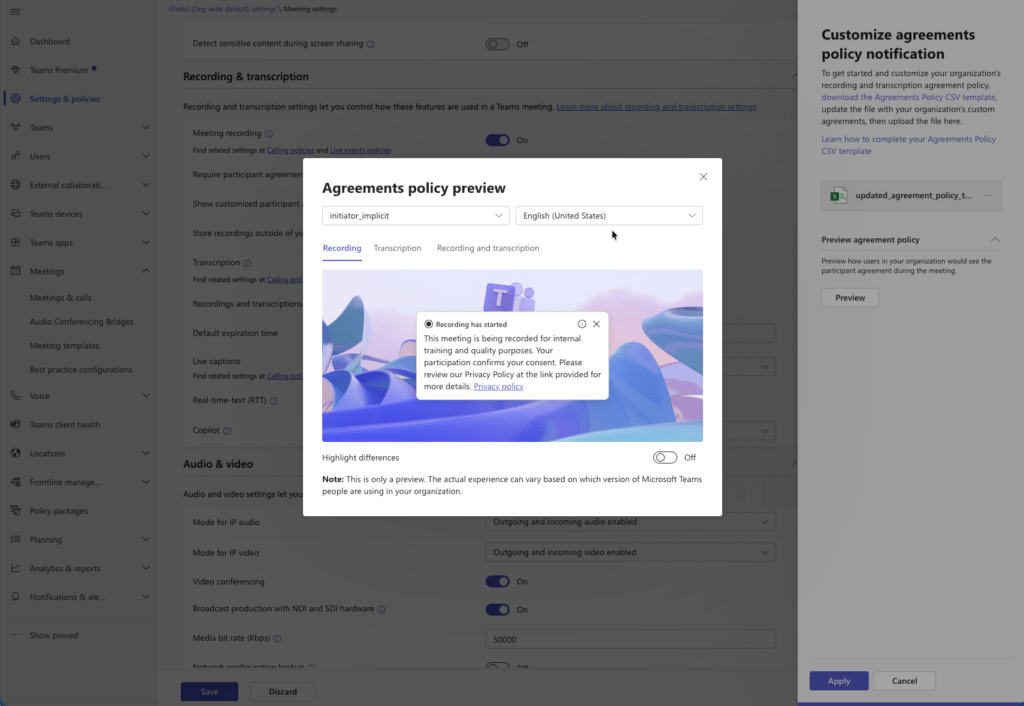
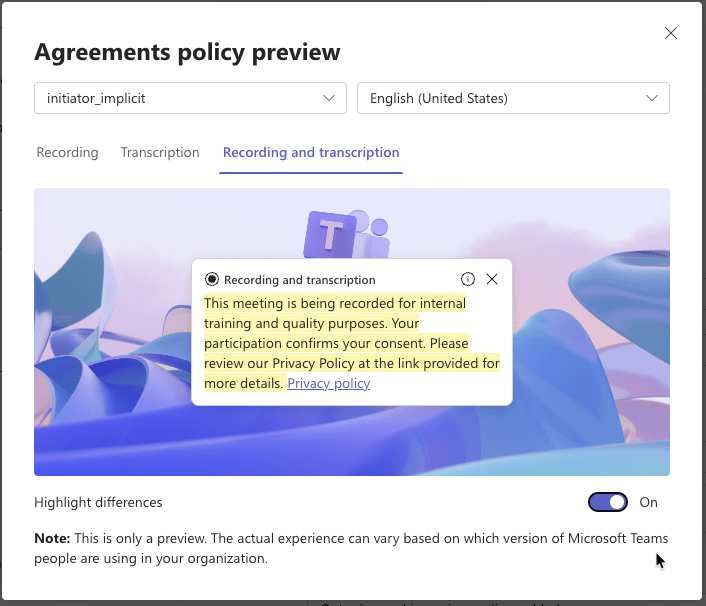
1. The “Standard Professional” (Best for Corporate) “This meeting is being recorded for internal training and quality purposes. Your participation confirms your consent. Please review our Privacy Policy at the link provided for more details.” (188 characters)
2. The “Strict Compliance” (Best for Legal/GDPR focus) “Recording & transcription are active. Data is processed per [Company Name]’s Privacy Standard. To participate without being recorded, please keep your camera/mic off and use the chat.” (187 characters)
3. The “Helpful/Contextual” (Best for Copilot/Adoption focus) “We are recording to provide AI-powered summaries and recaps via Copilot. By staying, you agree to this processing. Contact our Data Protection Officer if you have questions.” (176 characters)
How to Configure Custom Recording Notices
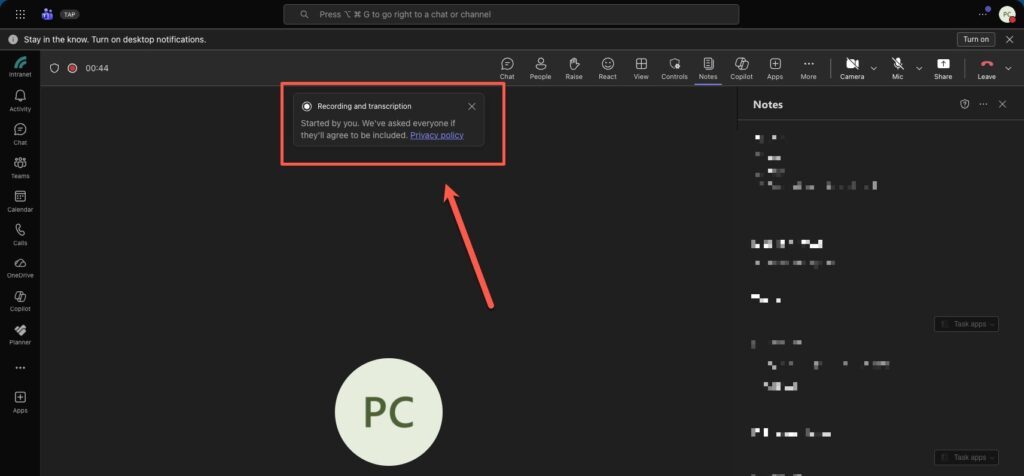
To configure these custom notices, navigate to the Teams Admin Center.
- Go to Meetings > Meeting Policies.
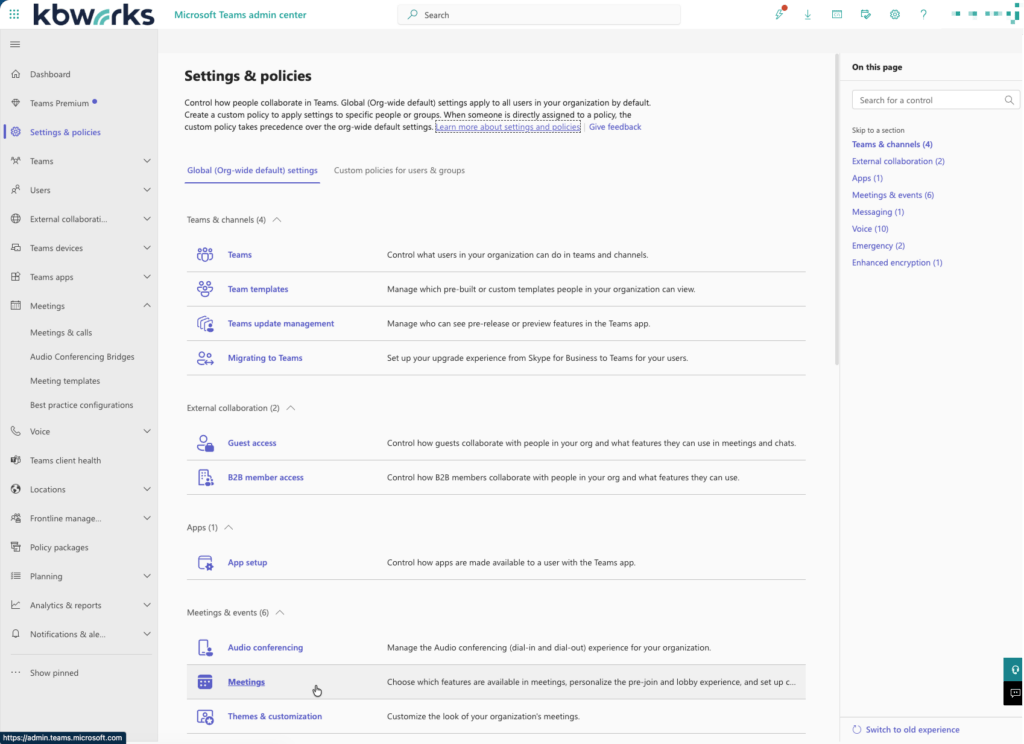
- Select the relevant Meeting Policy (e.g., Global (Org-wide default) or a custom policy).
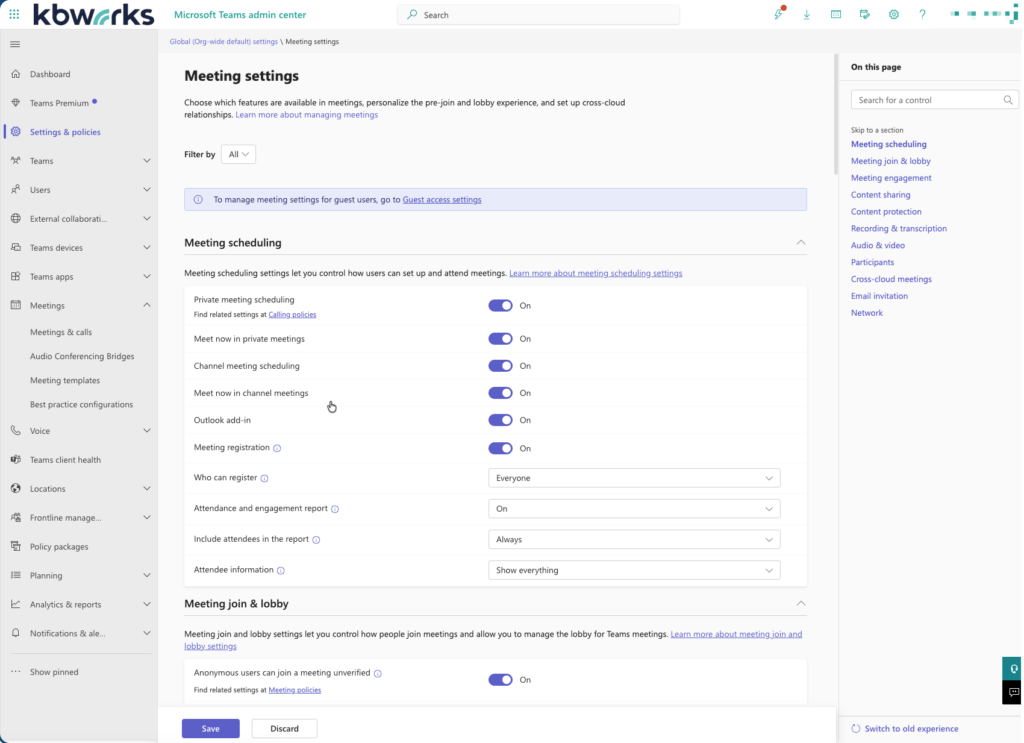
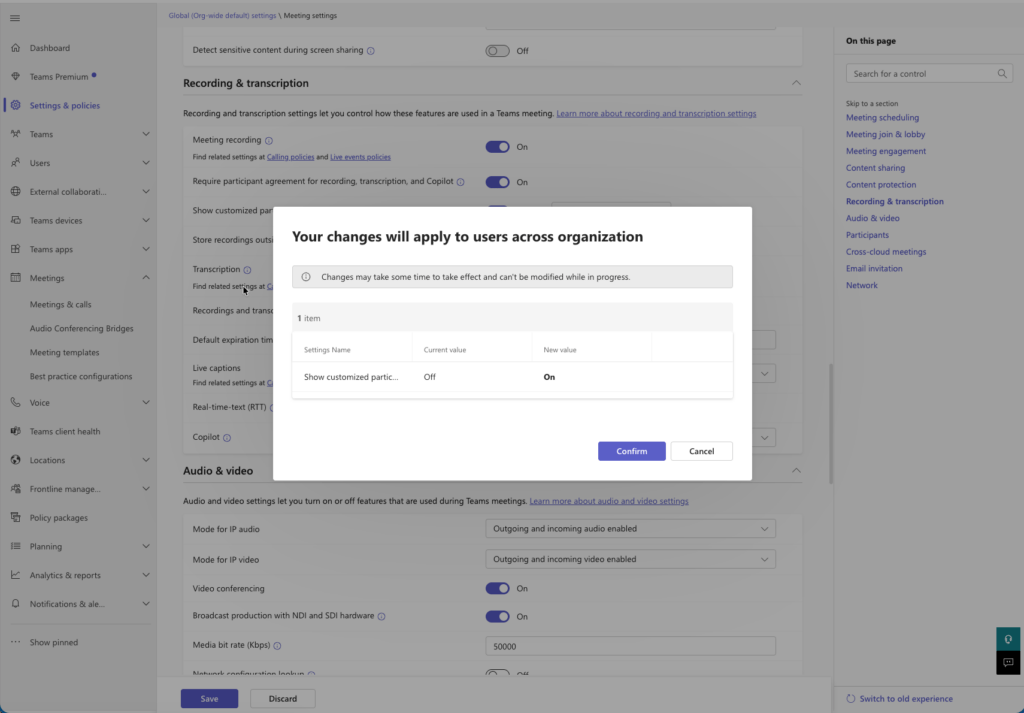
- Under Recording & Transcription, you will find the option to “Customize the message and privacy link for and transcription notices.” Enable this.
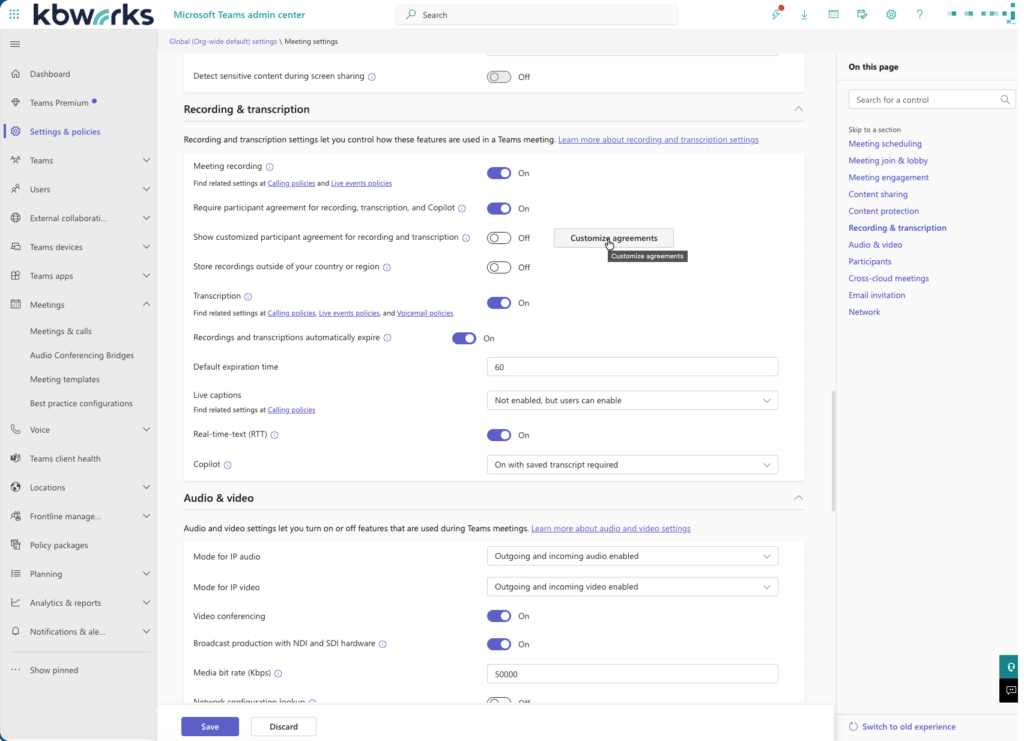
- You will then be able to enter your custom message for the meeting consent and recording notice, and add your organization’s privacy link.
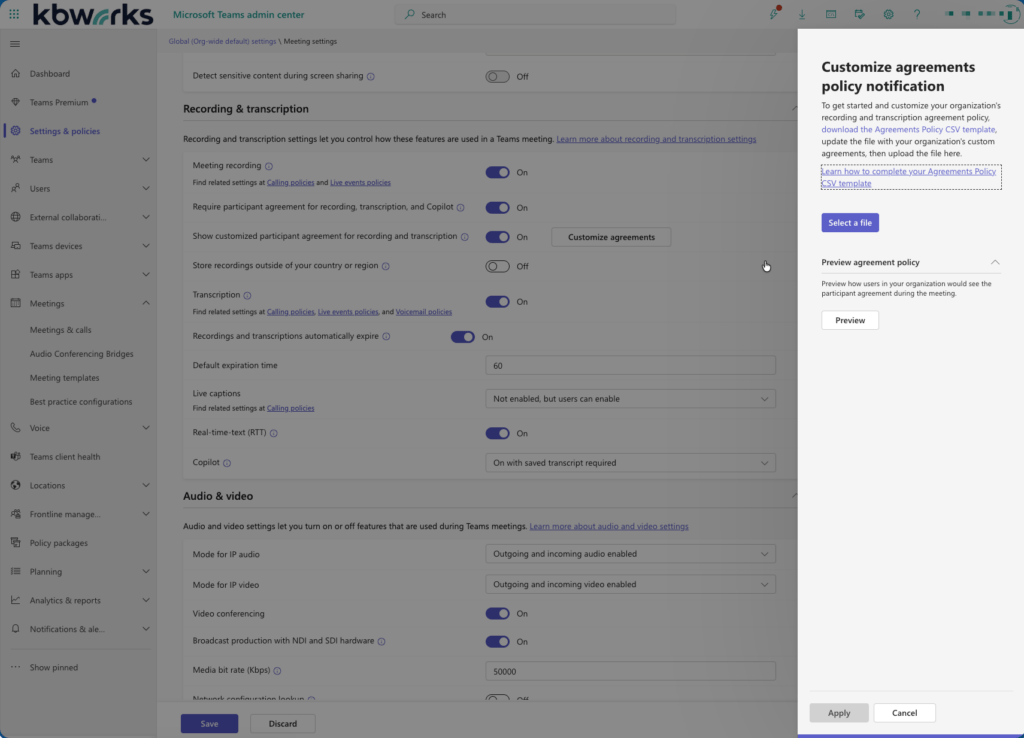
- To manage notices for different languages, download the CSV template, fill in your strings, and upload it back.
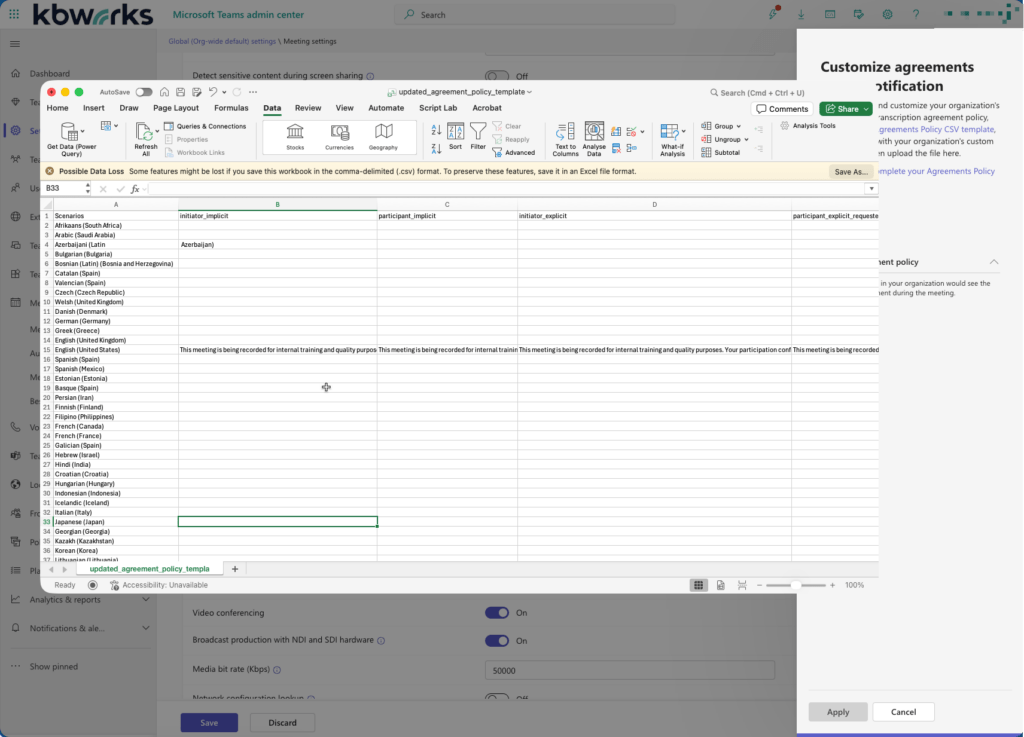
the demo file you can find here
Then upload it to teams and click Preview
transcription preview
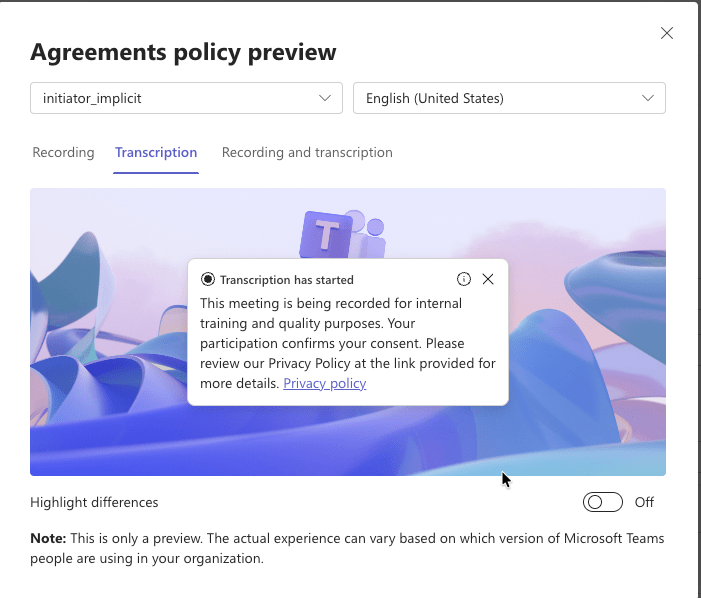
and Recording and Transcription where I highlight the differences:
Apply and save the policy it can take some time to have it enabled
I’m curious: Does your organization currently use “Explicit Consent” (where users must click ‘Agree’ to unmute), or do you stick with the standard notification banner? Let me know in the comments!