
TL;DR: Microsoft Teams is moving to an opt-in suggestion model for hiding inactive channels starting in January 2026. This replaces previous auto-hide behaviors with a user-centric review process, showing last visit dates and protecting users with small channel lists (25 or fewer).
The Shift to Suggestion-Based Decluttering
Maintaining a relevant channel list is one of the biggest challenges in a mature Microsoft Teams environment. Originally, Microsoft planned to hide inactive channels automatically. However, based on significant admin and user feedback, the feature has been redesigned to be opt-in only.
Instead of channels simply vanishing, Teams will now show a ‘ coach mark ‘ notification: ‘Looks like you haven’t visited some channels lately. Hide them to help you focus.’ This allows users to remain in control of their visibility while still receiving help to reduce digital noise.
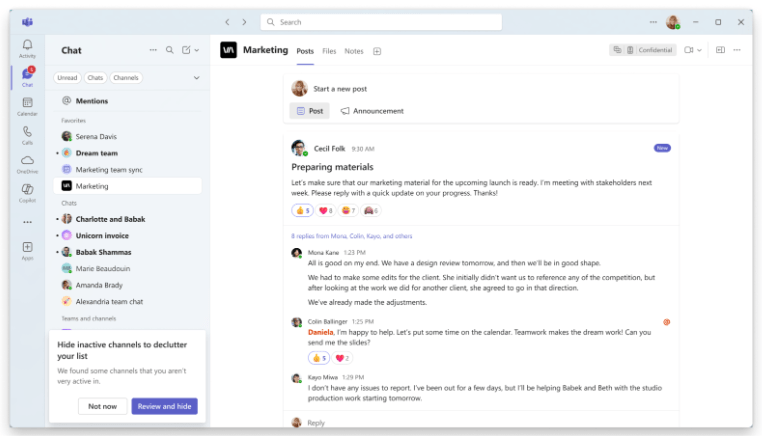
How it Works: The Review Process
When a user selects Review and Hide, they are presented with a list of candidates for hiding. A key addition here is the last visit date. This data point is crucial because it helps distinguish between a channel that is truly irrelevant and one that is just currently quiet (such as a seasonal project or a ‘Cyber Incident’ emergency channel).
The 25-Channel Safeguard
To avoid over-prompting users who already have a lean workspace, Microsoft has implemented a threshold. If a user has 25 or fewer shown channels, Teams will not generate suggestions. This ensures that the ‘Get Suggestions’ engine only triggers for power users or those in large organizations where clutter is a genuine productivity blocker.
Manual Cleanup and Settings
Users who want to take immediate action don’t have to wait for a prompt. Within Teams Settings > General, a new ‘Get Suggestions’ button allows for an on-demand scan of inactive channels. To prevent performance lag and notification fatigue, this manual scan can be performed once every 24 hours.
Opting Out Entirely
If you prefer to manage your channels 100% manually without any AI assistance, you can easily disable the feature:
- Go to Settings in Teams.
- Select the General tab.
- Toggle off ‘Suggestions for hiding inactive channels.’

Strategic Impact for IT Admins
For IT Managers, the best news is that this feature is on by default but requires no admin action. It encourages self-service ‘housekeeping’ without the risk of users losing access to critical data. It supports Digital Adoption by teaching users how to manage their own workspace effectively.
FAQ
When will this be available for my organization? This should be rolling out in January 2026 according to Microsoft, following the completion of the Targeted Release phase.
What counts as ‘inactive’? Microsoft generally defines inactivity based on a lack of user interaction (visiting, reading, or reacting) over a set period, typically around 45 to 120 days depending on the specific tenant configuration.
Will I still get notifications for hidden channels? Yes, but they are muted. If you are @mentioned or a ‘Team mention’ is used, you will still receive the notification, but the channel itself will remain in the ‘Hidden’ section of your list until you choose to show it again.
Can an admin turn this off for the whole tenant? Currently, there is no tenant-wide toggle for this specific feature. It is designed as a user-level preference to support individual productivity styles.