
TL;DR: Microsoft is retiring support for legacy SharePoint Information Management and In-Place Records Management in April 2026. Organizations must transition to Microsoft Purview Data Lifecycle Management to ensure continued support and modern compliance. This should be rolling out in April according to Microsoft.
Out with the Old, In with the Purview
For years, SharePoint Online offered “In-Place Records Management” and “Information Management Policies” as the primary way to handle document retention. These were powerful at the time but were limited by their site-collection silos. Today, compliance is a tenant-wide requirement, which is why Microsoft is consolidating these features into the Microsoft Purview suite.
What Specifically is Retiring?
Starting April 2026, Microsoft will no longer provide support for:
- Information Management Policies: The legacy site-level rules for retention and auditing.
- In-Place Records Management: The feature that allowed you to declare a document a “record” directly in its library.
- Document Deletion Policies: Specifically the legacy “deletion-only” policies.
Why You Should Migrate Now
While Microsoft states the features will “continue to work” after April 2026, the lack of support is a major risk for regulated industries.
- No Bug Fixes: If a legacy policy fails to delete data, you are on your own.
- No Modern Features: Legacy policies don’t support multi-stage retention or cloud-attachment protection.
- Unified Governance: Purview allows you to manage SharePoint, Teams, and OneDrive from a single “pane of glass.”
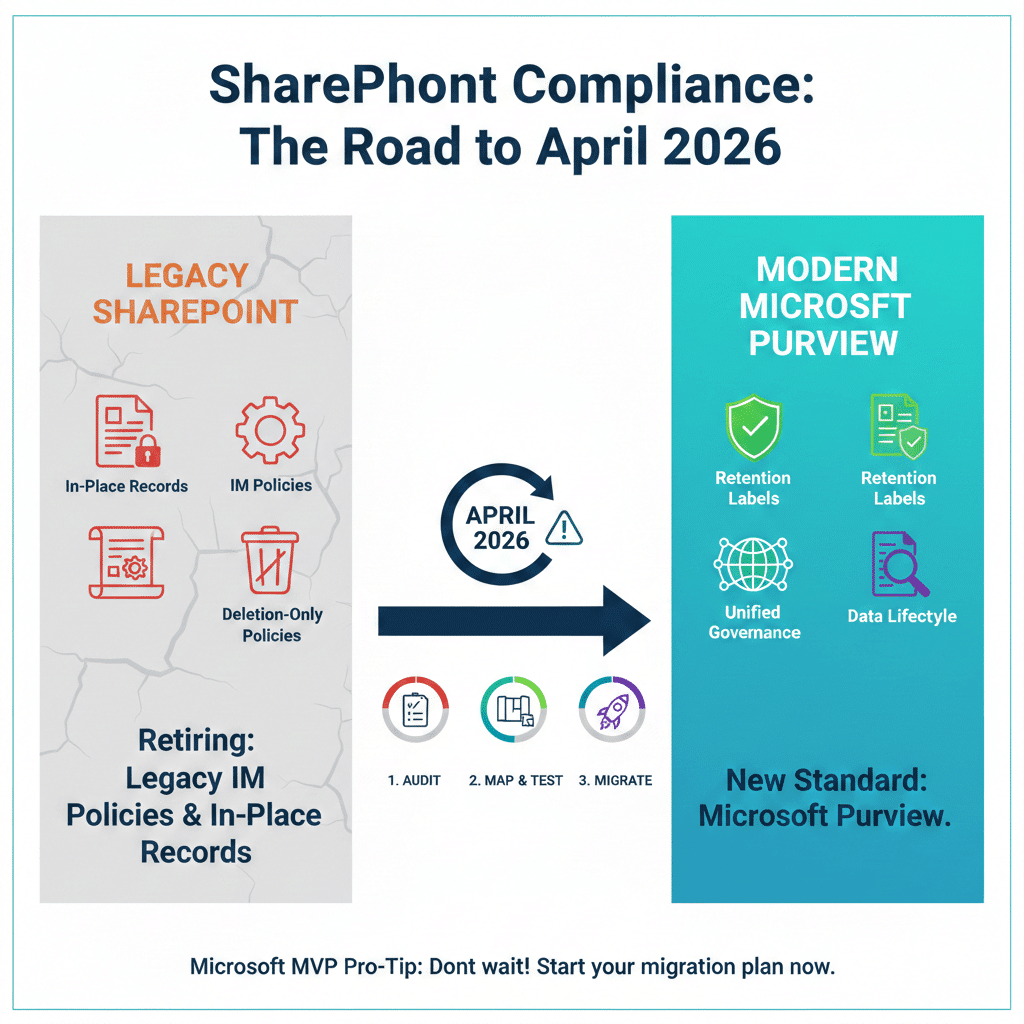
Your Migration Strategy
Microsoft will not automatically migrate these policies for you. Here is the MVP-recommended workflow:
- Step 1: Audit: Use the ‘Policy Lookup’ tool to find where legacy policies are still active.
- Step 2: Map: Translate your old “Retention Stages” into Purview Retention Labels or Global Retention Policies.
- Step 3: Test: Apply your new Purview labels to a test site and verify that the “Record” status and “Deletion” triggers work as expected.
- Step 4: Communicate: Ensure your Records Management team understands that the “Lock” icon in SharePoint now comes from a Purview Label, not a library setting.