
If you have watched users interact with Microsoft 365 Copilot or Copilot Chat, you have likely seen the moment of confusion: a user clicks Add Work Content (+), selects a file or person, and suddenly their input box fills up with the entity name as plain text. They hover. They hesitate. Some delete it and start again. That friction is now being addressed directly. Microsoft is rolling out a change that replaces text-based entity inserts with Microsoft 365 Copilot entity pills, keeping the prompt box clean and the user experience intuitive.
This post covers exactly what is changing, who is affected, how it differs across license types, and what your IT and training teams should do to prepare.
What Are Microsoft 365 Copilot Entity Pills and Why Do They Matter?
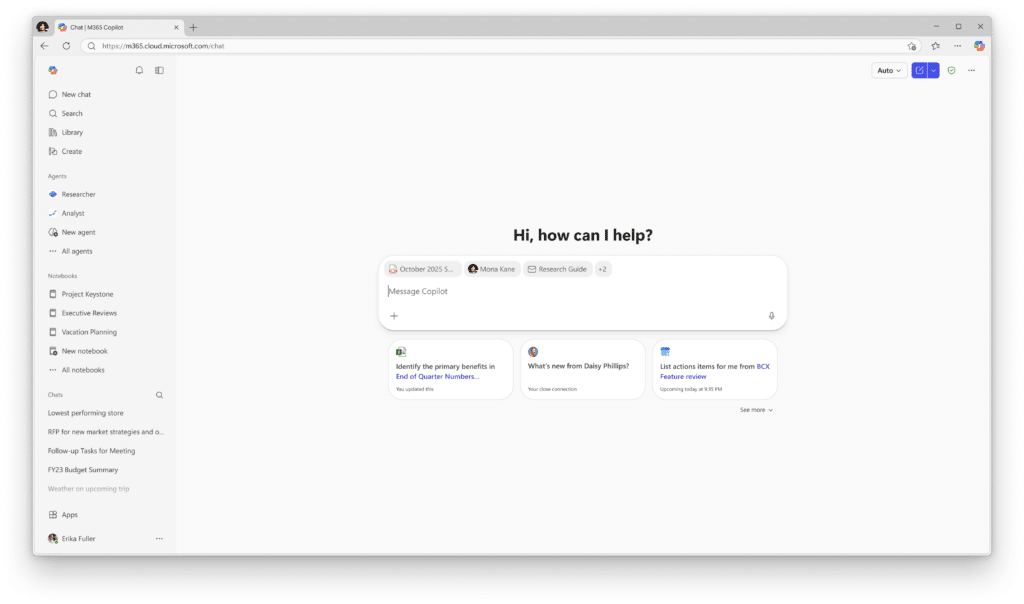
When a user references a file, a colleague, or another work object inside a Copilot or Copilot Chat conversation, they do so through the Add Work Content (+) menu, also known as Context IQ. Previously, selecting an entity would insert its name as a text string directly into the chat input box. This created two problems:
- The input box became visually cluttered, especially when multiple entities were referenced.
- Users were unsure whether the text label was the actual reference, or just decoration they should delete.
The new behaviour replaces that text insertion with a compact entity pill, a visual chip that sits inline in the prompt box without polluting it with raw label text. The reference is still passed to Copilot, but the user interface is significantly cleaner.
This is not a cosmetic tweak. It directly addresses one of the most common early-stage adoption blockers: prompt anxiety. When users are uncertain about what their prompt actually contains, they either over-explain or avoid the feature entirely. Cleaner input mechanics reduce that uncertainty.
Who Is Affected
This change applies to all users in commercial (non-government) clouds who have access to either:
- Microsoft 365 Copilot (full license)
- Copilot Chat (available without a full Copilot license)
Both user groups will see the entity pill behaviour, though the underlying Copilot experience, including which content can be referenced and how deeply it is processed, continues to differ between the two license tiers. No admin controls are changing, and no configuration is required to enable this update. It is on by default for all tenants.
Rollout Schedule
Microsoft has confirmed the following timeline for this update, associated with Microsoft 365 Roadmap ID 552592:
| Phase | Region | Start | End |
|---|---|---|---|
| General Availability | Worldwide (Commercial) | Mid-February 2026 | Mid-March 2026 |
According to Microsoft, this should be rolling out around mid-February to mid-March 2026. The timeline was updated on 4 March 2026, extending the completion date from late February to mid-March.
There is no Preview phase for this change. It goes directly to General Availability and is enabled by default with no tenant opt-in required.
What Exactly Changes in the Prompt Experience
Before This Update
When a user selected a document titled ‘Q4 Sales Report’ via the + menu, the text ‘Q4 Sales Report’ would appear inline in the chat input box. The entity was referenced, but visually it blended into whatever else the user was typing, making complex prompts hard to read and edit.
After This Update
The document reference now appears as a contained entity pill, visually distinct from the user’s typed text. The pill represents the reference without dumping the label into the text stream. Users can still see what they have attached, but the prompt itself reads cleanly.
This matters most for users who regularly build multi-entity prompts, such as referencing two documents and a colleague in a single Copilot instruction. Previously, those prompts could become difficult to parse. Now, the pills and the text stay visually separate.
How to Prepare Your Organisation
No Admin Action Required
There are no admin toggles, policies, or PowerShell commands involved in this change. It is enabled by default for all tenants and cannot be disabled. From an IT governance perspective, there is nothing to configure.
Recommended Preparation Steps
Even without a technical action item, there are practical steps worth taking:
1. Brief your helpdesk Users who have been trained on the previous behaviour may log tickets when they notice the input box looks different. A short internal note to your helpdesk, explaining that this is intentional and expected, will save unnecessary escalations.
2. Update training materials and screenshots If your organisation has produced Copilot onboarding content, adoption guides, or quick reference cards that show the entity insertion flow, those screenshots are now outdated. Prioritise updating any materials that show the Add Work Content (+) menu interaction before users notice the discrepancy.
3. Communicate to Copilot champions If you have an internal Copilot champions network or early adopter group, flag this change proactively. They are your first line of user-facing communication and should not be caught off guard.
Admin Tips
- No PowerShell required. This change has no associated policy or configuration command. You cannot enable, disable, or modify the entity pill behaviour from the Teams Admin Center or via PowerShell.
- Audit your Copilot documentation now. Any internal knowledge base article or SharePoint page that references entity insertion in Copilot should be reviewed and updated.
- Context IQ remains the underlying mechanism. The feature itself, allowing users to reference files, people, and other objects, has not changed in scope or capability. Only the visual presentation of the insert has changed. You can read more about Context IQ in the official Microsoft Support documentation.
- Watch for adoption signal changes. If your organisation tracks Copilot usage via the Microsoft 365 Admin Center or Viva Insights, watch for any uptick in Copilot Chat engagement post-rollout. A cleaner prompt experience often correlates with increased usage among previously hesitant users.
License Requirements
This update applies across two user tiers:
| User Type | License Required | Entity Pill Update Applies |
|---|---|---|
| Full Copilot users | Microsoft 365 Copilot | Yes |
| Copilot Chat users | Microsoft 365 (commercial) | Yes |
The entity pill behaviour is available to both groups. The depth of Copilot reasoning and content access continues to differ based on license tier, but the prompt interface change is universal across commercial tenants.
There are no additional license requirements to enable this feature, as it is on by default.
The Paul-Take
Small UX changes in enterprise software rarely get the attention they deserve, but this one is worth flagging to leadership and your adoption team. The entity text insert behaviour was one of those quiet friction points that nobody complained about loudly, but that quietly eroded confidence in the tool. I have sat in Copilot training sessions where participants spent the first ten minutes convinced they were doing something wrong because their prompt box ‘looked weird.’ They were not doing anything wrong. The interface was just genuinely confusing.
Entity pills fix that. They separate the references from the rhetoric, visually and cognitively. For power users, it makes complex prompts easier to construct. For new users, it removes a moment of doubt that, left unresolved, becomes a reason to avoid the feature entirely.
If you are responsible for Copilot adoption in your organisation, do not let this change arrive silently. Use it as a touchpoint. Send a short internal communication, update your guides, and frame it as Microsoft listening to user feedback. Because in this case, that is exactly what it is.
MVP Reference List
| Reference | Detail |
|---|---|
| MC Number | Not specified in source announcement |
| Roadmap ID | Microsoft 365 Roadmap ID 552592 |
| Learn Link 1 | Using Context IQ in Microsoft 365 Copilot and Copilot Chat |
| Learn Link 2 | Microsoft 365 Copilot overview |