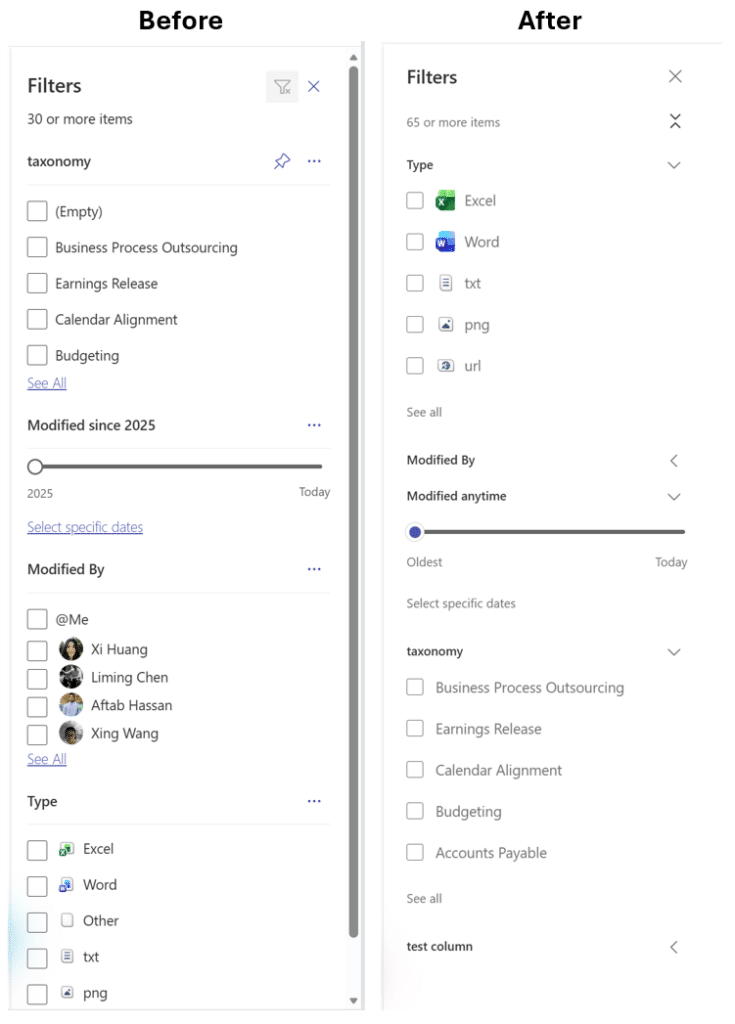
The SharePoint filter pane update rolling out in early 2026 is one of those changes that looks small on paper but has a real impact on daily document management. Microsoft is replacing the existing filter pane experience in SharePoint Online Document Libraries and Lists with a faster, more flexible version that surfaces all filterable fields automatically and introduces collapsible sections for better navigation.
This post walks through exactly what is changing, what it means for your users and administrators, and how to prepare your environment before the rollout hits your tenant.
What Is the SharePoint Filter Pane Update?
The filter pane in SharePoint Document Libraries and Lists has existed in roughly the same form for years. Users could filter by metadata fields, but the experience came with a catch: fields had to be pinned to appear in the pane, and the overall performance was inconsistent, particularly in libraries with many columns or large amounts of content.
Microsoft has rebuilt this experience based on customer feedback. The SharePoint filter pane update delivers three core improvements:
1. Expand and Collapse Sections Users can now expand or collapse individual filter sections, or collapse all sections at once to quickly scan what is available. This is particularly useful in libraries with many metadata columns, where the old pane could become unwieldy.
2. All Filterable Fields Visible by Default Every filterable field from a library or list now appears automatically in the filter pane, without any pinning required. This is the most significant behavioural change. The flip side is that the ability to pin or remove individual filter fields has been removed entirely.
3. Faster Performance Filtering interactions are more responsive across all libraries. Microsoft has addressed underlying performance issues that caused lag when applying filters in large libraries.
The core filtering functionality remains unchanged. Users can still filter by person, date modified, content type, and any custom metadata columns, they just get there faster and with less friction.
Rollout Timeline
Microsoft is rolling this out in two waves. The table below shows the expected schedule.
| Phase | Start | Expected Completion |
|---|---|---|
| Targeted Release (Preview) | Mid-February 2026 | Late February 2026 |
| General Availability (Worldwide) | Late February 2026 | Mid-March 2026 |
According to Microsoft, this should be rolling out around February to March 2026. No action is required to trigger the update, it will apply automatically to all SharePoint Online tenants.
How This Affects Your Users
Who Sees the Change?
All users of SharePoint Online Document Libraries and Lists will receive the updated filter pane automatically. There is no opt-in, no feature flag to enable, and no per-user setting. The pane updates in its existing location, so users will notice the change the next time they open a library.
The Removal of Pin and Remove
This is the detail most likely to generate a helpdesk ticket. Previously, users or administrators could pin specific fields to the filter pane to control what appeared. That functionality is gone. All filterable fields now display automatically.
For most organisations this is an improvement. For some, it will surface columns that were effectively hidden by never being pinned. If your libraries contain legacy columns, test columns, or metadata fields with names that will confuse end users, now is the time to address them.
How to Prepare: Admin Steps
Review Your Library Metadata
There is no admin configuration required for the rollout itself, but preparation is worthwhile.
- Open the SharePoint Admin Center at https://admin.microsoft.com and navigate to Sites > Active sites.
- Identify high-traffic document libraries used across your organisation.
- Open each library and review the columns currently defined. Pay particular attention to columns that were never pinned in the old filter pane, as these will now be visible to all users.
- Remove or hide unnecessary columns before the rollout completes. In the library, go to Library settings > Columns and delete or rename any columns that should not be visible to end users.
- If columns are shared via a site content type, make changes at the content type level in the SharePoint Admin Center > Content services > Content type gallery to ensure consistency across all libraries using that type.
Update Training and Documentation
- Revise any internal SharePoint user guides that reference the pin/remove filter field functionality. Screenshots showing that workflow will be outdated after the rollout.
- Brief helpdesk and support staff on the change before it reaches General Availability. A short internal note explaining that the filter pane now shows all fields automatically, and that pinning is no longer available, will prevent unnecessary escalations.
PowerShell: Auditing Columns at Scale
If you manage a large SharePoint environment, reviewing columns library by library through the UI is not practical. Use PnP PowerShell to audit columns across multiple site collections before the rollout.
powershell
# Connect to your SharePoint tenant
Connect-PnPOnline -Url "https://yourtenant.sharepoint.com" -Interactive

# Get all lists and their fields for a specific site
$site = "https://yourtenant.sharepoint.com/sites/yoursite"
Connect-PnPOnline -Url $site -Interactive

$lists = Get-PnPList | Where-Object { $_.BaseType -eq "DocumentLibrary" }

foreach ($list in $lists) {
    $fields = Get-PnPField -List $list | Where-Object { $_.Hidden -eq $false -and $_.Group -ne "_Hidden" }
    Write-Host "Library: $($list.Title)"
    $fields | Select-Object Title, InternalName, TypeDisplayName | Format-Table
}
This gives you a clear picture of which fields will appear in the updated filter pane for each library. Combine this with a review of field naming conventions and you will be in a strong position before the rollout completes.
Admin Tips
- Do not wait for GA. If your tenant is on Targeted Release, the update arrives mid-February 2026. Use that window to validate the experience in production before it reaches the broader user base.
- Check content types centrally. If your organisation uses the Content Type Hub to push content types to multiple sites, column changes made there will propagate widely. Be deliberate about what you rename or remove.
- Communicate proactively. A short message to frequent SharePoint users before the rollout, explaining the new expand/collapse behaviour and the removal of pinning, will significantly reduce confusion. Frame it as an improvement, not just a change.
- No compliance impact identified. Microsoft has stated there are no compliance considerations associated with this update. Review as appropriate for your specific regulatory context.
Licensing
The updated SharePoint filter pane is available to all users with a Microsoft 365 subscription that includes SharePoint Online. This covers Microsoft 365 Business Basic, Business Standard, Business Premium, and all enterprise E-series plans. No additional licensing is required.
The Paul-Take
Microsoft quietly fixing the things that have been annoying users for years is, frankly, more valuable than most headline features. The old pin model was a coping mechanism, not a design choice, and removing it in favour of showing everything is the correct direction.
That said, this update is also a forcing function. Organisations that have accumulated metadata debt, columns added for a project that ended, test fields that were never cleaned up, custom metadata that was useful once and is now just noise, will feel this change more than others. The filter pane does not discriminate. If the column exists and is filterable, it will show up.
Use this rollout as an excuse to run a metadata audit. It is the kind of governance work that always gets deprioritised, and now there is a concrete deadline attached to doing it. The organisations that arrive at the GA rollout with clean, well-named, intentional library columns will have users who find the new experience genuinely better. The ones that do not will have users asking why there are eleven columns they have never seen before.
This is not a critical update. It is a good one. Treat it like the governance checkpoint it quietly is.
MVP Reference List
- MC Announcement: MC1229956
- SharePoint filter pane documentation: https://support.microsoft.com/en-us/office/use-filtering-to-modify-a-sharepoint-view-3d8efc52-0808-4731-8f9b-3dfaeacea3d4
- Manage columns in SharePoint: https://support.microsoft.com/en-us/office/create-a-column-in-a-list-or-library-2b0361ae-1bd3-41a3-8329-269e5f81cfa2
- PnP PowerShell documentation: https://pnp.github.io/powershell/