
One of the most common risks during a Teams meeting is accidental oversharing. A presenter shares their full desktop, a notification appears, an open tab is visible, a file name in the taskbar tells more than intended. Microsoft is addressing this with a meaningful update: Microsoft Teams annotations on single window sharing for Windows.
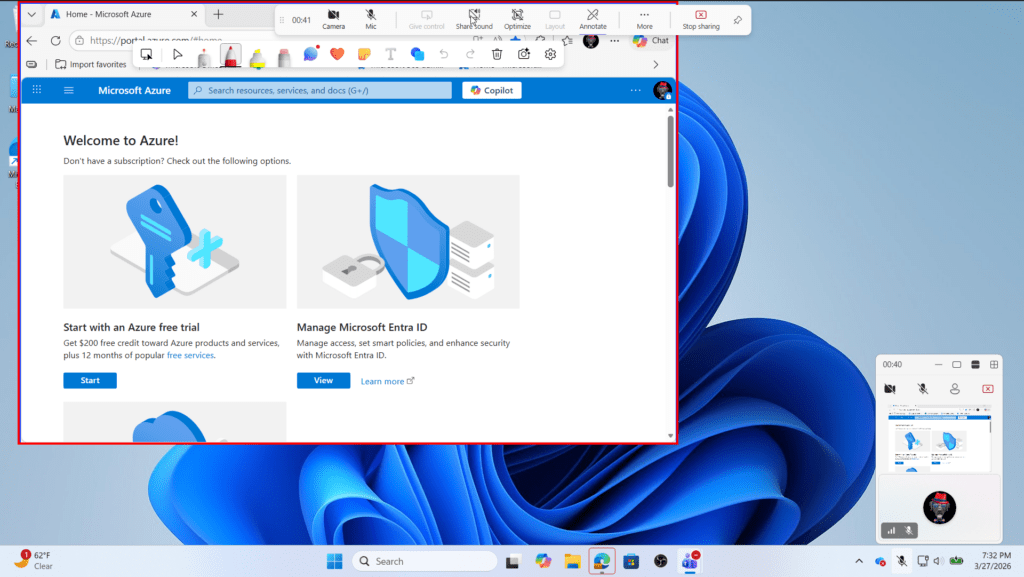
Starting March 2026, presenters can now share a single application window in a Teams meeting and annotate directly on it, without exposing the rest of their screen. Participants can view and contribute to those annotations from Windows, macOS, and mobile devices.
This is not just a convenience update. It is a privacy and governance improvement built on top of existing annotation capabilities in Teams.
What Is Changing With Annotations in Teams?
Teams has supported collaborative annotations for some time, but they were tied to full desktop sharing. The new capability extends this to single window sharing, which means:
- The presenter shares one application window, nothing else
- Annotations can be started from the presenter toolbar during window sharing
- Participants see and contribute to annotations on the shared window
- Background apps, notifications, and other windows remain completely private
- Annotation content follows existing Microsoft Whiteboard storage and retention behaviour
This is a direct response to customer feedback requesting more focused and privacy-preserving collaboration.
Rollout Timeline
According to Microsoft, this should be rolling out around March 2026.
| Rollout Type | Environment | Start | Expected Complete |
|---|---|---|---|
| Targeted Release | Worldwide | Early March 2026 | Mid-March 2026 |
| General Availability | Worldwide | Mid-March 2026 | Late March 2026 |
How to Enable and Manage Annotations in Teams
Default Behaviour
The feature is enabled by default and requires no admin configuration. As the rollout reaches your tenant, presenters on the Teams desktop app for Windows will automatically have access to annotations during single window sharing.
Admin Controls
While no action is required, admins can manage the collaborative annotations policy using the Teams admin center or PowerShell.
Teams Admin Center:
- Sign in to the Teams admin center
- Go to Meetings and select Meeting policies
- Select the policy you want to edit
- Scroll to the Content sharing section
- Ensure Whiteboard is enabled (annotations require Whiteboard to be on)
- Enable Collaborative annotations
- Select Save
PowerShell:
To enable collaborative annotations via PowerShell:
powershell
Set-CsTeamsMeetingPolicy -Identity Global -AllowCollaborativeAnnotations $trueTo disable annotations for a specific policy:
powershell
Set-CsTeamsMeetingPolicy -Identity "RestrictedAnnotations" -AllowCollaborativeAnnotations $falseNote: The AllowCollaborativeAnnotations parameter requires AllowWhiteboard to also be set to $true.
Platform Support
| Role | Windows | macOS | Mobile |
|---|---|---|---|
| Presenter (start annotations) | Yes | No (not yet) | No |
| Participant (view and annotate) | Yes | Yes | Yes |
Presenter support is currently limited to Windows. If you have presenters on Mac, they cannot initiate annotations during window sharing. Participants on all platforms can still contribute once a presenter starts the session.
Admin Tips
Communicate before the feature lands. The rollout completes in late March 2026. Send a short note to your helpdesk and end users about the new annotation capability during window sharing, so they know it is there and how to use it.
Update your training materials. If your organisation has internal guidance on Teams screen sharing, now is a good time to update it. The single window sharing option is the safer default for most presentations.
Ensure presenters are on a supported Teams version. The feature requires the Microsoft Teams desktop app on Windows. Remind presenters to keep their Teams client up to date.
Annotation storage follows Whiteboard behaviour. Content annotated during a session is stored and retained following existing Microsoft Whiteboard policies. If your organisation has Whiteboard retention settings configured, those apply here as well.
No compliance considerations identified. Microsoft has not flagged any compliance impact for this feature. Review as appropriate for your organisation.
License Requirements
Microsoft Teams annotations on single window sharing are available as part of the Teams meeting experience. Most Microsoft 365 commercial plans include Teams, such as Microsoft 365 Business Basic, Business Standard, Business Premium, E3, and E5.
For a full list of plans that include Microsoft Teams, see Manage meeting policies for content sharing.
For user-facing guidance on how to use annotations during screen sharing, see Use annotation while sharing your screen in Microsoft Teams.
The Paul-Take
Full desktop sharing has always been a risk, and most people have accepted that risk as the default because there was no better option.
Now there is.
Sharing a single application window with annotation support is exactly the right approach for most meetings. The presenter stays focused on the content, the audience sees only what they need to see, and the collaboration layer is still fully there. Nobody’s inbox, taskbar, or browser history ends up on the screen by accident.
The one thing worth flagging is the Windows-only presenter limitation. If you manage a mixed environment where some presenters use Mac, they will not be able to initiate annotations during single window sharing yet. That is worth communicating proactively so your Mac users are not confused when they cannot find the feature.
Overall, this is a solid update. Simple to deploy, zero admin effort, and a genuine improvement to how people share content in meetings.
MVP Reference List
| Item | Detail |
|---|---|
| Roadmap ID | 555239 |
| Manage meeting policies for content sharing | https://learn.microsoft.com/microsoftteams/meeting-policies-content-sharing |
| Use annotation while sharing your screen in Teams | https://support.microsoft.com/office/use-annotation-while-sharing-your-screen-in-microsoft-teams-876ba527-7112-437e-b410-5aec7363c473 |
Pingback: New Teams Meeting Controls: A Smarter Share Panel