
Microsoft is introducing a new Microsoft 365 Copilot co-branding capability that lets organizations display their company logo as a branded footer at the bottom of the Chat screen in the Copilot app. The goal is simple: help users confirm they are in a trusted, organization-managed environment, not just any AI tool.
According to Microsoft, this should be rolling out around late March to April 2026.
In this post I’ll cover what the feature does, how admins can enable it, and whether it’s actually worth your time.
What Is the Microsoft 365 Copilot Co-Branding Footer?
The co-branding feature adds a footer to the Chat screen in the Microsoft 365 Copilot app. That footer displays an ‘Approved by [Logo]’ indicator using your organization’s logo, pulled from your existing Microsoft 365 theme configuration in the admin center.
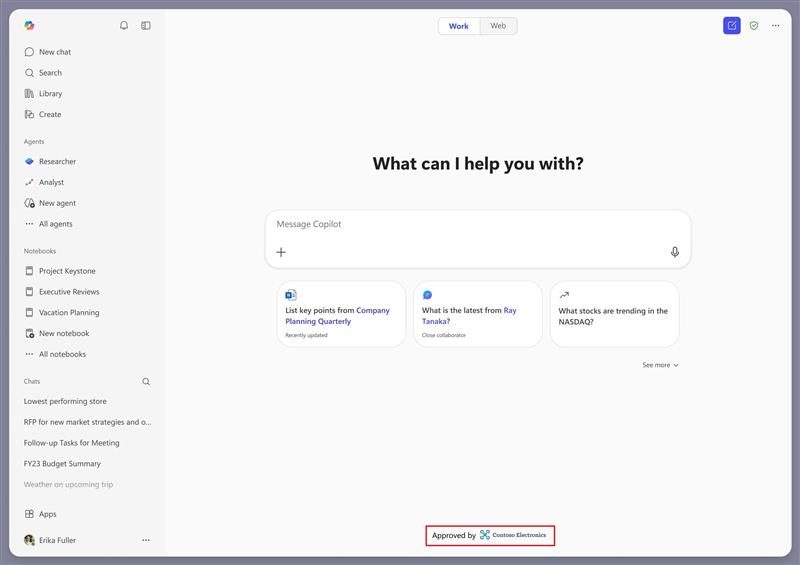
A few key details to know upfront:
- The feature is off by default. No users see anything until an admin enables it.
- Only the logo from your organization’s theme configuration is used. Other theme elements like colors or fonts are not applied in this release.
- Configuration happens through the existing Microsoft 365 admin center theme management flow, so there is no new admin interface to learn.
Why Microsoft Is Doing This
Copilot adoption is not just a technology challenge, it’s a trust challenge. Employees using a new AI assistant often want to know: is this the right tool? Is this what IT actually set up for me? Is this safe?
A branded footer is a simple answer to those questions. It signals ‘yes, this is your company’s approved Copilot environment’ without requiring any action from the user. For organizations in the middle of a Copilot rollout, that kind of visual confirmation can make a real difference in how quickly users build confidence.
Rollout Timeline
According to Microsoft, this should be rolling out around late March to April 2026.
| Phase | Region | Start | Expected Completion |
|---|---|---|---|
| General Availability | Worldwide | Late March 2026 | Late April 2026 |
There is no separate Preview phase for this feature. It rolls out directly to General Availability.
This feature is associated with Microsoft 365 Roadmap ID 555852.
Who Is Affected?
All Microsoft 365 tenants using the Microsoft 365 Copilot app are in scope. Because the feature is off by default, there is no immediate user impact. Only tenants where an admin actively enables the feature will see the branded footer.
How to Enable the Microsoft 365 Copilot Co-Branding Footer
Step-by-Step: Microsoft 365 Admin Center
Microsoft has confirmed that the existing theme management flow in the Microsoft 365 admin center is used to enable this feature. Here is how to prepare and configure it.
Before rollout reaches your tenant:
- Go to the Microsoft 365 admin center
- Navigate to Settings > Org settings > Organization profile
- Select Custom themes and review your current theme configuration
- Check that your organization’s logo is uploaded, high resolution, and looks good on a light background
- Make any logo updates now so you are ready when the feature becomes available
Once the feature has rolled out to your tenant:
- Return to the theme management section in the admin center
- Use the existing theme management flow to apply the co-branding to the Microsoft 365 Copilot app footer
For full configuration guidance, refer to the official Microsoft Learn article: Customize the theme for your organization | Microsoft 365
What About PowerShell?
At the time of writing, Microsoft has not announced PowerShell support for this specific feature. Configuration is expected to happen through the Microsoft 365 admin center only. Check the Microsoft Learn article above for updates as the rollout progresses.
Admin Tips
Check your logo before the rollout hits. The footer uses the logo from your existing theme configuration. If that logo is outdated, low resolution, or doesn’t display well on a light background, now is the time to update it. A bad-looking logo in the Copilot app is worse than no logo.
Use this as an adoption communication moment. When you enable the footer, send users a short internal message explaining what they will see and what it means. ‘You’ll notice our company logo at the bottom of your Copilot screen. This confirms you’re using [Company]’s approved, secure Copilot environment.’ Simple and effective.
Off by default means no urgency. This feature requires active admin configuration. If you decide not to enable it right now, nothing changes for your users. You can always come back to it later.
Only the logo is used. Other elements from your Microsoft 365 theme, like custom colors or fonts, are not applied to the Copilot app in this release. This keeps the scope manageable and reduces the risk of unintended visual changes.
License Requirements
The Microsoft 365 Copilot co-branding footer is available to all Microsoft 365 tenants using the Microsoft 365 Copilot app. Users need a Microsoft 365 Copilot license to access the Copilot app where the footer appears. There are no additional license requirements to configure the co-branding feature itself. No compliance considerations have been identified by Microsoft for this feature.
The Paul-Take
Let me be direct: this is not the most exciting feature Microsoft has shipped for Copilot. But it might be one of the smarter ones for organizations that are still in the middle of their Copilot rollout.
The biggest barrier to Copilot adoption I see with my clients is not technical. It’s trust. Users are uncertain. They are not sure this is really what IT approved. They are not sure this is secure. They are not sure they are in the right place.
A company logo in the footer does not solve all of that. But it does provide a visual signal that someone in their organization has set this up deliberately and approved it. For users who are already on board with Copilot, it won’t matter much. For the cautious ones, the ones still on the fence, it can be the small reassurance that tips them toward actually using it.
My advice: enable it when it rolls out, make sure your logo is clean and up to date, and treat the rollout as a communication opportunity. It’s a small feature. But small features done well are part of what makes a Copilot deployment feel professional and trustworthy rather than just switched on and left alone.
MVP Reference List
- Microsoft 365 Roadmap ID: 555852
- Microsoft Learn: Customize the theme for your organization
- Microsoft 365 admin center: https://admin.microsoft.com