
Copilot Notebooks features just got a major upgrade, and if you’re supporting Microsoft 365 Copilot in your organisation, this is one rollout you want to get ahead of.
Microsoft is releasing 7 new capabilities inside Copilot Notebooks, ranging from SharePoint grounding and Study Guides to mind maps and document agents. These Copilot Notebooks features are rolling out to Frontier Public tenants from late March 2026, with General Availability from early April through May 2026.
This post walks you through everything: what’s new, when it arrives, what your users will be able to do, what IT needs to know, and my honest take on what actually matters.
Subscribe and get the free checklist for Copilot here
What Are Copilot Notebooks features?
Copilot Notebooks is the AI-powered workspace inside Microsoft 365 where users can gather chat history, files, pages, and references, and get Copilot answers grounded in that content. Think of it as a focused, scoped workspace for a specific project, topic, or team.
Until now, the experience was solid but limited. You could chat, add references, and get answers. Useful, but not a full workflow tool.
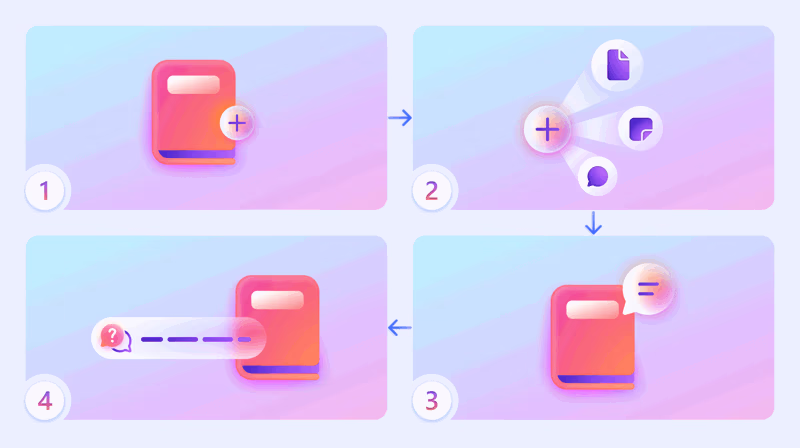
These new Copilot Notebooks features change that. The notebook is becoming a hub where users can generate documents, build presentations, create visual learning maps, and share context with entire groups, all without leaving the notebook.
The 7 New Copilot Notebooks Features Explained
1. Chat and Page Interactivity
Users can now edit existing pages or create new ones in a notebook directly through chat. Instead of switching between the chat panel and the page editor, Copilot does the editing inline.
This is especially useful for knowledge workers who want to build structured notes from a Copilot conversation, without copy-pasting.
2. Study Guide
The Study Guide feature auto-generates quizzes, flashcards, topic summary pages, and other learning tools based on the content inside your notebook.
This is one of the most interesting Copilot Notebooks features for L&D teams, onboarding workflows, and anyone using notebooks for research or training preparation.
3. SharePoint Sites and Folders Grounding
Users can add SharePoint sites and folders as references in a notebook. Copilot then uses that SharePoint content when reasoning and generating responses inside the notebook.
This is a big one. It means users no longer have to upload files manually or paste context in. If the relevant content lives in SharePoint, Copilot can work from it directly.
4. PowerPoint Agent in Copilot Notebooks
Users can generate a PowerPoint presentation from their notebook content and connected references in a few clicks. No copy-pasting slides. Copilot builds the deck from the notebook’s grounded content.
5. Word Agent in Copilot Notebooks
Same principle as the PowerPoint agent, but for Word documents. Users select their notebook and trigger the Word agent, and Copilot drafts a document structured around the notebook content.
6. Sharing to Microsoft 365 Modern Groups
Notebooks can now be shared directly with Microsoft 365 Modern Groups, which means distribution lists, Teams-connected groups, and SharePoint group memberships all become valid sharing targets.
This makes it much easier to collaborate on notebooks at team or department level.
7. Mind Maps
Mind maps are a new interactive visual artifact inside Copilot Notebooks. Copilot generates a visual map of the key topics, themes, and relationships found across your notebook content. Users can click into nodes, read summaries, and use the notebook chat to explore further.
One important note: in Frontier Public, generated mind maps are stored for 30 days and are private to the creator only, even in shared notebooks. Support for sharing and permanent storage will be added before General Availability.
Rollout Timeline
| Feature | Frontier Public | General Availability |
|---|---|---|
| Chat and Page Interactivity | Late March 2026 | Mid-April 2026 |
| Study Guide | Late March 2026 | Late April 2026 |
| SharePoint Grounding | Late March 2026 | Early April 2026 |
| PowerPoint Agent | Late March 2026 | May 2026 |
| Word Agent | Late March 2026 | May 2026 |
| Sharing to M365 Modern Groups | Late March 2026 | April 2026 |
| Mind Maps | Late March 2026 | Early May 2026 |
According to Microsoft, these Copilot Notebooks features should be rolling out from early April 2026 through early May 2026.
How to Use the New Copilot Notebooks Features
Getting Started
- Open the Microsoft 365 app or OneNote on Windows
- Go to m365.cloud.microsoft/notebooks or navigate to Notebooks in the app menu
- Open an existing notebook or create a new one
- You’ll see new options appearing in the toolbar and chat panel as features roll out to your tenant
Adding SharePoint Grounding
- Open a Copilot Notebook
- Click ‘Add references’ in the notebook panel
- Select ‘SharePoint site or folder’
- Browse or search for the SharePoint location you want to ground
- Confirm, and Copilot will now use that content when reasoning inside the notebook
Generating a Study Guide
- Open a notebook with content added (files, pages, references)
- Look for the ‘Study Guide’ option in the toolbar or Copilot chat
- Copilot generates quizzes, flashcards, and topic pages automatically
- Review and edit the generated content directly in the notebook
Creating a Mind Map
- Open a notebook with grounded content
- Select ‘Mind map’ from the Copilot Notebooks features menu
- Copilot generates a visual map based on the notebook’s key themes
- Click nodes to read summaries, and use chat to explore further
Admin Tips
These Copilot Notebooks features are enabled by default and require no admin action. However, there are things you should do proactively:
- Review SharePoint access levels now. The new grounding feature means users can add SharePoint sites and folders as notebook references. If sensitive content is stored in SharePoint locations with broad access, users may reference it in notebooks shared with groups. Review permissions before the rollout completes.
- Inform your helpdesk. Seven features landing at once means support tickets. Give your helpdesk team a heads-up and a brief summary of what’s new.
- Update adoption and training materials. If you have Copilot adoption materials, onboarding guides, or internal wikis covering Copilot Notebooks, update them before GA.
- Monitor mind map usage in Frontier Public. Mind maps are retained for 30 days and private to the creator in Frontier Public. This behaviour changes before GA. Make sure users understand this early.
- No policy controls are mentioned in the MC for disabling individual Copilot Notebooks features. If you need to restrict usage, use existing Copilot admin controls and SharePoint permission policies.
License Requirements
To use any of these Copilot Notebooks features, users need a Microsoft 365 Copilot license. Additionally, users need a SharePoint or OneDrive license (service plan) to create and use notebooks.
No additional licensing is required for the new features themselves. If a user already has Microsoft 365 Copilot, all 7 features will become available on their rollout schedule.
The Paul-Take
This is Copilot Notebooks growing up.
When Notebooks first launched, it was a promising concept that felt a bit undercooked. You could chat, you could add references, and you got grounded answers. Useful, but not a real workflow tool.
These Copilot Notebooks features change the picture substantially. The combination of SharePoint grounding, Word and PowerPoint agents, Study Guides, and mind maps turns the notebook from a ‘better Copilot chat window’ into something closer to a project intelligence hub.
The SharePoint grounding is the one I’m watching most closely. If it works reliably and respects permissions correctly, it solves one of the biggest daily frustrations for knowledge workers: having to manually feed context into every Copilot interaction. That said, it also introduces real governance risk. The moment users can point Copilot at a SharePoint folder and share that notebook with an M365 Group, sensitive content can surface in unexpected places. IT teams that have not done a permissions review recently need to do one before this rolls out broadly.
The Study Guide and mind map features are genuinely interesting for L&D and onboarding use cases. I’d like to see how they hold up with dense, technical content versus more general materials.
Overall: this is a rollout worth paying attention to. Not because of the hype, but because the Copilot Notebooks features here address real friction points. Get your SharePoint access controls in order, brief your helpdesk, and start thinking about where notebooks fit in your Copilot adoption strategy.
Pingback: Copilot Notebooks Excel: Finally Generate Spreadsheets Faster
Pingback: Copilot Notebooks: The Smart New Way to Organize Work