
Teams Channel Agent is getting a serious upgrade, and if your organization uses Microsoft Teams channels for project work, this update is worth understanding before it arrives in your tenant.
Microsoft is rolling out five new capabilities for Teams Channel Agent as part of Roadmap ID 557555. The changes range from improved onboarding behavior to new actions the agent can take inside your channels. Some of them are useful. One of them deserves a closer look from your governance team.
This post covers what is changing, what Teams Channel Agent can already do, how to enable it, and what admins should do before this lands.
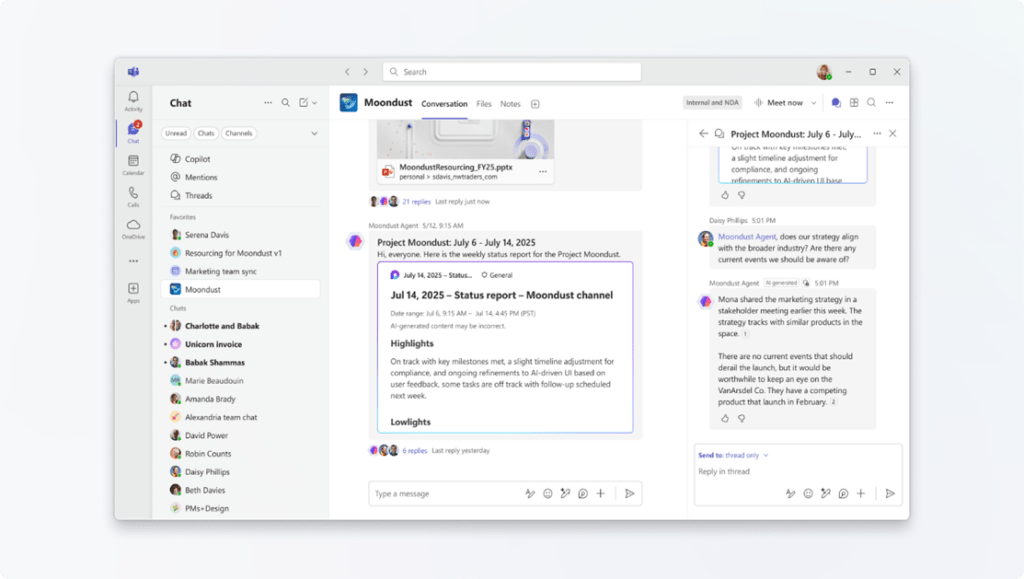
Teams Channel Agent answering a question about strategy and current events inside a Teams channel. Image: Microsoft.
What Is Teams Channel Agent?
Teams Channel Agent is a dedicated AI assistant that lives inside a Teams channel. It is not a generic chatbot. It is scoped to your channel, uses the channel’s name, and has access to your channel conversations, Planner boards, meeting transcripts, and files.
Four core things Teams Channel Agent can do today:
It generates structured Loop-based status reports from channel and meeting activity, so teams spend less time writing updates. It answers questions using channel data, Planner boards, and web search, which makes it useful for anyone who joins a project late and needs context. It captures and tracks tasks in Planner with action item updates from meetings. And it drafts and schedules channel meetings based on what users ask it to do.
Channel Agent requires Teams Public Preview to be enabled in your tenant. If you are not sure whether your users have access to preview features, this post on Microsoft Teams Public Preview walks through how to enable it via update policies in the Teams Admin Center.
By default, Teams Channel Agent is automatically created for every new Teams channel when an eligible user sets it up. That default behavior is exactly what one of the five new updates addresses.
What’s New: Five Updates to Teams Channel Agent
How Teams Channel Agent Now Welcomes Users
Previously, Teams Channel Agent appeared in a new channel with a standard welcome message that did not tell users much about how the agent related to their actual project. Now, Teams Channel Agent generates a customized welcome message based on the channel’s own context, which reduces the ‘what is this thing doing here’ confusion for users who did not ask for it.
This is a small but practical improvement. When Teams Channel Agent explains itself in terms of the channel’s purpose, adoption goes up. Confusion goes down.
The second change in this area is bigger: users can now disable automatic Channel Agent creation during team or channel setup. Until now, Teams Channel Agent appeared automatically whether users wanted it or not. That created friction in organizations where not every project team was ready to use AI agents, or where governance required a deliberate decision to add one. This toggle gives users and admins more control from the start.
Scheduling suggestions have also been improved. Teams Channel Agent now uses updated calendar logic when drafting meeting proposals, which means fewer cases where the suggested time clashes with obvious blocks.
New Actions Teams Channel Agent Can Take
The two most significant updates are about what Teams Channel Agent can actually do, not just say.
Users can now ask Teams Channel Agent to add members to a channel using a natural language prompt. The example Microsoft gives is ‘@agent add John Doe to this channel.’ The agent reads the request, identifies the user, and performs the action. This is a shift from Teams Channel Agent as a question-answering tool to Teams Channel Agent as an actor inside your environment.
The second action update: Teams Channel Agent can now post messages directly into a channel. This makes it possible for the agent to surface information proactively, not just wait to be asked.
If your organization manages Teams permissions carefully, it is worth revisiting how you handle consent and app permissions before these agent actions land. This post on consent in Microsoft Teams covers the two main approaches and is a good starting point.
Both of these are useful. Both of them also need to be on your helpdesk’s radar before they land.
How to Enable Teams Channel Agent in Your Tenant
Enabling Teams Channel Agent for your organization is done through the Teams Admin Center.
Step 1: Sign in to the Teams Admin Center at admin.teams.microsoft.com.
Step 2: Go to Teams apps and select Manage apps in the left navigation.
Step 3: Search for ‘Channel Agent’ in the app list.
Step 4: Select it from the results and use the Actions menu to choose Allow or Block.
Step 5: To manage the auto-creation behavior, go to Teams apps and select Agent settings. From there you can toggle automatic Channel Agent creation on or off for your tenant and save the change.
For users adding the agent directly inside a channel, the flow looks like this:
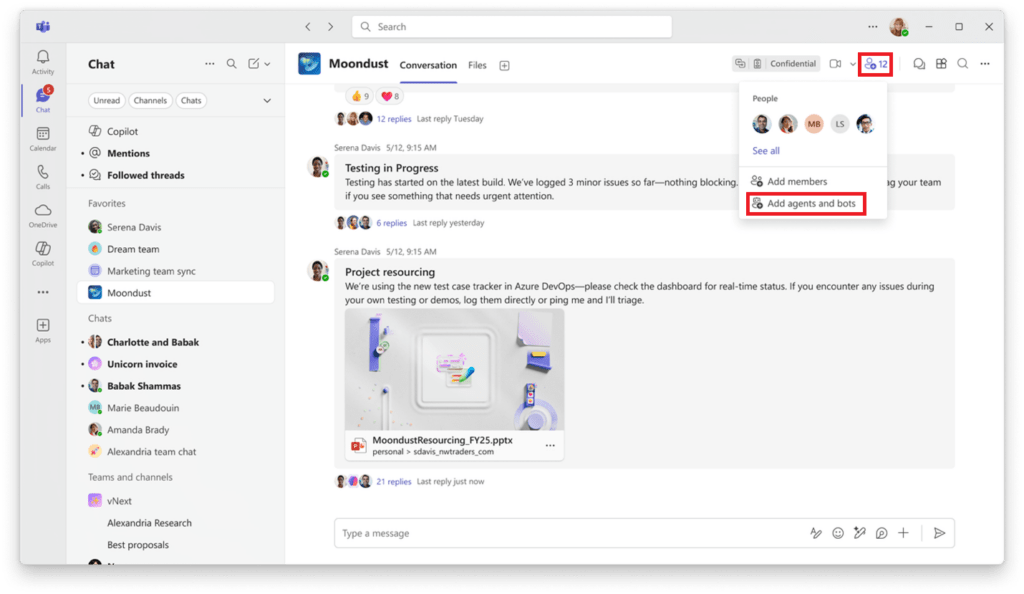
The ‘Add people, agents, and bots’ button in the top-right corner of a Teams channel. Image: Microsoft.
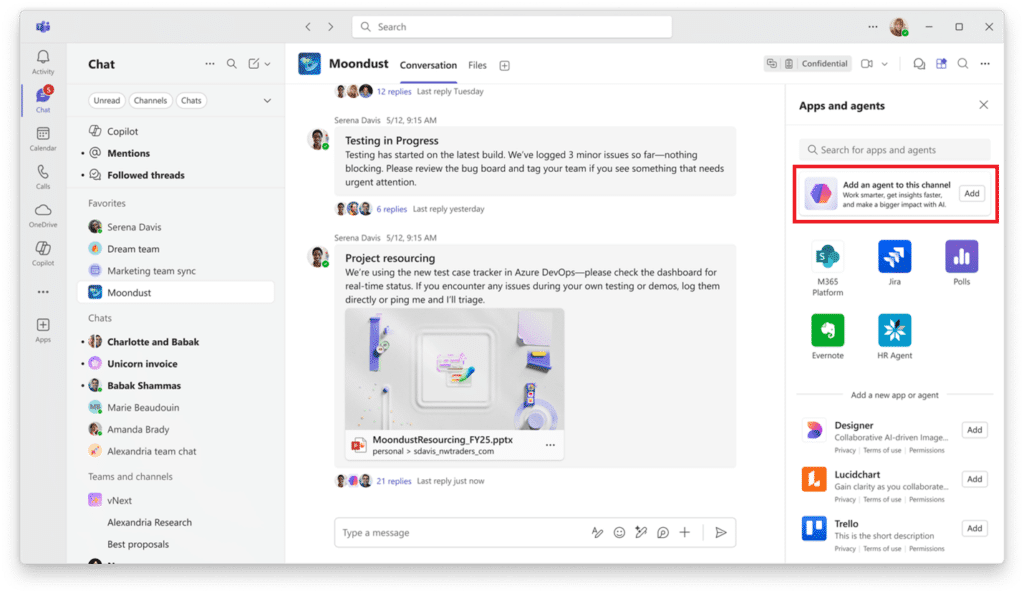
Selecting ‘Add an agent to this channel’ from the right-hand panel. Image: Microsoft.
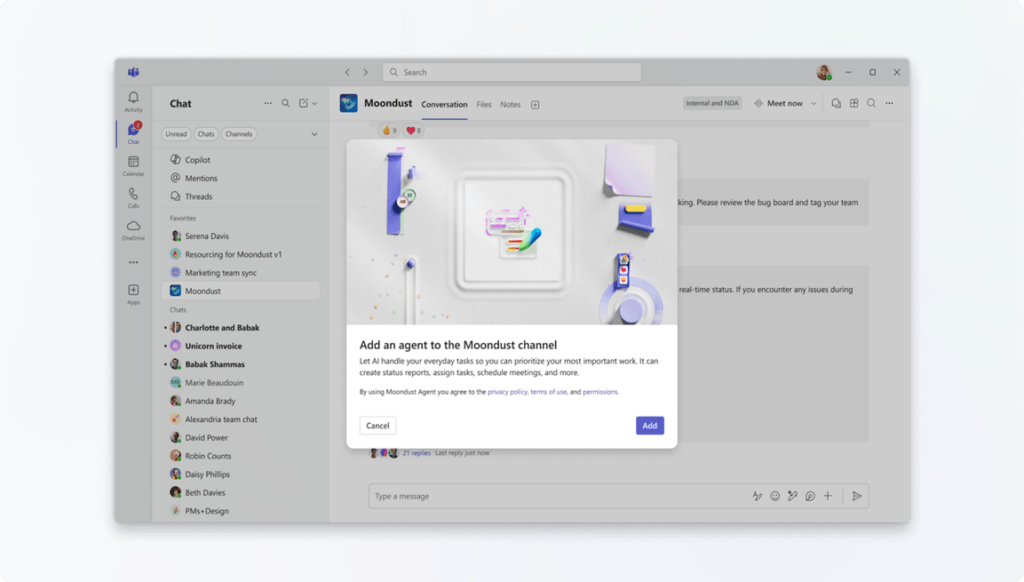
The confirmation pop-up to add Teams Channel Agent to a channel. Image: Microsoft.
Rollout Timeline for Teams Channel Agent
| Ring | Timing |
|---|---|
| Targeted Release | Rolling out early March 2026, completing mid-April 2026 |
| General Availability | Not yet announced |
According to Microsoft, Teams Channel Agent updates should be rolling out and completing around mid-April 2026 for Targeted Release tenants. No General Availability date has been confirmed.
If your organization is not opted into Targeted Release, no action is required right now. Use this time to review your Channel Agent settings and prepare your helpdesk.
Admin Tips for Teams Channel Agent
There are a few things worth doing before this update reaches your users.
Check your auto-creation setting in the Teams Admin Center now, under Teams apps and Agent settings. Decide whether automatic Channel Agent creation aligns with your governance stance. If you want users to make a conscious choice about adding an agent, turn auto-creation off. If you want frictionless adoption, leave it on.
Brief your helpdesk on the five new behaviors, especially the member-add feature. When users discover that they can ask an agent to add someone to a channel, your helpdesk will get questions. Get ahead of it.
Review your channel membership governance policies. Teams Channel Agent performing member additions is an admin-like action. If your organization uses sensitivity labels, conditional access, or strict membership rules on certain channels, understand how the agent’s actions interact with those policies before they are live.
Make sure M365 Copilot licenses are assigned to the users who will be interacting with Teams Channel Agent. Users without a license can view agent output but cannot interact with the agent directly.
License Requirements for Teams Channel Agent
To create, interact with, and manage Teams Channel Agent, users need:
A Microsoft 365 Copilot subscription assigned to their account. Membership in the channel where the agent was created. Permission from an IT admin to use apps in Teams.
Users without a Microsoft 365 Copilot license can see the agent’s output and generated content but cannot ask it questions or trigger any of its actions.
The Paul-Take on Teams Channel Agent
The five updates are mostly good news. The welcome message improvement is overdue. The auto-creation toggle is something organizations have been asking for since Channel Agent launched. Better scheduling logic is common sense.
The two I am watching are the member-add and the direct channel posting capabilities.
Channel Agent adding members to a channel on a user’s request is useful. It is also an admin-level action being delegated to an AI that responds to natural language. In a well-governed tenant this might be fine. In a tenant where channel membership controls are part of your information protection strategy, you need to understand the exact flow before this goes live. Who can ask the agent? What does it check before adding someone? Does it respect sensitivity labels on restricted channels?
Direct channel posting is similarly useful and similarly worth thinking through. An agent that proactively posts into your channel changes the dynamic of how information flows. Make sure users understand they are not reading a message from a colleague.
Neither of these is a reason to block the feature. They are reasons to have a conversation with your governance team and your helpdesk before mid-April.
MVP Reference List
MC Number: [add MC number before publishing] Roadmap ID: 557555 Microsoft Learn: Set up a Channel Agent for Microsoft Teams Microsoft Support: Get started with Channel Agent for Teams channels Microsoft Blog: Introducing Channel Agent in Teams
Pingback: Teams Bot Detection: The Smart New Way to Secure Meetings
Pingback: Teams Workflow Command: The Smart New Way to Automate