
Built-in Teams agents have always sat in an awkward spot for administrators, governed by app settings that were never really designed for them. Microsoft is finally fixing that with a dedicated governance experience in the Teams admin center, and if you manage Teams apps for your tenant, this is a change you want to understand before it lands in July 2026.
This update is tied to Microsoft 365 Roadmap ID 564766.
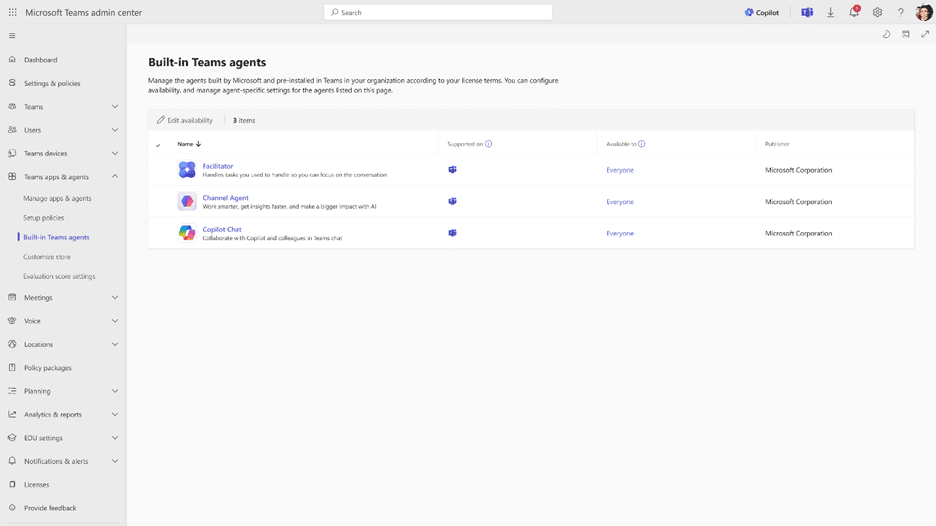
What is changing for built-in Teams agents
Microsoft is introducing a new governance surface that lets admins manage built-in Teams agents in a dedicated, centralized location. These agents, including Channel Agent, Facilitator and Copilot Agent, are integrated directly into the core Teams experience. They do not require installation from the app store, which is exactly why governing them alongside traditional apps never felt right.
The new experience separates built-in agent governance from traditional apps and brings it into a single management surface. The why here is straightforward: more precise policy management, and AI governance that holds up at enterprise scale.
You will find the new experience at:
Teams admin center > Teams apps > Built-in Teams agents
Why a dedicated home for built-in Teams agents matters
Until now, built-in agents were swept into the Org-wide app setting for Microsoft apps. That is a blunt instrument. It treats a baked-in meeting facilitator the same as a third-party app someone sideloaded. The result was limited clarity and very little granularity.
With the dedicated surface, admins gain real control:
- Allow or block individual agents. Turn Facilitator on while holding Channel Agent back, instead of an all-or-nothing org-wide toggle.
- Assign access to specific users or groups. This implies Entra ID group-based control, so you can pilot with a single department before tenant-wide enablement.
- Configure agent-specific settings. Each agent gets its own controls in one consistent place.
Crucially, built-in Teams agents will no longer be governed by the Org-wide app setting for Microsoft apps. Existing agent-level configurations remain unchanged after rollout, so nothing breaks on day one.
How to manage built-in Teams agents in the Teams admin center
The feature is available by default as part of the updated admin experience, so there is no toggle to switch on. Here is the practical flow once it arrives:
- Open the Teams admin center and go to Teams apps > Built-in Teams agents.
- Review the list of built-in agents (Channel Agent, Facilitator, Copilot Agent).
- Set each agent to allowed or blocked based on your policy.
- Assign access to the specific users or groups that should have each agent.
- Open an individual agent to configure its agent-specific settings.
Admin tips for built-in Teams agents
A few things worth doing before and during rollout:
- Audit your current Org-wide app setting for Microsoft apps now, because it will stop applying to built-in Teams agents.
- Map each agent to an Entra ID group so access assignment is clean rather than per-user.
- Decide your default posture per agent before July, not in the middle of a support ticket.
- Brief your helpdesk so they know where these controls now live.
Compliance and reporting impact
For compliance teams, this is a genuine improvement. Admins gain a new, dedicated governance surface for built-in Teams agents, which improves visibility and management granularity. Because access can be assigned to specific users or groups, control through Entra ID group membership is on the table. And because admins can allow or block individual agents, you effectively get per-agent enable and disable behaviour, which is far easier to demonstrate in an audit than a single org-wide flag.
If your organisation already separated agent governance from app governance, you are ahead of the curve. If not, this is the moment to formalise it. For context on one of these agents, see our earlier piece on the Teams Channel Agent and its new features, and for how Microsoft is shipping built-in agents more broadly, our write-up on the Learning Agent in Copilot reaching general availability is a useful companion.
Licensing
This is an administrative governance change in the Teams admin center, so there is no new licence to buy to get the management surface itself. Built-in agents such as Copilot Agent still depend on the relevant Microsoft 365 Copilot licensing where that agent requires it. Nothing here changes the underlying licensing model for the agents themselves.
Rollout timing
| Phase | Audience | Timing |
|---|---|---|
| General Availability | Worldwide, GCC | Early July 2026 through mid-July 2026 |
There is no separate Preview phase published for this change. According to Microsoft, this should be rolling out around early to mid July 2026.
The Paul-Take
I like this change, and I have wanted it for a while. Treating built-in Teams agents like sideloaded apps was always a fudge. Giving them their own surface with per-agent allow and block, group-based access, and proper settings is the grown-up version of agent governance.
But here is the part that will catch teams out. The moment these agents leave the Org-wide app setting for Microsoft apps, any assumption that ‘our app policy covers the AI’ quietly becomes false. Your existing config carries over, so it feels like nothing happened. Then someone asks in an audit how Facilitator is governed, and your documentation still points at a setting that no longer applies. That is not a technical failure, it is a paperwork failure, and those are the ones that bite.
No action is required before rollout. But the smart move is to review your org-wide app settings, confirm your per-agent posture, and update the runbook line that references Teams app governance. Do it in June. Future-you will not want to do it live in July.
MVP Reference List
- Microsoft 365 Roadmap ID 564766: https://www.microsoft.com/en-us/microsoft-365/roadmap?id=564766
- Facilitator in Microsoft Teams meetings: https://support.microsoft.com/teams/copilot/facilitator-in-microsoft-teams-meetings
- Get started with Channel Agent for Teams channels: https://support.microsoft.com/office/get-started-with-channel-agent-for-teams-channels-b85945cf-deef-4f1e-9db1-66e1a23b6a65
- How to use Microsoft 365 Copilot in Teams group chats: https://support.microsoft.com/office/how-to-use-microsoft-365-copilot-in-teams-group-chats-2c613de4-cd26-4ae3-9e4b-6905d745d991