
If you manage Data Loss Prevention policies for SharePoint in Microsoft Purview, you know the problem. Every time a new site gets created, you have to go back into your DLP policy, find the site list, add the new site, and save. Every time a site is renamed or restructured, same story. It is manual, it is repetitive, and it is exactly the kind of work that creates gaps in your compliance posture when someone forgets.
Microsoft Purview is now fixing this with adaptive scopes for SharePoint DLP, which lets you target SharePoint sites dynamically based on attributes instead of maintaining static lists. This is a meaningful improvement for any organisation running DLP at scale.
What Are Adaptive Scopes for SharePoint DLP?
Adaptive scopes for SharePoint DLP allow you to define criteria based on SharePoint site attributes, such as site URL, site name, or custom metadata. The scope then automatically evaluates which sites match those criteria and keeps itself updated as your environment changes.
A new site gets created that matches your criteria? It is automatically included. A site gets renamed and no longer matches? It falls out. You do not have to do anything.
This is already how adaptive scopes work in Microsoft Purview for retention policies. Now the same capability is available specifically for SharePoint DLP.
Why This Matters for Admins
The shift from static to adaptive scopes changes how you think about DLP management:
Scale without extra effort. Static lists require constant maintenance as your SharePoint environment grows. Adaptive scopes grow with you automatically.
Fewer gaps in coverage. New sites are protected from the moment they are created, as long as they match your scope criteria. There is no lag between site creation and DLP coverage.
Simpler governance. Your DLP policy logic lives in the scope definition, not in an ever-growing list of URLs. That makes policies easier to audit, explain, and hand over to someone else.
Consistent coverage across restructures. When your SharePoint environment changes, your DLP coverage changes with it, without anyone needing to remember to update a list.
Who Is Affected
This update is relevant for IT admins and compliance officers who manage DLP policies for SharePoint in Microsoft Purview. If you currently use static site lists in your SharePoint DLP policies, this feature gives you a better approach.
There is no impact on end users or their day-to-day workflows in SharePoint.
Licensing Requirements
To use adaptive scopes for SharePoint DLP, your tenant needs one of the following:
- Microsoft 365 E5
- Microsoft 365 E5 Compliance
Rollout Timeline
According to Microsoft, this should be rolling out on the following schedule:
| Phase | Start | Expected Completion |
|---|---|---|
| Public Preview | Early February 2026 | Late February 2026 |
| General Availability (Worldwide) | Mid-April 2026 | Late April 2026 |
Note: The GA timeline was updated on March 17, 2026. It was previously scheduled for mid to late March 2026.
How to Set Up Adaptive Scopes for SharePoint DLP
The feature is not enabled by default. You need to create an adaptive scope and then assign it to a DLP policy. Here is how.
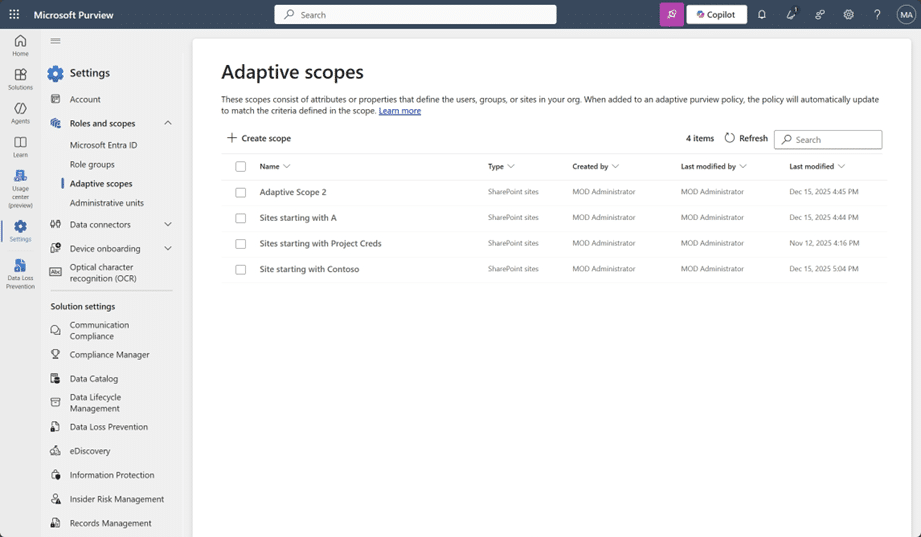
Step 1: Navigate to Adaptive Scopes
Go to the Microsoft Purview compliance portal, then Settings, then Roles and scopes, then Adaptive scopes.
Step 2: Create a New Scope
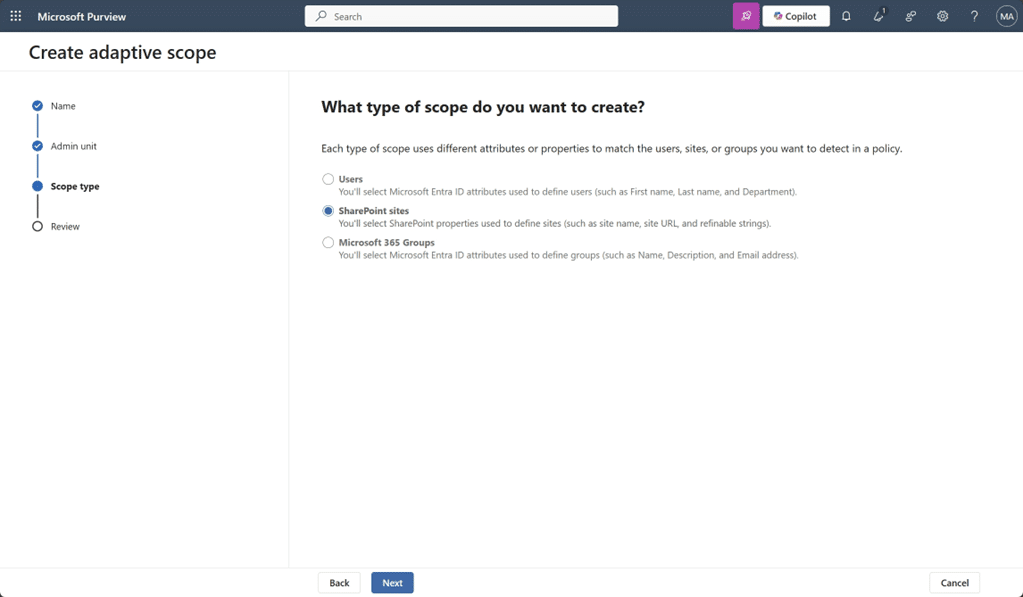
Select ‘Create scope’. Give it a clear name and description, then choose ‘SharePoint sites’ as the scope type.
Step 3: Define Your Scope Criteria
Use the query builder to set the rules for which sites should be included. You can filter on:
- Site URL (full URL or contains/starts with patterns)
- Site name
- Custom metadata fields you have defined on your sites
Take your time here. The criteria you set determine exactly which sites fall under this scope, so specificity matters.
Step 4: Review and Create
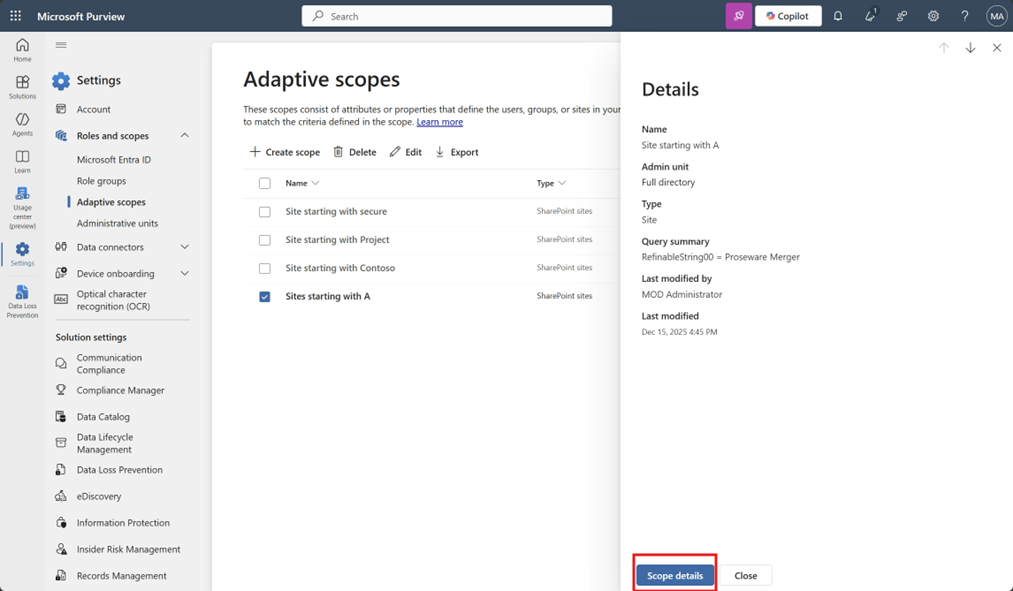
Confirm your criteria and create the scope. Purview will begin evaluating site membership automatically. You can review which sites are included in the Adaptive scopes details pane.
Step 5: Apply the Scope to a DLP Policy
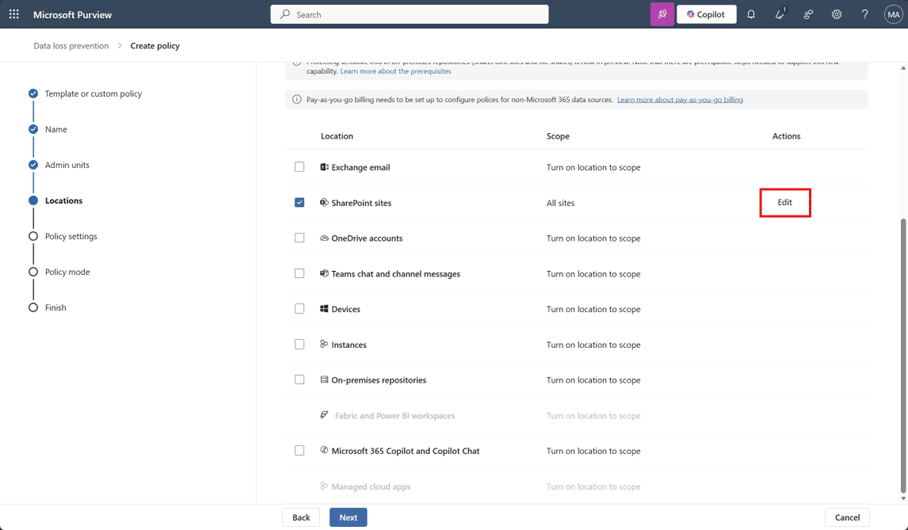
When creating or editing a SharePoint DLP policy, you will now see the option to select an adaptive scope instead of a static list.
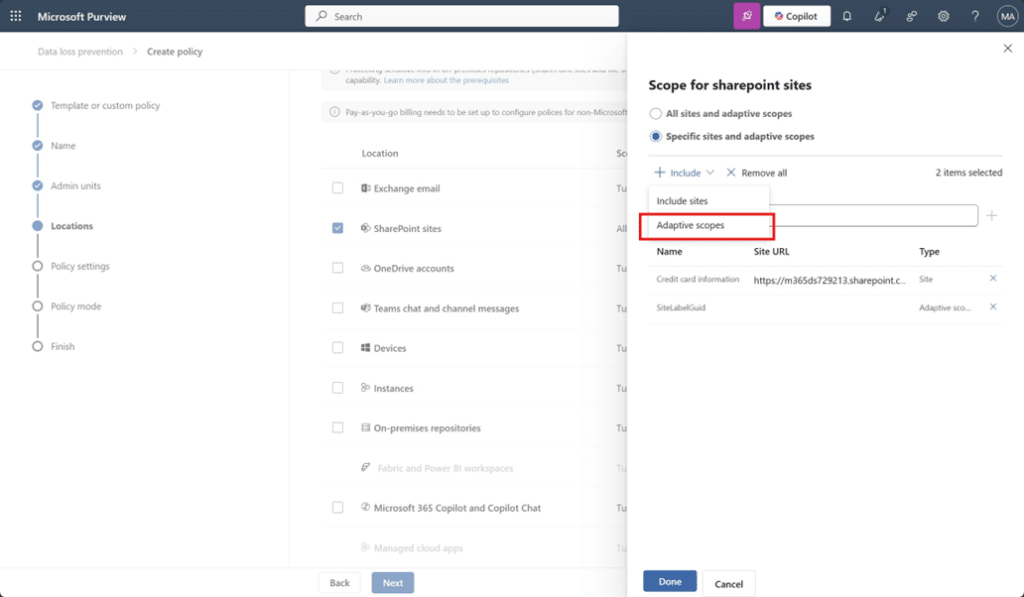
Step 6: Allow Time for Evaluation
Adaptive scopes are evaluated periodically. Changes to site attributes or the creation of new sites will be picked up, but there may be a delay before membership fully updates across your applied policies. Plan for this in any time-sensitive deployment.
Admin Tips
Start with a test scope. Before applying adaptive scopes to your production DLP policies, create a test scope targeting a small set of known sites and verify that membership looks correct.
Use specific criteria. Broad criteria mean more sites in scope, which increases the risk of unintended coverage. If your intent is to target project sites, make sure your criteria actually distinguish them from other site types.
Review scope membership regularly. Just because the scope updates automatically does not mean you never check it. Build a periodic review into your compliance programme to verify that membership still reflects your intent.
Document your scope logic. The name and description fields matter. Future admins (or future you) will need to understand what a scope is supposed to capture and why.
The Paul-Take
Adaptive scopes in Purview are not a new concept, but having them for SharePoint DLP specifically is a significant quality-of-life improvement. Static site lists are a compliance risk masquerading as a configuration choice. They work fine in small environments, but they do not scale, and they create silent gaps every time your SharePoint estate changes and nobody updates the list.
The real value here is not just time saved. It is confidence. When you use adaptive scopes, you can actually trust that your DLP coverage matches your intent, because the policy is based on rules rather than a list that someone may or may not have kept current. For any organisation running SharePoint at scale, that kind of structural reliability is worth the setup effort.
MVP Reference List
- MC Announcement: MC1234571
- Microsoft 365 Roadmap ID: 549288
- Microsoft Learn, Adaptive scopes: https://learn.microsoft.com/en-us/purview/purview-adaptive-scopes