
Copilot in Microsoft Forms is coming, and it changes how your organization designs, distributes, and analyzes surveys and quizzes. Microsoft is rolling out Copilot Chat and a new Surveys Agent directly inside the Microsoft Forms editing experience. This update is linked to Roadmap ID 553136 and targets users with an active Microsoft 365 Copilot license.
If your organization already uses Microsoft 365 Copilot, this is worth understanding before it lands in your tenant.
What Copilot in Microsoft Forms Actually Does
When the rollout completes, users will see a new Copilot icon inside the Microsoft Forms web editor. Both Copilot Chat and the Surveys Agent become available without switching tools or tabs.
AI-generated suggestions. Copilot analyzes the form and suggests improvements, rephrasing questions, reordering sections, or cutting redundancy. For anyone who has built a 40-question survey and wondered why response rates were low, this is a direct answer.
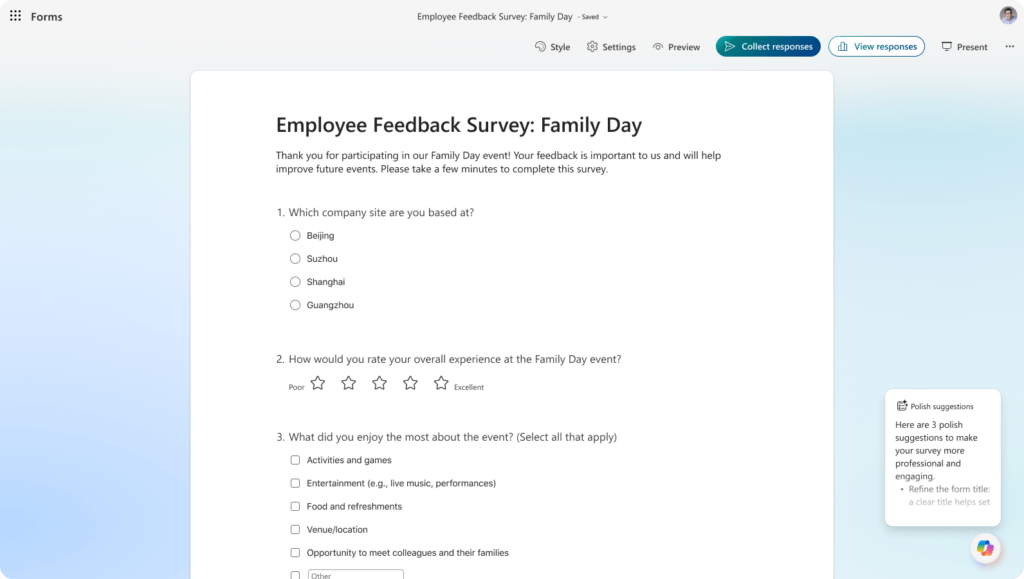
Question clarity and form structure. The Surveys Agent helps users think through what they are actually trying to measure. It guides structure so the output is usable data, not a pile of responses that still needs cleaning.
Invitation drafting. Copilot writes the message you send when distributing the form. Small thing, but it saves time and lifts the quality of communication around surveys.
Result analysis. Once responses come in, Copilot helps analyze them. Instead of exporting to Excel and building pivot tables, users can ask questions about the data directly inside Forms.
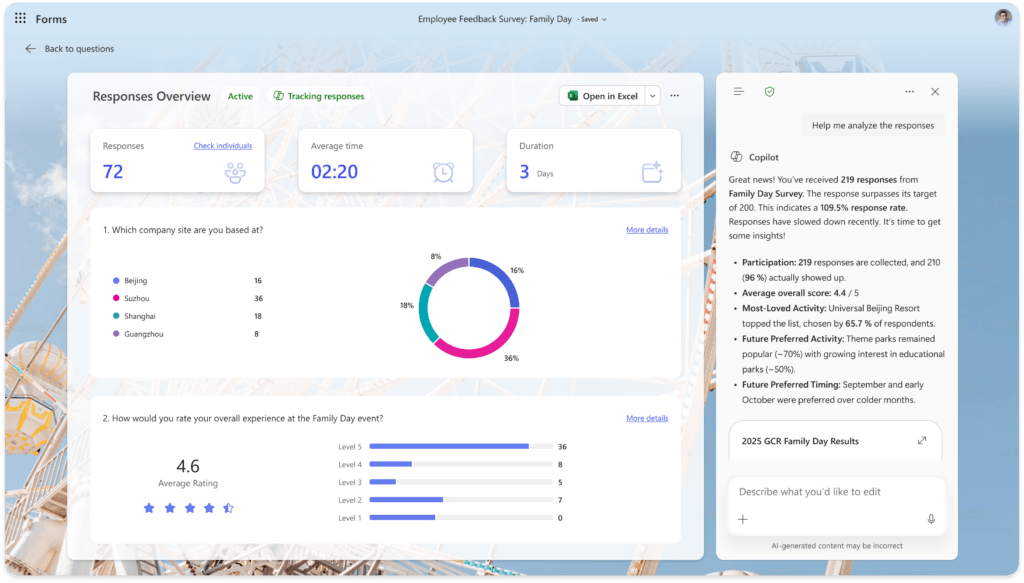
All of this happens at forms.microsoft.com. No separate app, no extra tab.
Rollout Timeline
| Phase | Region | Start | Expected Completion |
|---|---|---|---|
| General Available | Worldwide | May 2026 | End of May 2026 |
There is no Preview phase for this feature. According to Microsoft, this should be rolling out around May 2026.
License Requirements
This feature is exclusive to users with an active Microsoft 365 Copilot license. Standard Microsoft 365 or Office 365 licenses do not include this.
If only some users have Copilot licenses, only those users will see the Copilot icon in Forms. Others continue using Forms as normal.
How to Enable or Disable Copilot in Microsoft Forms
The feature is on by default for licensed users. No action required to activate it.
Admin Center
No new admin controls are needed. Existing Copilot policies apply. To review your current settings:
- Go to admin.microsoft.com
- Navigate to Settings, then Org settings
- Select Copilot and review active policies
PowerShell
No new cmdlets required. Use existing license assignment cmdlets to check who has access:
powershell
# Check Copilot license assignment for a user
Get-MgUserLicenseDetail -UserId [email protected] | Where-Object {$_.SkuPartNumber -like "*Copilot*"}
Admin Tips
Brief your helpdesk before rollout. The Copilot icon appears in Forms for licensed users in May. Without a heads-up, expect tickets asking what it is and whether it is safe.
Update internal documentation. If your organization has Forms guides, add a note about Copilot availability and license requirements.
Review Copilot licensing. Partial Copilot deployment means some users see the feature and others do not. Set expectations with line managers before rollout.
No compliance changes. Microsoft has identified no compliance considerations. Standard Copilot data policies apply.
The Paul-Take
Forms has always been the quiet one in the Microsoft 365 suite. Organizations use it for quick polls, event sign-ups, and the occasional quiz. Most of its potential goes unused.
This update raises the ceiling. A Surveys Agent that covers design, distribution, and analysis in one place is a meaningful upgrade, especially for HR, IT, and operations teams running recurring feedback cycles. The teams that use this well will get better data faster. The rest will keep copying responses into Excel.
According to Microsoft, this should be rolling out around May 2026.
MVP Reference List
- MC Announcement: Microsoft Forms Copilot Chat and Surveys Agent integration
- Roadmap ID: 553136
- Learn: Welcome to Copilot in Forms
- Learn: Get started with Surveys Agent in Microsoft 365 Copilot