
Microsoft has announced the General Availability of federated Copilot connectors for Microsoft 365 Copilot. Starting April 20, 2026, admins will see these connectors appear in the Microsoft 365 admin center. User access begins rolling out from late April and should complete by late May 2026.
If you manage a Microsoft 365 environment, this announcement requires your attention, because these connectors are enabled by default.
What Are Federated Copilot Connectors?
Federated Copilot connectors are a new type of data connector in Microsoft 365 Copilot. Unlike traditional synced connectors that crawl and index external content into Microsoft Graph, federated connectors use the Model Context Protocol (MCP) to fetch data in real time, without storing or indexing anything in Microsoft 365.
Here is what that means in practice:
- Data stays in the source system at all times
- Copilot queries the external service live, at the moment the user asks
- Access is based on the user’s own identity and permissions in that external system
- No customer data is indexed or cached in Microsoft’s infrastructure
This model is particularly valuable for sensitive or regulated data sources where you cannot or should not move data into a third-party platform, even one as trusted as Microsoft 365.
Federated Copilot connectors are available in three Copilot experiences at GA:
- Researcher agent
- Microsoft 365 Chat
- Agent Mode in Excel
Which Connectors Are Available at GA?
Microsoft is publishing the following federated Copilot connectors at General Availability:
- Canva
- HubSpot
- Linear
- Intercom
- Google Calendar
- Google Contacts
- Notion
- S&P Global
- Moody’s
- LSEG
Note: Microsoft may initially release a subset of these and add the remaining connectors over time with prior notice.
Rollout Timeline
According to Microsoft, this should be rolling out around April and May 2026.
| Phase | Audience | Date |
| Admin visibility | Global admins / AI admins | April 20, 2026 |
| 7-day admin review window | Admins only | April 20 to ~April 27, 2026 |
| User rollout begins | M365 Copilot Premium users | Late April 2026 |
| User rollout completes | M365 Copilot Premium users | Late May 2026 |
How to Manage Federated Copilot Connectors in the Admin Center
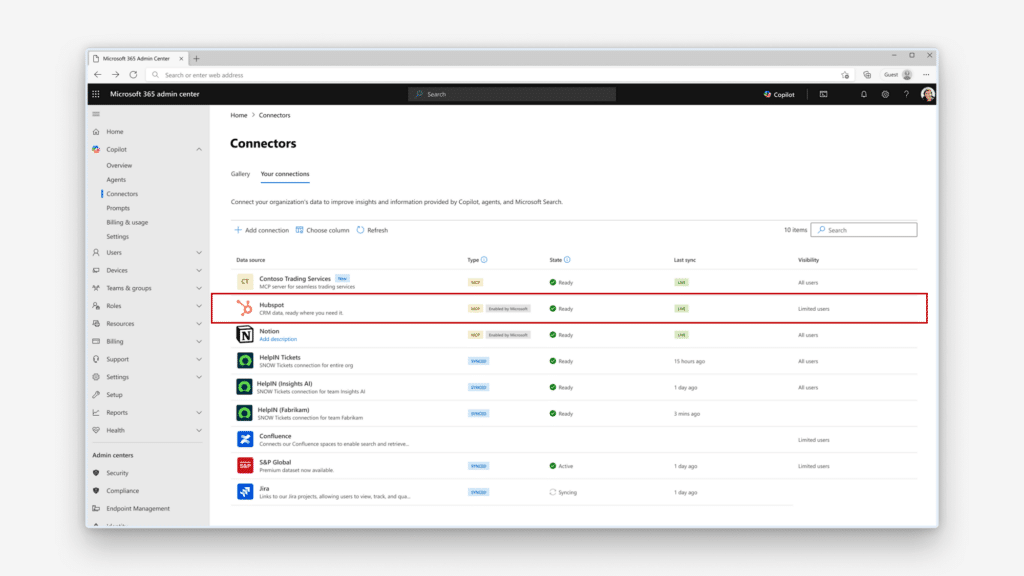
Step 1: Navigate to the Connectors section
- Sign in to the Microsoft 365 admin center
- In the left navigation, go to Copilot > Connectors
- Filter by connector type MCP to see only federated connectors
Step 2: Review connectors during the 7-day window
When a Microsoft-published federated connector first appears, it is visible to admins only for seven calendar days before becoming available to users. During this window you can:
- Review the connector and its data access implications
- Disable it if it does not meet your security or compliance standards
- Configure staged rollout to specific Entra ID groups
Step 3: Disable connectors you do not want active
To disable a specific connector, open the connector in the admin center and toggle it off. Admins can also bulk-disable all federated connectors via CLI, then selectively re-enable individual connectors inside the admin center.
Step 4: Configure staged rollout (optional)
If you want to roll out connectors gradually rather than to all users at once, use the Staged Rollout option in the connector pane. Target specific Entra ID groups to control who gets access first.
How Users Connect and Use Federated Copilot Connectors
Once an admin has enabled a connector, here is what happens on the user side:
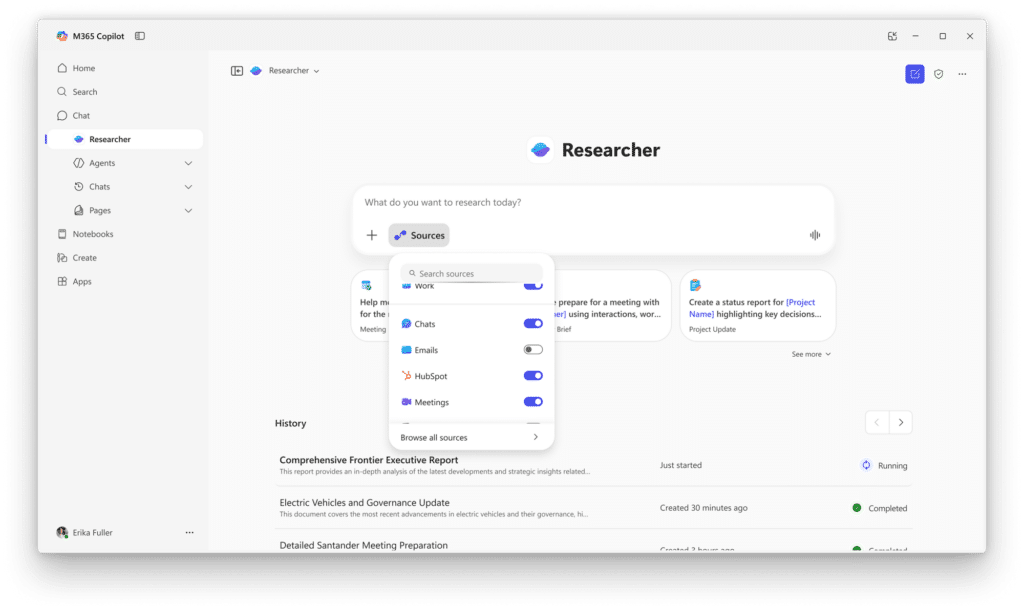
- The user opens Researcher agent or M365 Chat
- The external data source appears in the Sources menu
- The user authenticates with their own credentials for that external service
- Copilot queries the service live and surfaces results based on the user’s permissions
- The user can turn off a connector at any time via the toggle in Researcher
No data is indexed. Responses are fetched live every time.
Admin Tips
Review third-party agreements before enabling. Before you allow users to connect to services like HubSpot or Google Calendar, check your organization’s data residency and licensing agreements with those providers. Copilot will be querying their APIs on behalf of your users.
Use the 7-day window actively. Do not assume default means safe. Go into the admin center on or shortly after April 20 and review what has been enabled. Disabling a connector is much easier than explaining a data access incident after the fact.
Staged rollout is your friend. Rather than letting all Copilot users connect to every new external service at once, use Entra ID group targeting to pilot with a smaller group first. Gather feedback, assess any issues, then expand.
Purview auditing applies. Federated connectors are read-only and can be audited through Microsoft Purview. If compliance matters in your environment, confirm your audit logging is set up correctly before user rollout.
Data controller responsibility applies. The MC announcement explicitly notes that by using these connectors, your organization, as the data controller, authorizes Microsoft to retrieve third-party data and import it into your tenant. Make sure your DPO or legal team is aware.
License Requirements
Who Needs What License?
Federated Copilot connectors are available to organizations with Microsoft 365 Copilot Premium licenses. Users without this license will not see federated connectors in their Copilot experiences.
Admin management capabilities (viewing, enabling, disabling, staged rollout) require the AI administrator role in the Microsoft 365 admin center.
How This Compares to Synced Connectors
| Feature | Synced Connectors | Federated Connectors (MCP) |
| Data movement | Indexed into Microsoft Graph | No movement, fetched live |
| Access model | Organization-level | User-level (own identity) |
| Setup | Admin configures connection | Admin enables; users authenticate |
| Use case | Broad knowledge repositories | Sensitive, dynamic, or live data |
| Custom connectors | Yes | Not at GA |
The Paul-Take
What makes federated Copilot connectors genuinely interesting is the architectural shift they represent. Microsoft is moving away from the ‘crawl everything and put it in Graph’ model, and toward ‘query the source live when you need it.’ For admins dealing with regulated industries, finance, legal, or any organization that cannot afford to have sensitive data copied into another platform, this is the right direction.
The MCP standard is also worth paying attention to. It is not just a Microsoft thing. It is an open protocol that other tools and platforms are adopting. Microsoft building their Copilot connector strategy on top of MCP means you are not locked into a proprietary integration model.
That said, my advice to every admin reading this: go check your admin center on April 20. These connectors are enabled by default, and that means without any action on your part, your users will be able to connect their Copilot to Google Calendar, Notion, and HubSpot within days of the rollout completing. Some organizations will be fine with that. Others will not. Know which one you are before the rollout happens, not after.
MVP Reference List
| Item | Details |
| MC Number | Not included in source announcement |
| Roadmap ID | Not included in source announcement |
| Microsoft Learn: Federated Copilot connectors overview | https://learn.microsoft.com/microsoft-365/copilot/connectors/federated-connectors-overview |
| Microsoft Learn: Copilot connectors overview | https://learn.microsoft.com/microsoft-365/copilot/connectors/overview |
| Microsoft Learn: Deploy connectors in admin center | https://learn.microsoft.com/microsoft-365/copilot/connectors/deployment-overview |