
TL;DR: Microsoft Teams is introducing a per-user setting to control the behavior of the Enter key. Users can choose between ‘ Send the message ‘ or ‘ Start a new line ‘, with Ctrl+Enter acting as the send command in the latter mode. This should be rolling out in February according to Microsoft.
The Problem with Accidental Sends
In the fast-paced world of digital collaboration, speed often leads to errors. For many users, the default behavior of the Enter key in Microsoft Teams—sending the message immediately—has been a source of constant frustration. This often results in fragmented conversations, where one thought is spread across four or five separate message bubbles.
To align with modern messaging standards and provide a more ‘ predictable ‘ experience, Microsoft is introducing a dedicated setting to give users full control over their compose box.
Configuring Your Compose Experience
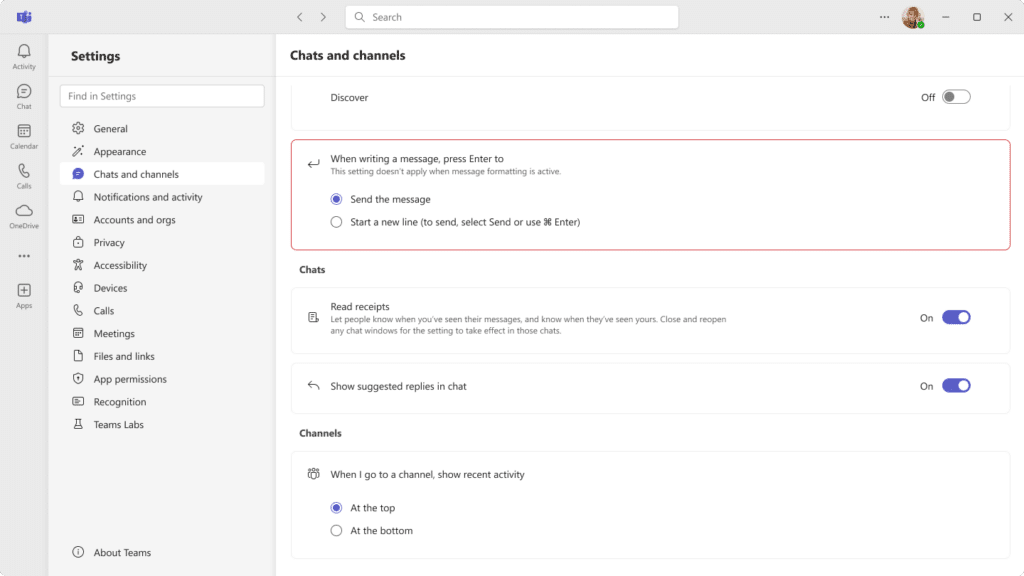
The new setting will be located under Settings > Chats and channels. Users will see a dropdown menu titled ‘ When writing a message, press Enter to… ‘ with two distinct options:
- Send the message (Default): The classic Teams behavior where hitting Enter sends the text immediately.
- Start a new line: This mimics a word processor or professional email client. To send a message in this mode, users must press Ctrl + Enter (Windows) or Cmd + Enter (Mac).
[Image Placeholder: The Microsoft Teams Settings menu showing the new ‘Chats and channels’ Enter key toggle]
Smart Visual Cues
To ensure users do not get confused after changing their settings, Microsoft has added contextual hints. These small text reminders will appear near the compose box, indicating what the Enter key will do. For example, if you have selected ‘ Start a new line ‘, a small hint might remind you that Ctrl+Enter is required to send.
It is also important to note that Shift + Enter will continue to work as a universal shortcut for starting a new line, regardless of which primary setting you choose.
Technical Implementation and Roaming
From a technical perspective, this is a per-user setting. This means it is not something that a Global Admin can force or block via policy or the Graph API. One major benefit of this implementation is that the setting roams. If you change it on your work laptop, the preference will automatically be applied when you log into Teams via a web browser on another machine.
Screenshot 1 – The new setting in Chats and channels
Strategic Impact for Adoption Specialists
This update is a prime opportunity for Adoption Specialists to re-engage with users who may find Teams ‘ stressful ‘ or ‘ chaotic ‘. By teaching users how to slow down their typing experience and use the ‘ New Line ‘ setting, organizations can improve the overall quality of internal communication.
FAQ
When will this feature be available in my Teams app? This should be rolling out in late February 2026 according to Microsoft, with most worldwide users seeing it by the end of that month.
Does this affect Teams Mobile? No, this update is specifically for the Desktop and Web versions of Teams. Mobile apps will continue to use their respective OS-level keyboard behaviors.
Can an admin turn this off? No, there is no admin control or policy for this feature. It is a personal preference setting for the end-user.
Will this break any compliance or DLP rules? No. This is purely a UI/UX change. Data Loss Prevention (DLP), retention policies, and eDiscovery remain completely unaffected.