
TL;DR: Microsoft Teams is extending Loop-powered Meeting Notes to instant meetings and ‘Meet Now’ calls. Starting in April 2026, users can collaboratively capture agendas and tasks that sync with Planner and To Do directly from any ad-hoc call. This should be rolling out in April according to Microsoft.
Closing the Documentation Gap
One of the biggest challenges in a fast-paced digital environment is capturing the value of ‘ad-hoc’ collaboration. While scheduled meetings usually have an agenda, instant meetings—those started via the ‘Meet Now’ button or a direct call from a chat—often lack formal documentation.
Microsoft is bridging this gap by integrating Loop components into the instant meeting experience. This ensures that even the most spontaneous brainstorm has a structured home.
How it Works: Loop in the Moment
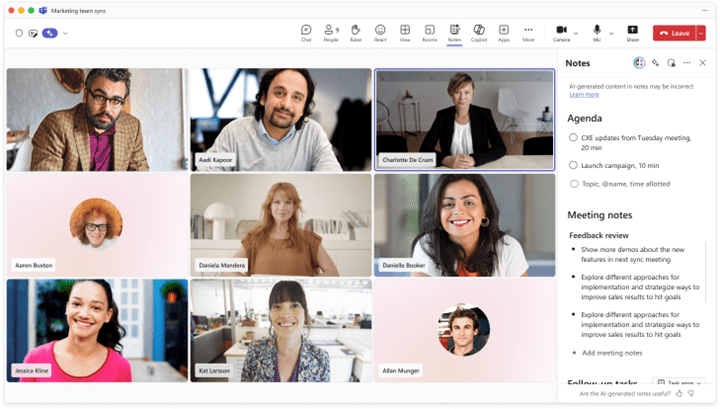
When you are in an instant meeting, you will now see a Notes button in the meeting controls. Clicking this opens a side pane where all participants can:
- Co-create an agenda: Set the goals of the call on the fly.
- Take real-time notes: Capture decisions as they happen.
- Assign action items: Create tasks that don’t just sit in a text block, but actually sync with the Microsoft 365 ecosystem.
Integration with Planner and To Do
The real ‘magic’ of this update is the background synchronization. Any task created within these meeting notes is a Loop task component. This means it automatically appears in the assigned user’s Microsoft To Do and the team’s Planner board. No more manual copying and pasting from chat history into a task manager.
Accessing Notes After the Call
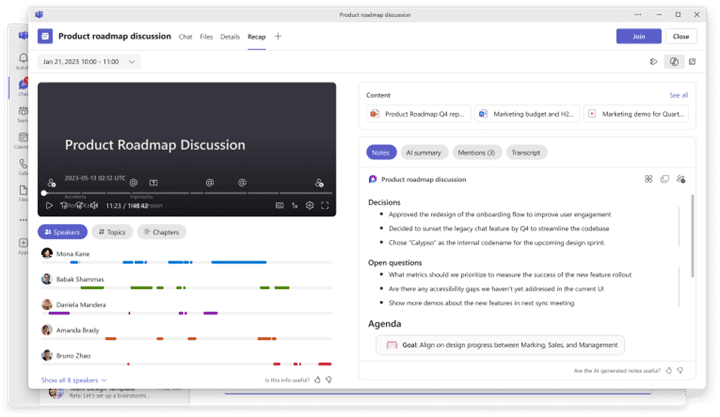
Once the meeting ends, the notes don’t disappear. They are permanently associated with the meeting record and can be found in two primary locations:
- The Recap Tab: Within the meeting details, the ‘Notes’ section will house the full Loop component.
- The Loop App: Since these are standard Loop files, they can be opened, edited, and shared directly from the Loop web app.
Administrator and Compliance Considerations
For IT Admins, this rollout requires no direct action, as it is enabled by default. However, there are two technical details to monitor:
- Sharing Links: By default, these notes generate a Company Shareable Link (CSL). If your tenant default is set to ‘People Specific Links’ (PSL), users who join the meeting late or are ‘nudged’ in may need to request access to the notes.
- PowerShell Control: If your organization is not ready for Loop in meetings, you can manage this via the
Set-SPOTenantcmdlet using the-IsCollabMeetingNotesFluidEnabledparameter.
Rollout Timeline
- Targeted Release: Mid-March to Late March 2026.
- Worldwide: Early April to Late April 2026.
FAQ
Can I use these notes in a standard 1:1 Teams call? Currently, there is a known limitation: meeting notes are available for ‘meetings’ (including instant ones), but not for standard 1:1 or group ‘calls’ started from the calls tab.
What happens if I invite someone to the meeting after it has started? If they are within your organization, they will typically have access via the shared link. If your organization uses ‘Specific People’ links by default, you may need to grant them access manually.
Do these notes take up SharePoint storage? Yes, Loop components are stored as .loop (formerly .fluid) files in the creator’s OneDrive or the associated SharePoint site, similar to other Office documents.
Will I get an email if a task is assigned to me in these notes? Yes, the integration with Planner ensures that standard task notification emails are sent when an action item is assigned to a user.