
TL;DR: Microsoft is significantly upgrading the custom dictionary for Teams meeting transcripts. With support for 5 new languages, a doubled entry limit of 1,000 words, and new incremental upload tools, organizations can now ensure Copilot understands their unique jargon perfectly. This should be rolling out in January according to Microsoft.
The Foundation of Accuracy: The Custom Dictionary
For any AI-driven feature like Intelligent Recap or Copilot in Meetings, the quality of the output is entirely dependent on the quality of the input—the transcript. If the speech-to-text engine doesn’t recognize your company’s unique acronyms or product names, the subsequent AI summary will be flawed.
With Roadmap ID 422116, Microsoft is providing the tools necessary to bridge this gap, ensuring that specialized terminology is captured correctly from the start.
What is Changing in 2026?
1. New Language Support
The dictionary is no longer limited to the “core” Western languages. Microsoft has added support for:
- Dutch
- Korean
- Thai
- Turkish
- Chinese (Traditional)This is in addition to the existing support for English, French, German, Italian, Japanese, Portuguese, Spanish, and Chinese (Simplified).
2. Higher Entry Limits
Previously, admins were capped at 500 entries per language. For many technical or pharmaceutical organizations, this simply wasn’t enough. The new limit of 1,000 entries per language provides the headroom needed for extensive product lists and technical jargon.
3. Incremental Management
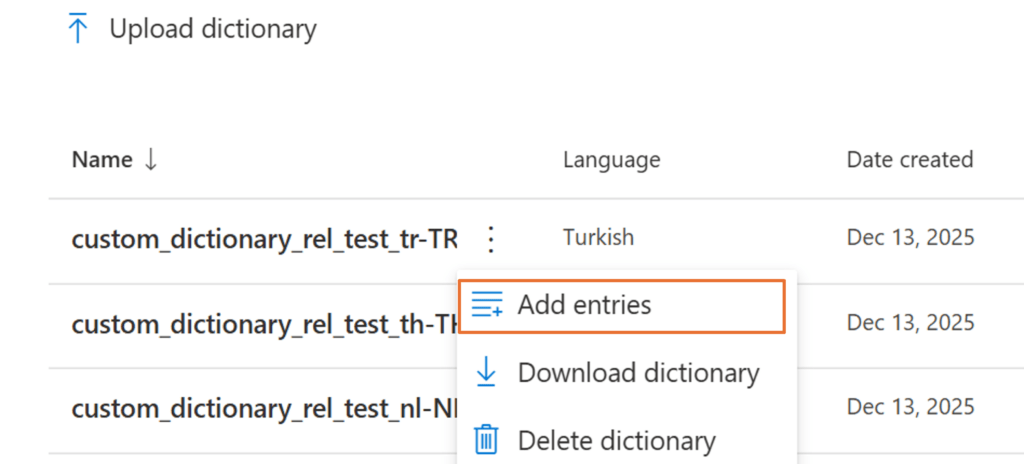
One of the biggest pain points for admins was the inability to “append” to a dictionary. Previously, you had to re-upload the entire list. Now, a new ‘Add entries’ option allows for incremental CSV uploads, making it much easier to keep the dictionary updated as new products or projects launch.
![A view of the Copilot Custom Dictionary management pane in the M365 Admin Center, highlighting the new 'Add entries' button and the increased 1,000-word limit.]](https://kbworks.eu/wp-content/uploads/2026/02/A-view-of-the-Copilot-Custom-Dictionary-management-pane-in-the-M365-Admin-Center-highlighting-the-new-Add-entries-button-and-the-increased-1000-word-limit-1024x363.png "A view of the Copilot Custom Dictionary management pane in the M365 Admin Center highlighting the new Add entries button and the increased 1000 word limit - KbWorks")
Administrative Requirements
To manage these settings, you must have the AI Administrator or Global Administrator role. You can find these settings by navigating to:
Microsoft 365 admin center > Copilot > Settings > Copilot Custom Dictionary.
Best Practices for Your CSV:
- Term (Required): The exact word or acronym.
- Sounds Like (Optional): How it is phonetically pronounced (crucial for acronyms!).
- Definition (Optional): Provides context to the AI model.FAQ: Custom Dictionary Expansion
Does this change existing transcripts?
No. The dictionary applies to meetings moving forward once the terms are uploaded and the system has had up to 24 hours to process them.
Who can use these enhancements?
The meeting organizer or the person starting the transcription must have a Microsoft 365 Copilot license for the custom dictionary to be applied to that specific meeting’s transcript.
Can users add their own words?
No. This is a tenant-level feature managed by admins to ensure consistency and prevent “cluttering” the model with incorrect personal spellings.