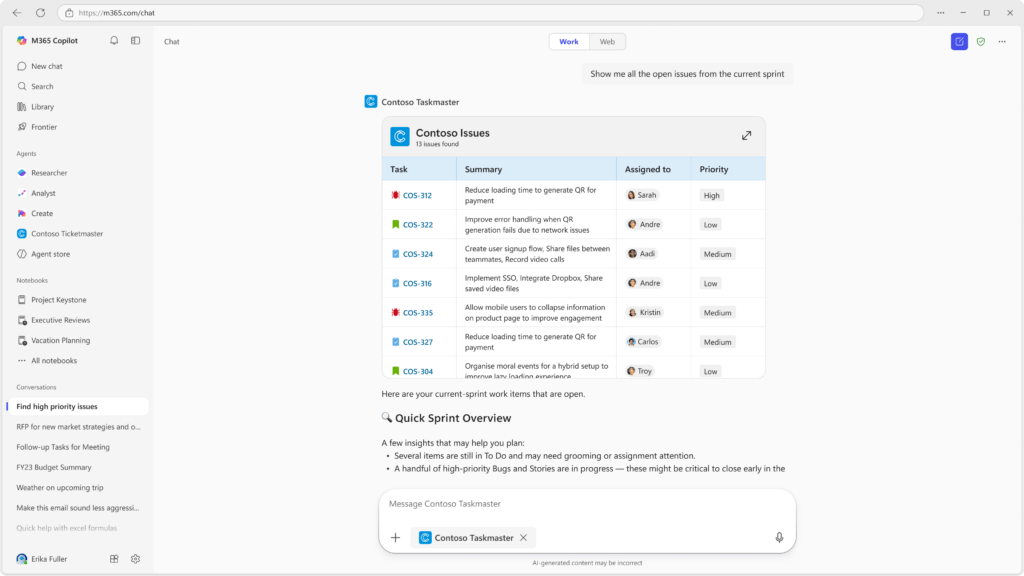
TL;DR: Starting late February 2026, Microsoft is enhancing Model Context Protocol (MCP) agents with rich interactive UI widgets. This allows for a more guided and visual user experience directly within Copilot Chat, managed through existing M365 Admin controls.
As the AI landscape evolves, the way we interact with Large Language Models (LLMs) is shifting from “chatting” to “doing.” The latest update to Microsoft 365 Copilot interactive UI widgets is a prime example of this transition. By leveraging the Model Context Protocol (MCP), developers can now surface structured elements—like buttons, dropdowns, and interactive cards—directly in the chat flow.
The Rise of Structured AI Interactions
For a long time, the primary hurdle for AI adoption in the enterprise has been the “black box” nature of chat. Users aren’t always sure what an agent can do or how to provide it with the right parameters. With Microsoft 365 Copilot interactive UI widgets, that ambiguity is removed.
What makes these widgets different? Unlike standard text responses, these widgets are built on the OpenAI Apps SDK and integrated via MCP servers. This means they are not just “visuals”—they are functional. Clicking a button in a widget can trigger a live API call to your CRM, ERP, or project management tool, keeping the user in their flow without switching windows.
Admin Governance and Control
From an IT management perspective, the deployment of these widgets doesn’t require a new playbook.
- Centralized Management: Admins use the Microsoft 365 Admin Center (under Copilot > Agents) to enable or disable specific MCP-based agents.
- Entra ID Scoping: You can still restrict who sees these ‘powerful’ agents by using standard Entra ID groups.
- Security First: Because these rely on MCP, the data exchange remains within the secure boundaries of your M365 tenant, maintaining your compliance posture.
How to Implement Microsoft 365 Copilot interactive UI widgets
If you are a developer or an IT Architect looking to roll these out, the process involves extending your existing MCP server tools to include UI components.
- Prerequisites: You need a remote MCP server and the latest Microsoft 365 Agents Toolkit.
- Design Guidelines: Microsoft suggests focusing on “atomic capabilities”—don’t try to rebuild your whole app in chat. Use widgets for glanceable summaries and high-value actions.
Use Case: The ‘Approval Workflow’
Imagine a user asking, “What are my pending budget approvals?” Instead of a list of text, Copilot surfaces a UI widget showing three cards. Each card has an ‘Approve’ and ‘Reject’ button. The user clicks ‘Approve’, and the agent handles the rest. This is the future of the ‘Agentic’ workspace.