
TL;DR: Microsoft is introducing a central view for draft messages in the Teams desktop app. This allows users to quickly find and handle unsent chats and channel messages. Rollout is expected in March 2026.
Detailed Introduction
In the fast-paced environment of Microsoft Teams, losing focus is easy. You start drafting a strategic response, but an urgent @mention pulls you away. The result? An unsent message buried deep in your chat history. With the arrival of the Microsoft Teams Drafts Quick View, this is finally changing. This new interface feature is specifically designed to combat the fragmentation of unfinished communication by aggregating all drafts into one clear view.
Managing your digital workflow requires tools that anticipate human behavior. The Microsoft Teams Drafts Quick View acts as a safety net for your thoughts. Instead of manually scanning for the small icon next to a chat name, Microsoft now provides a designated spot in the navigation to finalize these open tasks. In this article, we cover the technical inner workings, the benefits for end-users, and the steps IT admins should take to prepare for this spring 2026 release. It is a welcome addition for anyone juggling multiple projects in the desktop client.
How does the Microsoft Teams Drafts Quick View work technically?
Technically, the Microsoft Teams Drafts Quick View is a UI layer built on top of the existing message status engine. Currently, the Teams client saves unsent text locally and syncs it to the cloud as a ‘draft’ status linked to a conversation ID. The new Quick View queries these statuses and presents them in an organized list.
How-to steps for users:
- Open the Microsoft Teams desktop app.
- Navigate to the top of your chat list or the specific ‘Drafts’ section.
- Click the Microsoft Teams Drafts Quick View button to open the overview.
- Select the desired draft to jump directly to that conversation.
- Edit the text or hit send immediately.
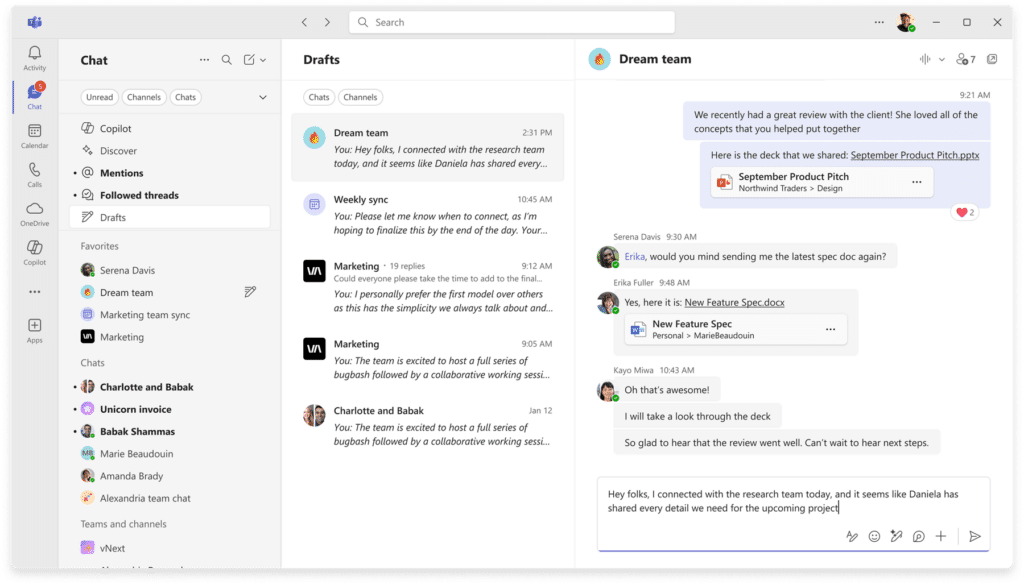
Comparison: Old Method vs. Microsoft Teams Drafts Quick View
In the old situation, users had to visually hunt for the ‘pen’ icon in the sidebar. In an organization with hundreds of active chats, this was nearly impossible. With the new Microsoft Teams Drafts Quick View, this process is prioritized. Where you previously relied on your own memory to return to a chat, the action is now proactively supported by the interface.
Admin Tips: Update your internal training materials with screenshots of the new view. While there is no PowerShell command to disable this, it is important to remind users that drafts remain private to them and are not visible to admins.
Use Case: The Busy Project Manager A project manager providing instructions across ten different channels can use the Microsoft Teams Drafts Quick View at the end of the day to ensure all directives were actually sent.
FAQ
Q: Do I need to enable the Microsoft Teams Drafts Quick View manually? A: No, this feature will be automatically activated for all desktop users.
Q: Are my drafts visible to others via the Quick View? A: No, drafts remain private until they are actually sent in a chat or channel.