
Scheduling meetings is one of the most time-consuming, low-value tasks in any knowledge worker’s day. Microsoft is now addressing that directly with Schedule with Copilot in classic Outlook for Windows, a feature that turns a simple prompt into a fully arranged meeting, including availability checks, room booking, agenda drafting, and sending the invite.
If you manage a Microsoft 365 environment and your users are on classic Outlook for Windows, this is something you need to understand before it lands in your tenant.
What Is Schedule with Copilot in Outlook?
Schedule with Copilot is a new capability inside Microsoft 365 Copilot that allows users to schedule meetings directly from classic Outlook for Windows using a natural language prompt. Instead of manually checking calendars, finding a free room, drafting an agenda, and composing an invite, users can simply type something like ‘Schedule a meeting with my team next week’ and Copilot takes care of all of it.
This feature is tied to Roadmap ID 542185 and is part of the broader push to make Copilot genuinely useful inside the tools people already use every day.
Where Users Will See It
There are two entry points in the interface:
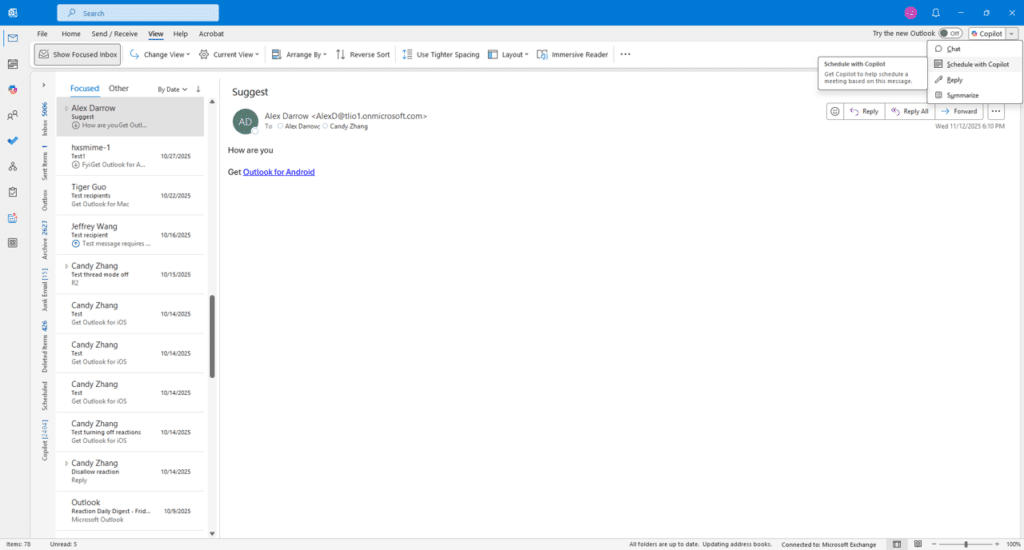
The first is in the Copilot menu in the top-right corner of the classic Outlook window. Users with a Microsoft 365 Copilot license will see a ‘Schedule with Copilot’ option there.
The second is in ‘Other Actions’ in the reading pane when viewing an email. This makes it easy to go from reading an email thread to scheduling a follow-up meeting in just a couple of clicks.
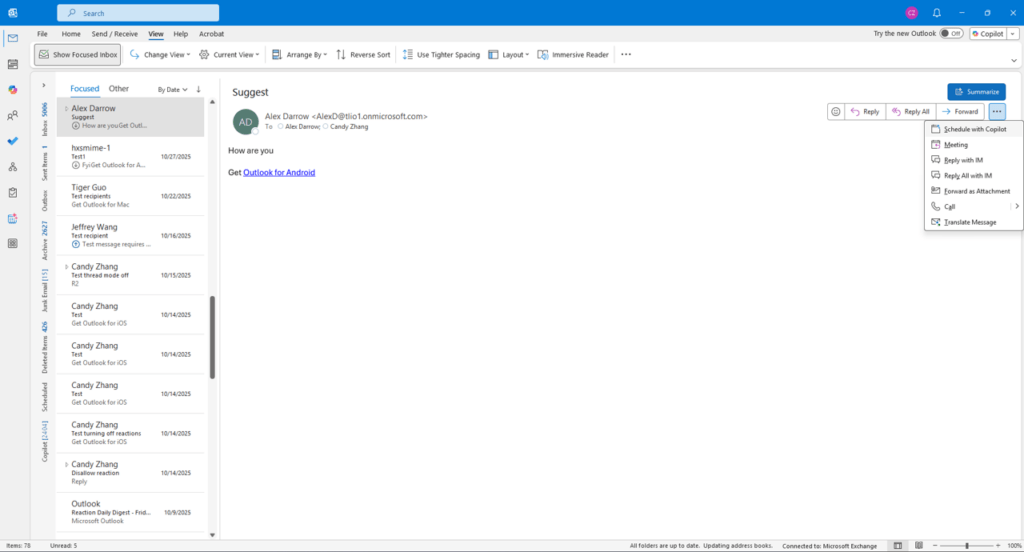
Users without a Copilot license will see a different experience in the same location, indicating the feature is available but requires a license.
What Copilot Does When You Schedule a Meeting
When a user triggers Schedule with Copilot, the following happens automatically:
Copilot identifies available meeting times across all attendees by checking their calendars. It then attempts to book a suitable room. It drafts an agenda based on the context of the conversation or prompt. Finally, it sends out the meeting invitations on behalf of the user.
This covers the full workflow from ‘I need to meet with my team’ to ‘done’ in a matter of seconds.
Rollout Timeline
According to Microsoft, this should be rolling out around the following dates:
| Phase | Start | End |
|---|---|---|
| Public Preview | Late January 2026 | Late February 2026 |
| General Availability (Worldwide) | Early March 2026 | Late March 2026 |
GA is currently in progress. If your tenant has not picked this up yet, it should arrive before the end of March 2026.
License Requirements
This feature is only available to users with an active Microsoft 365 Copilot license. It is enabled by default for those users. No additional configuration is needed to turn it on.
Users without a Copilot license will see a grayed-out or restricted experience in the same menu locations.
There is no separate SKU or add-on required beyond the standard Microsoft 365 Copilot license.
How to Enable or Restrict Schedule with Copilot
Default Behavior
The feature is on by default for any user with a Microsoft 365 Copilot license. No admin action is needed to enable it.
Existing Outlook and Exchange Online admin policies remain fully in effect. This feature does not bypass or modify any existing policy behavior.
How to Restrict the Feature
If your organization prefers to prevent specific users from accessing this feature, the only supported method at this time is to remove the Microsoft 365 Copilot license from those users.
There is no dedicated policy toggle in the Microsoft 365 Admin Center or Exchange Admin Center to disable Schedule with Copilot independently of other Copilot features.
Supported Client
Users must be on a supported build of classic Outlook for Windows. Make sure your Outlook clients are up to date to ensure the feature rolls out as expected.
PowerShell Considerations
There is currently no PowerShell cmdlet specifically for enabling or disabling Schedule with Copilot. License assignment and removal can be managed via the Microsoft 365 Admin Center or through Azure AD / Microsoft Entra ID PowerShell if you need to manage this at scale.
For example, to check which users have a Copilot license assigned, you can use:
powershell
Get-MgUserLicenseDetail -UserId [email protected] | Where-Object { $_.SkuPartNumber -like "*Copilot*" }This gives you visibility into who will have access to the feature before GA completes in your tenant.
Admin Tips
Make sure your helpdesk and support teams know this feature is arriving. Users may be confused when they see Copilot sending meeting invites on their behalf, especially if they triggered it by accident.
Check that your room mailboxes and resource accounts are properly configured in Exchange Online. Copilot relies on standard room booking logic, so any misconfiguration in your room resources will affect results.
If you have free/busy visibility restrictions in your environment, be aware that these may affect Copilot’s ability to find optimal meeting times across all attendees.
Communicate the change proactively. A short message to your users explaining what Schedule with Copilot does and where to find it will reduce support tickets significantly.
Update internal documentation and training materials before the feature lands in your tenant.
The Paul-Take
This is one of those Copilot features I have been waiting for. Meeting scheduling is genuinely one of the biggest time drains in any office environment, and this tackles it head on. The ‘Schedule with Copilot’ option landing in classic Outlook is the right call. A lot of organizations are not yet on new Outlook, and forcing a client migration just to get scheduling AI would have been a barrier.
What I appreciate most is that it integrates into existing workflows without requiring admins to configure anything new. It respects existing Exchange policies. It does not add complexity. It just works for users who have the license.
The challenge, as always, will be license coverage. If only a portion of your users have Microsoft 365 Copilot, you will quickly create a two-tier experience inside the same team. Some people can schedule with a prompt. Others still need the calendar back-and-forth. That gap will drive more license requests faster than any marketing campaign could.
My advice: if you have not already built a business case for Copilot rollout, this feature is a good concrete example to use. Measurable time savings, visible to every user, every week.
MVP Reference List
- MC Announcement: MC542185 (Schedule with Copilot in classic Outlook for Windows)
- Roadmap ID: 542185
- Schedule a meeting using Copilot
- Microsoft 365 Copilot requirements for admins