
SharePoint Lists Copilot just got a lot more useful. If you have ever tried to get a meaningful answer from Microsoft 365 Copilot about project data stored in a SharePoint List, you know the frustration. You describe the list in your prompt, Copilot misreads the structure, and the response is generic at best. With this new update, that changes. SharePoint Lists Copilot integration through Context IQ now lets users attach actual list data directly to their chat prompts, grounding the response in real information.
This is not a major announcement. There are no new admin controls to configure and no PowerShell scripts to run. But for teams that rely on structured operational data in SharePoint Lists, this is the kind of small improvement that actually changes how people use Copilot day to day.
Here is everything you need to know.
What Is New with SharePoint Lists Copilot?
Until now, Context IQ in Copilot Chat allowed users to reference files, people, emails, and meetings by typing ‘/’ or clicking the ‘+’ menu. With this update, SharePoint Lists Copilot functionality is added to that mix.
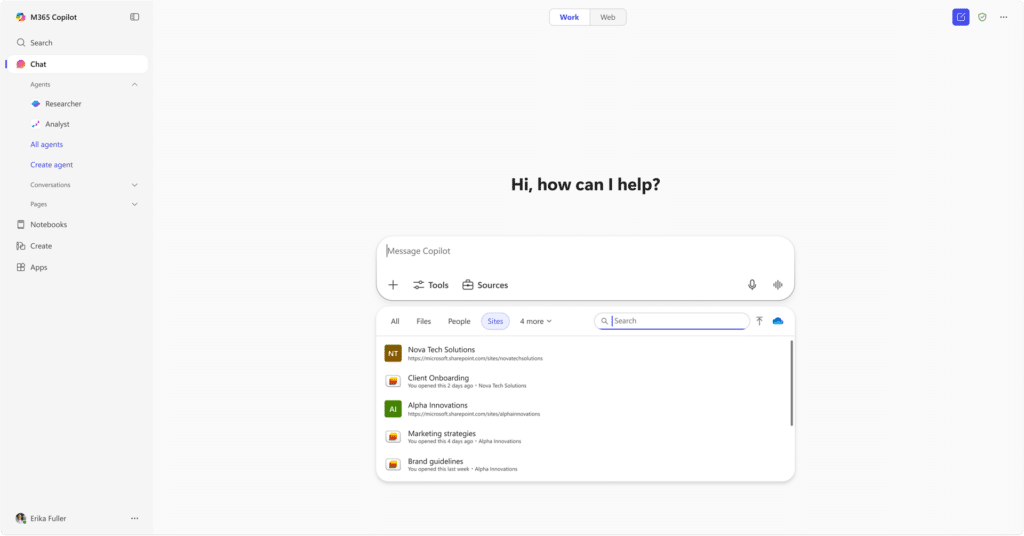
Users can now search for and select a SharePoint List directly from the Context IQ menu. That list is then attached to the prompt as a grounding source, and Copilot uses its content when generating the response.
How SharePoint Lists Copilot Works in Context IQ
The flow is simple:
- Open Copilot Chat in Microsoft Teams, Microsoft 365, or Copilot.microsoft.com.
- Start writing your prompt in the chat box.
- Type ‘/’ or click the ‘+’ icon and select ‘Add work content’.
- In the Context IQ menu, go to the Sites tab and search for the SharePoint List you want to use.
- Select the List. It is added to your prompt as a grounding source.
- Write the rest of your prompt and send. Copilot will use the list data when generating its response.
No special configuration. No admin toggle. No extra steps. You just need a Copilot license and access to the relevant list.
Why SharePoint Lists Copilot Grounding Matters
Most Copilot prompts today are vague because users cannot easily point to a specific data source. With SharePoint Lists Copilot support, that changes for one of the most widely used data stores in Microsoft 365.
SharePoint Lists are where teams store structured, operational data. Think project trackers, asset registers, request logs, vendor lists, onboarding checklists. This is real working data, not documents or email threads. Being able to reference that data directly in a prompt means users can ask precise questions like ‘What requests are still open in the IT helpdesk list?’ or ‘Which assets are due for review this month?’
SharePoint Lists Copilot responses are grounded in data the user already has access to. No new permissions are granted. Copilot only surfaces the lists the signed-in user can already see in SharePoint, so there is no risk of data exposure across users.
[ADD INTERNAL LINK: link to a related kbworks.eu post about Microsoft 365 Copilot prompt grounding or Context IQ]
Rollout Timeline
| Release Type | Region | Start | Expected Completion |
|---|---|---|---|
| General Availability | Worldwide | Late March 2026 | Early April 2026 |
According to Microsoft, this should be rolling out around March/April 2026.
What Does IT Need to Know?
No Admin Action Required
This feature is enabled by default. There are no new settings in the Teams Admin Center or SharePoint Admin Center, and no PowerShell configuration is needed. IT teams do not need to do anything before or after rollout.
Permissions Are Respected
SharePoint Lists Copilot only surfaces lists the individual user already has access to. If a user cannot see a list in SharePoint, they will not see it in Context IQ either. This is consistent with how the rest of Context IQ works across files, emails, and meetings.
License Requirement
A Microsoft 365 Copilot license is required. Users without a Copilot license will not see SharePoint Lists Copilot support in their Context IQ menu. Standard Microsoft 365 licenses do not include access to this feature.
Admin Tips
Review your list quality before communicating this to users. SharePoint Lists Copilot is only as good as the data in your lists. If a list has inconsistent column names, empty fields, or outdated values, Copilot will give a confident but inaccurate response. Before rolling this out broadly, identify which lists are clean, well-maintained, and relevant to daily work.
Think about which lists your users will actually want to reference. Not every list makes a good grounding source for SharePoint Lists Copilot. Project trackers, request logs, and asset registers are a strong starting point. Lists used for system configuration or legacy data probably are not.
Update your internal documentation. If you have guidance for users about Copilot or Context IQ, update it to mention SharePoint Lists Copilot support. Users who know this feature exists will use it. Users who do not know it exists will keep writing vague prompts and getting vague answers.
Get your Copilot Governance checklist here
License Requirements
| Feature | Required License |
|---|---|
| SharePoint Lists Copilot via Context IQ | Microsoft 365 Copilot |
A Microsoft 365 Copilot license is required per user. This feature is not available in standard Microsoft 365 plans.
Learn More
- Using Context IQ to refer to specific files, people, and more in Microsoft 365 Copilot and Copilot Chat
- Microsoft 365 Roadmap ID 422308
The Paul-Take
SharePoint Lists Copilot is not a headline feature. Microsoft did not put this on a keynote stage, and most users will not notice it arrived. But this is exactly the kind of update that changes daily Copilot usage once people discover it.
The problem with most Copilot prompts today is that they are disconnected from actual data. Users describe their situation in natural language, Copilot does its best, and the answer is too broad to be useful. SharePoint Lists Copilot fixes part of that by giving users a direct line from their prompt to their structured operational data.
Here is what most organisations will get wrong: they will announce this feature and assume users will figure it out on their own. They will not. The slash menu is not obvious. Context IQ is not obvious. And even when users do find the feature, many will insert lists that are a mess of inconsistent data and then wonder why Copilot still gives them vague answers.
The real work is not turning on SharePoint Lists Copilot. It is making sure your lists are clean enough to be useful as a grounding source. That is a data governance conversation, not a technology conversation.
Start small. Pick two or three lists your team uses every day. Make sure the columns are clear, the data is current, and the structure is consistent. Then test SharePoint Lists Copilot with those specific lists. Show your users a concrete before and after. That is how you build real adoption without fighting resistance.
MVP Reference List
- Roadmap ID: 422308
- Microsoft Support Article: Using Context IQ to refer to specific files, people, and more in Microsoft 365 Copilot and Copilot Chat