
TL;DR: Microsoft is introducing SharePoint Quick steps as a new column type in lists and libraries. This allows users to trigger emails, Teams chats, approvals, and flows directly from their data view. This should be rolling out in March according to Microsoft.
SharePoint Quick steps column: Inline Automation for Modern Lists
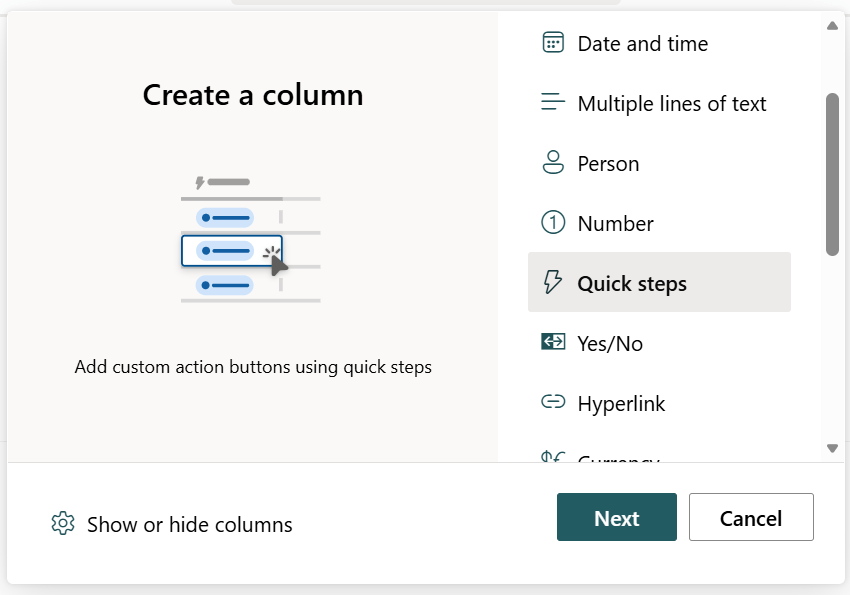
The goal of any modern digital workplace is to reduce the ‘context switching’ that drains employee productivity. Previously, SharePoint Quick steps were limited to the command bar, but Roadmap ID 513272 (associated) expands this by enabling a dedicated SharePoint Quick steps column.
By placing automation buttons directly next to list items or files, site owners can create a more intuitive experience for their teams. This build-out uses a sentence-builder logic that allows for rapid configuration of common tasks without needing deep technical knowledge of Power Automate.
Key Features of the Quick steps Column Type
The SharePoint Quick steps column brings several powerful automation actions into a single-click interface:
- Communication Triggers: Easily initiate a Microsoft Teams chat or send a pre-formatted email based on list item data.
- Approval Management: Start approval requests directly from the data view, keeping the workflow connected to the item.
- Value Updates: Configure buttons that instantly update specific column values, such as changing a status from ‘In Progress’ to ‘Approved’.
- Power Automate Bridge: Trigger existing flows directly from the column, providing a visible entry point for complex automations.
Administrative Setup and Governance
For IT administrators and site owners, implementing the SharePoint Quick steps column is straightforward and respects existing security boundaries:
- Configuration Metadata: All configuration data for the Quick steps is stored within the list or library metadata itself.
- Permission Respect: The feature strictly follows existing SharePoint permissions; users can only trigger actions on items they already have access to.
- No New Admin Toggles: There is no new tenant-level switch. Site owners control the addition of these columns to their specific lists or libraries.
- Rollout Schedule: General Availability for worldwide and GCC tenants begins in late February 2026, with completion expected by early March 2026.
Strategic Tips for Your SharePoint Quick steps column Strategy
As a Microsoft MVP, I recommend using this feature to simplify ‘Human-in-the-loop’ processes. Instead of relying on users to remember to start a flow from the ‘Automate’ menu, place a SharePoint Quick steps column named ‘Actions’ right in the center of the view.
This visibility acts as a visual cue, guiding users through the necessary steps of a business process. For example, in a document library for contracts, a ‘Send for Legal Review’ Quick step column ensures that the right notification is sent to the right Teams channel every single time, with no manual typing required.
FAQ: SharePoint Quick steps column
Can I use Quick steps to update multiple columns at once? Yes, the sentence-builder experience allows you to define multiple actions, including updating column values as part of the step.
Does this replace SharePoint Rules? No, Quick steps are ‘user-triggered’ actions, whereas SharePoint Rules are ‘event-triggered’ (e.g., when a value changes). They complement each other by offering both manual and automatic options.
Will these buttons work on the SharePoint mobile app? Microsoft is prioritizing the web experience for list and library views, mobile support for custom column types typically follows the general availability of the web features.