
The Teams meeting layout during content sharing has always been one of those things that quietly frustrated people. Someone shares their screen, and suddenly you have no real say in how the space is divided. The video gallery shrinks, the shared content takes over, and if you’re on a wide monitor, half that screen real estate goes to waste. That experience is about to change. Microsoft is rolling out a resizable divider that puts the Teams meeting layout back in the hands of the user, and it is the kind of quality-of-life update that people will notice immediately.
This should be rolling out in April 2026 according to Microsoft, and it requires no admin configuration.
What Is the New Teams Meeting Layout Feature?
The update introduces a resizable divider in the top gallery area of a Teams meeting when content is being shared. Think of it as a moveable boundary between two panels: the shared content on one side, and the participant video tiles on the other.
Until now, Teams decided how much space each panel got. You could not drag that boundary. You could not swap the panels. The Teams meeting layout was fixed the moment someone clicked ‘Share screen’.
With this update, users get two new controls:
- Resize the divider — drag it left or right to give more screen space to the shared content or to the video gallery
- Swap the positions — move the shared content to the right and the gallery to the left, or the other way around, depending on personal preference
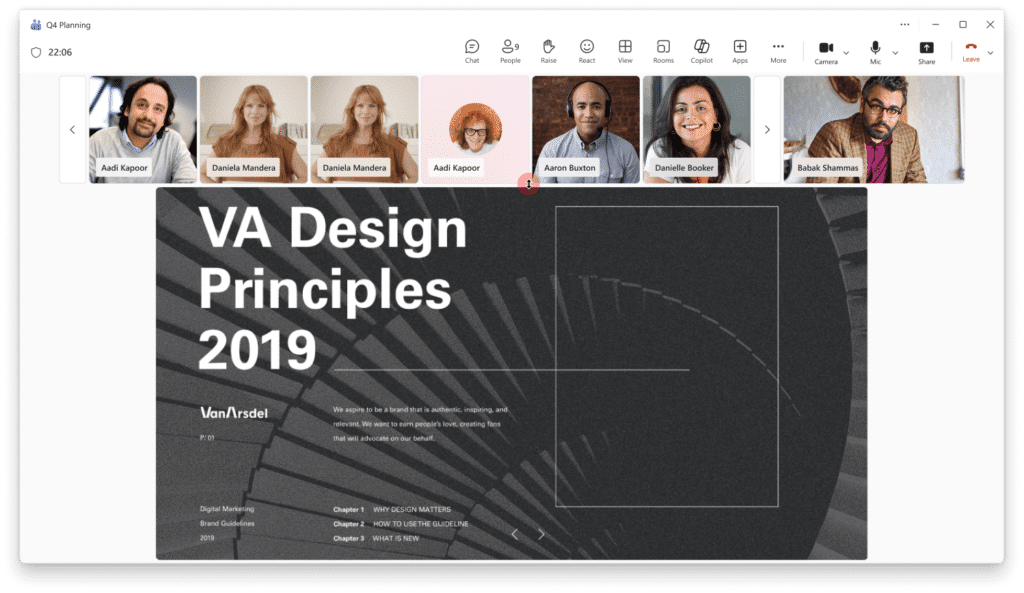
The Teams meeting layout adjustment also extends to Speaker View, spotlighted speakers, and pinned videos, which covers the scenarios where layout control matters most.
How to Use the Teams Meeting Layout Resizable Divider
The feature is enabled by default, so there is nothing to turn on. Here is how users interact with it once it is available:
To resize the divider:
- Join a Teams meeting and wait for someone to start sharing content
- Look for the divider between the shared content and the video gallery in the top area
- Hover over the divider until the resize cursor appears
- Click and drag left or right to adjust the split between content and video tiles
- Release when you are happy with the proportions
To swap the positions:
- While in a meeting with content being shared, find the swap control near the divider
- Click to swap the positions of the shared content and the video gallery
- The Teams meeting layout will flip the panels so you can work in whichever arrangement suits your monitor
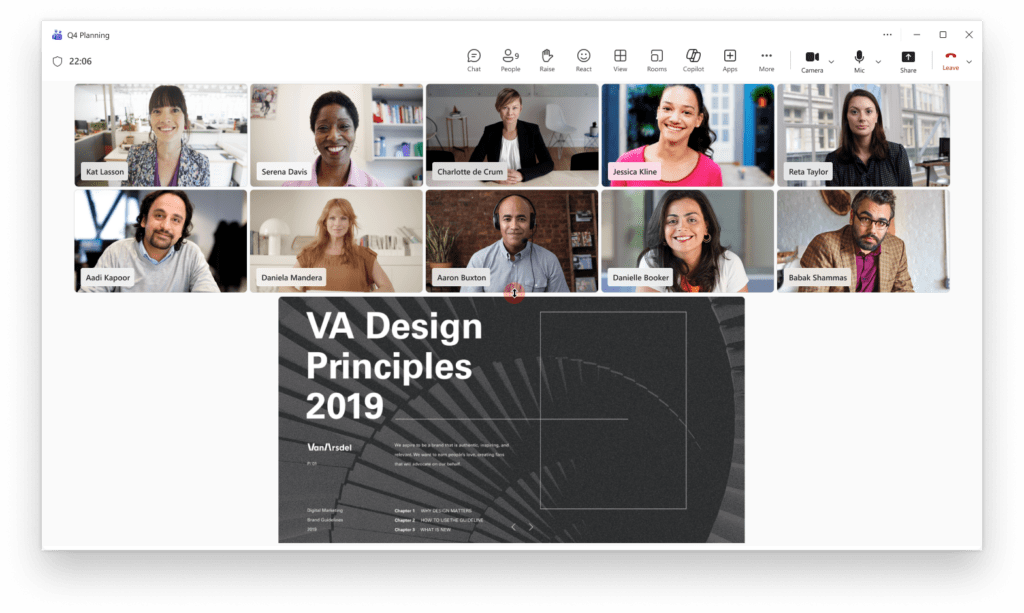
These controls are personal and local. Adjusting your Teams meeting layout does not affect what other participants see. Everyone in the meeting can set their own view independently.
For more on customising your meeting view in Teams, Microsoft has a full support article here: Customize your meeting view in Microsoft Teams.
[ADD INTERNAL LINK: link to a related kbworks.eu post about Teams meeting tips or layout features]
Why This Teams Meeting Layout Update Matters
For Users on Large and Ultra-Wide Monitors
This is where the Teams meeting layout change makes the biggest difference. On a standard 1080p screen, the current fixed layout is manageable. On a 27-inch 4K display or an ultra-wide 34-inch monitor, the default Teams meeting layout has always felt disproportionate. Too much black space. Tiny video tiles. Shared content that doesn’t scale the way you would expect.
The resizable divider lets users reclaim that space. You can give the shared content most of the screen when following a detailed presentation, then pull the divider back when you want to see more participants during a discussion.
For Facilitated Meetings and Workshops
When you are running a workshop and want to keep an eye on participant reactions while presenting, the Teams meeting layout has always been a compromise. You either see the faces or you see the content. The new layout lets you find a middle ground that works for your session.
For Users Who Pin or Spotlight Speakers
The update works with pinned videos and spotlighted speakers, which is important. When you pin someone in a meeting, you want their video to have appropriate space. Now you can adjust the Teams meeting layout to reflect that priority without giving up the shared content entirely.
For more details on adjusting your view during meetings, see: Adjust your view in a Teams meeting
want to be up to date subscribe to my newsletter here
Rollout Schedule
| Release Type | Start | Expected Completion |
|---|---|---|
| Targeted Release | April 2026 | April 2026 |
| General Availability (Worldwide) | Early April 2026 | Late April 2026 |
According to Microsoft, this Teams meeting layout update should be rolling out around April 2026 with no phased delay between Targeted Release and GA.
What Admins Need to Know
The Teams meeting layout resizable divider is a client-side feature that requires no admin configuration. There are no policies to set, no feature flags to enable, and no tenant-level settings involved.
Here are a few things worth communicating to your helpdesk and support teams:
Admin Tips:
- Update your user training materials to mention the new Teams meeting layout controls, including where to find the divider and how to use it during content sharing
- Brief your helpdesk staff so they can answer user questions, particularly for people on large or ultra-wide monitors who are most likely to experiment with this right away
- No rollback or disable option is mentioned in the announcement — this appears to be a permanent addition to the Teams meeting layout experience
- Speaker View and Spotlight users may notice the biggest quality-of-life improvement, so it is worth highlighting those use cases in your communications
License Requirements
The Teams meeting layout resizable divider is available to all users with a Microsoft 365 plan that includes Microsoft Teams. No additional license, add-on, or premium feature is required.
The Paul-Take
The Teams meeting layout during content sharing has been a source of quiet frustration for years. Not the kind of frustration that makes people complain loudly, but the kind that makes people feel like the tool is not quite working for them. You sit in a meeting on a wide monitor and half the screen is wasted. You share your screen and lose sight of the people you are presenting to. You want a little more presence from a pinned speaker and there is no way to get it.
This resizable divider is a small change that will have a noticeable effect on meeting comfort. The Teams meeting layout has always been something Microsoft controlled; now users get to participate in that decision. On ultra-wide displays especially, this is going to feel like a genuine improvement to the daily experience.
My only question is whether Microsoft will remember to update this feature when the new Teams meeting canvas gets a redesign. Features like this have a habit of disappearing after major UI overhauls. For now though, this is a welcome addition and exactly the kind of detail that makes a platform feel polished rather than functional.
MVP Reference List
- Roadmap ID: Microsoft 365 Roadmap 554925
- Microsoft Learn: Customize your meeting view in Microsoft Teams
- Microsoft Learn: Adjust your view in a Teams meeting