
Managing Microsoft 365 Copilot license requests just got a small but meaningful upgrade. Starting late April 2026, users requesting a Copilot license will have the option to submit a Microsoft 365 Copilot license request business justification directly within the request flow. Admins will see this justification during review, which means fewer follow-up messages and faster, better-informed decisions.
This feature requires no tenant configuration, is on by default, and does not change existing license approval policies. But if you are responsible for Copilot governance in your organisation, it is worth understanding what is changing and how to make the most of it.
What Is Changing With Copilot License Requests?
Until now, when a user requested a Microsoft 365 Copilot license, the admin received the request with limited context. There was no built-in way for users to explain why they needed the license, which often led to back-and-forth conversations before an approval or denial could be made.
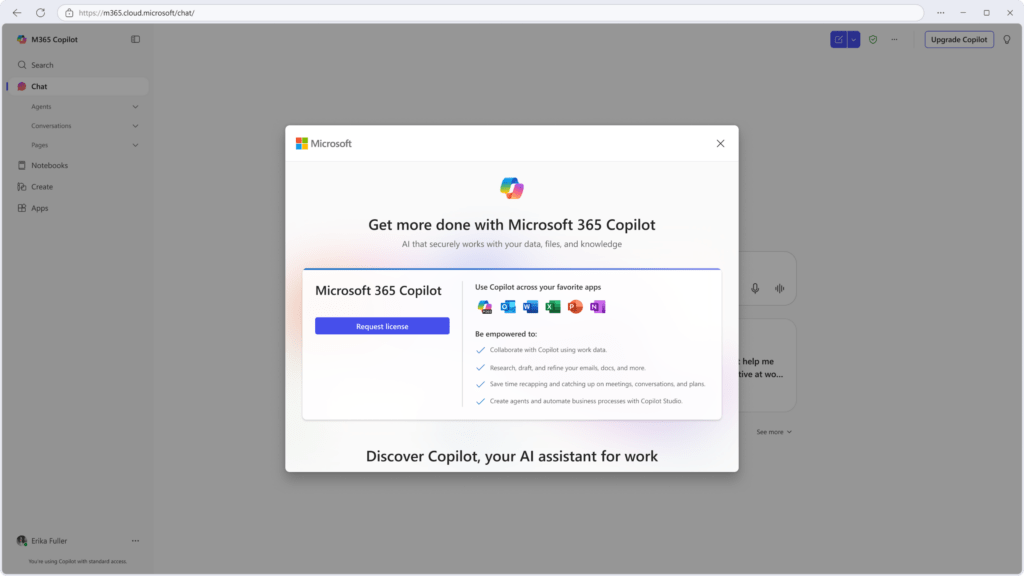
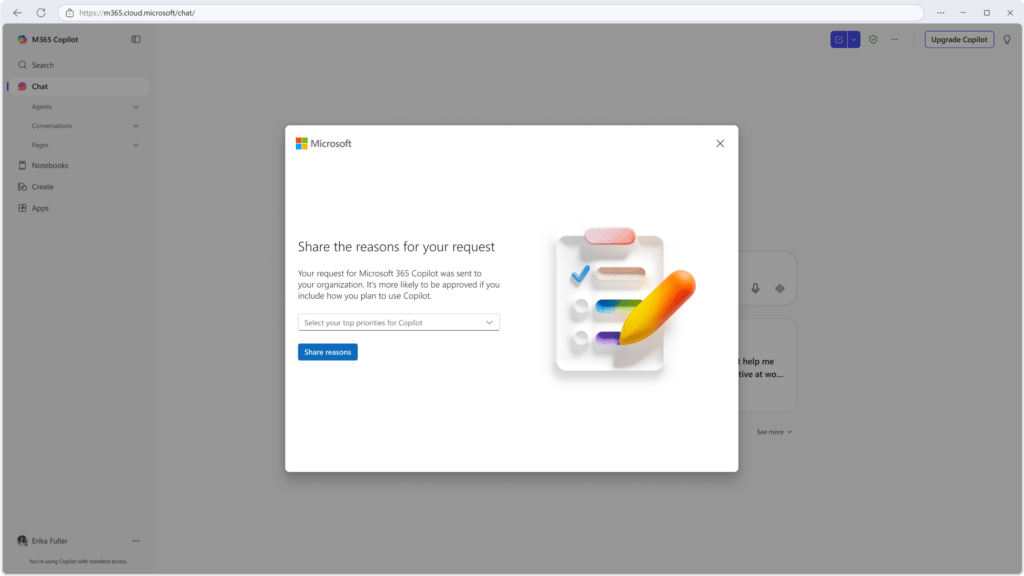
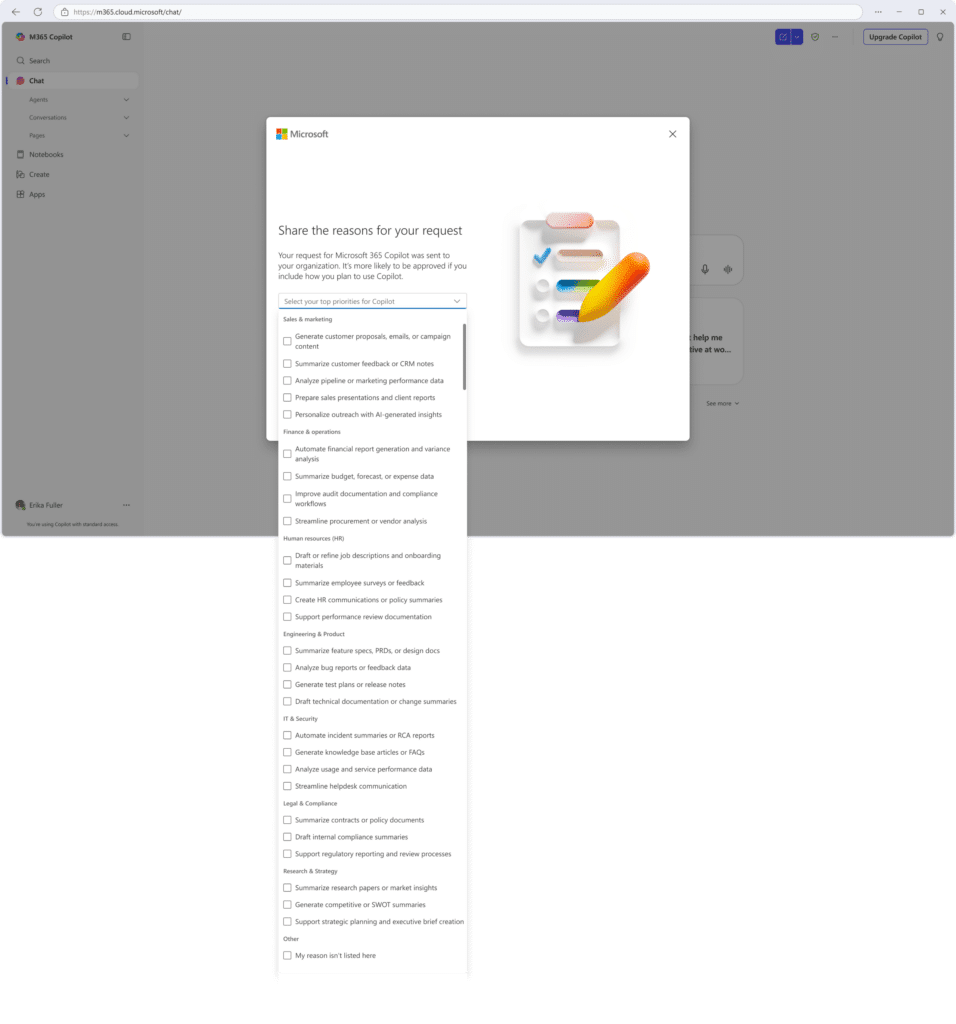
Microsoft is solving this with a new optional field in the license request experience. Here is what the updated flow looks like:
- The user navigates to the relevant area and clicks ‘Request License’.
- On the next screen, they have the option to provide a business justification. This step is optional.
- A dropdown menu offers predefined justification options to choose from.
- The admin sees the justification as part of the review experience.
Rollout Timeline
According to Microsoft, this should be rolling out around late April 2026.
| Rollout Type | Environment | Start | Expected Complete |
|---|---|---|---|
| General Availability | Worldwide | Late April 2026 | Late April 2026 |
There is no preview phase for this feature.
How Does This Work? Admin Setup and Configuration
No Action Required
This is one of the easier ones. The feature is on by default across all tenants. There is no switch to flip in the Microsoft 365 admin center and no PowerShell command to run.
What Admins Can Do
While there is no required setup, there are a few practical things worth considering:
Step 1: Communicate internally. The justification field is optional for users. If your organisation wants it filled in consistently, notify users and the helpdesk before the rollout.
Step 2: Review your license request workflow. If you have internal documentation on how to request a Copilot license, update it to include the new justification field.
Step 3: Align with internal tooling. If your organisation tracks license request metadata, make sure your workflows and internal tools can capture or reference the justification field once it is available.
Step 4: Update your approval team. If multiple admins handle license approvals, make sure they know the justification will now appear in the review screen.
Admin Tips
Here are a few practical tips for making the most of this feature:
Make it expected, even if it is optional. Microsoft made the field optional to avoid friction in the request process, but your organisation can set its own expectations. A simple internal communication asking users to always fill in the field goes a long way.
Use it as a governance data point. Justifications can help you build a picture of Copilot demand across departments. Over time, this data can inform licensing decisions and budget planning.
No impact on existing policies. Existing license request workflows, admin policies, and reporting are not affected. This is purely additive.
No compliance considerations identified. Microsoft has not flagged any compliance impact for this feature, but review as appropriate for your organisation.
License Requirements
This feature is part of the Microsoft 365 Copilot license request experience. To use Microsoft 365 Copilot, users need a qualifying Microsoft 365 base plan plus the Copilot add-on license.
Eligible base plans include Microsoft 365 E3, E5, Business Basic, Business Standard, Business Premium, and several others. For the full and current list of eligible plans, see License options for Microsoft 365 Copilot.
To assign or manage Copilot licenses in your tenant, go to the Microsoft 365 admin center under Billing > Licenses, or follow the steps in Assign or unassign licenses for users in the Microsoft 365 admin center.
The Paul-Take
This is one of those features that should have been there from day one.
Approving a license request without any context is like signing off on a purchase order with no description. You either ask for more information and slow everything down, or you just approve it and hope for the best. Neither is great governance.
The business justification field fixes that. It adds a lightweight layer of accountability to the request process without creating friction or requiring any setup. The fact that it is on by default and optional for users is the right call. Not every organisation needs to mandate it, but every organisation now has the option to use it.
My advice: treat ‘optional’ as the Microsoft default, not your organisational policy. Communicate to your users that you expect a justification with every Copilot request. It takes them 30 seconds and it saves your helpdesk a lot of back-and-forth.
Small feature. Solid governance move.
MVP Reference List
| Item | Detail |
|---|---|
| Roadmap ID | 547731 |
| License options for Microsoft 365 Copilot | https://learn.microsoft.com/copilot/microsoft-365/microsoft-365-copilot-licensing |
| Assign licenses to users in the Microsoft 365 admin center | https://learn.microsoft.com/en-us/microsoft-365/admin/manage/assign-licenses-to-users |
Pingback: Copilot License Requests: The Smart New Admin Policy