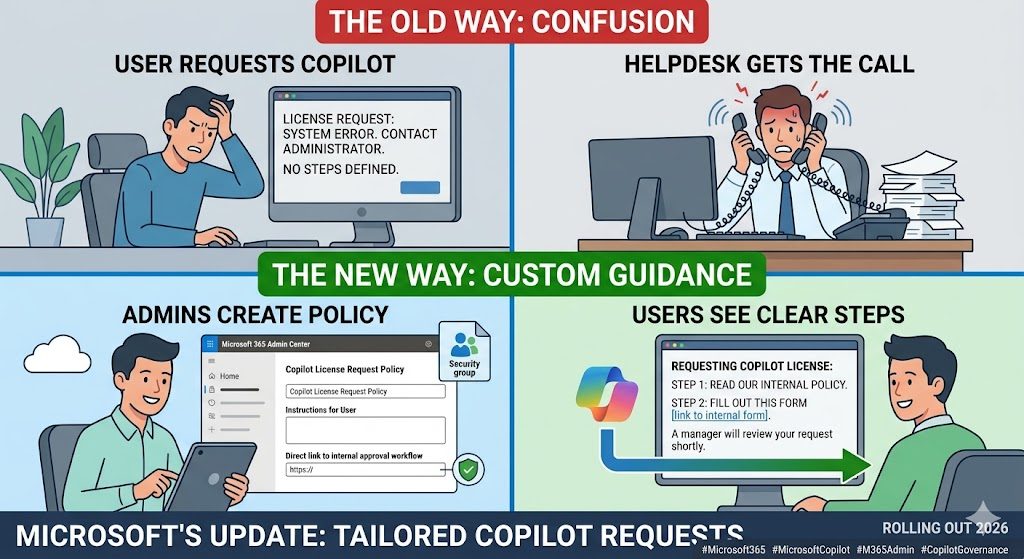
Copilot license requests just got a lot smarter for admins managing Microsoft 365 environments. Microsoft is rolling out support for product-specific and group-specific license request policies, giving organizations the ability to align what users see when they click ‘Request License’ with their actual internal approval workflows. If you have ever dealt with a wave of Copilot access tickets hitting your helpdesk because employees had no idea what to do next, this update is for you.
What Are Copilot License Requests?
When a user in your organization does not have a Microsoft 365 Copilot license, they can submit a license request through the Microsoft 365 admin center experience. This triggers a notification to an admin and, depending on your setup, may display a message or a link to your internal process.
Until now, this experience was fairly generic. There was no way to tailor the message specifically for Copilot, and no way to define different guidance for different groups of users. Everyone got the same response, regardless of their department, location, or how your organization handles Copilot access internally.
Copilot license requests were one of those things that worked in theory but caused friction in practice. Users did not know who to contact, admins did not have a consistent entry point, and helpdesk teams ended up bridging the gap.
What Microsoft Is Changing with Copilot License Requests
Microsoft is now giving admins the ability to create policies that are specific to Microsoft 365 Copilot and scoped to specific user groups. This is a meaningful step up from the previous one-size-fits-all approach.
Copilot License Requests by Product and Group
With this update, you can create a dedicated license request policy for Microsoft 365 Copilot. That means the policy applies only when someone requests a Copilot license, not when they request access to other products. You can also scope that policy to a security group or a Microsoft 365 group, which means you can show different instructions to different teams.
For example, your sales team might have a fast-track approval process managed by their team lead. Your IT department might go through a different route. With group-scoped Copilot license requests, you can reflect that in the experience users actually see.
When someone submits a Copilot license request, they will now see your admin-defined instructions and a link to your internal approval workflow. The approval itself still happens outside Microsoft systems, in whatever tool or process you already use. Microsoft is not replacing your process. They are making it easier to surface it.
Existing Copilot license request configuration stays unchanged unless an admin actively updates it. So if you are not ready to act on this right now, nothing breaks.
Rollout Timeline
| Phase | Start | End |
|---|---|---|
| General Availability (Worldwide) | Late April 2026 | Late June 2026 |
According to Microsoft, this should be rolling out around late April 2026, with worldwide rollout completing by late June 2026.
How to Set Up Copilot License Requests
Here is how to configure the new product-specific policy in the Microsoft 365 admin center.
Step-by-Step: Configuring Copilot License Requests
- Go to the Microsoft 365 admin center at admin.microsoft.com
- Navigate to Billing > Licenses
- Open the ‘License requests’ settings
- Select ‘Add a policy’ or edit an existing one
- Choose Microsoft 365 Copilot as the product
- Select the user group you want to scope this policy to (security group or M365 group)
- Add your custom instructions explaining your internal process
- Add the URL to your internal approval workflow or request form
- Save the policy and test it with a user in the target group
Repeat for other groups if you have different approval processes per department or region.
Admin Tips for Better Copilot License Requests
Review your existing policies first. Before creating new Copilot license request policies, check what you already have in place. You may have a generic policy that now needs to be replaced or supplemented with a product-specific one.
Keep instructions short and actionable. Users see your instructions when they submit a request. Do not paste your full IT governance document there. Two or three sentences and a clear link is enough.
Use the link field properly. Point users to a specific form, a ticket template, or a Teams channel where they can get help. A general intranet homepage is not useful here.
Tell your helpdesk. This change affects the experience users have before they call IT. Brief your helpdesk teams on what users will now see so they are not confused by tickets referencing a new interface.
Test before you go wide. Configure the policy for a small pilot group first and verify the experience from the user side. What you see as an admin is not always what the user sees.
For more background on how Copilot license request flows have evolved, including the business justification step that Microsoft introduced earlier, see this post: M365 Copilot License Request Business Justification.
And if your organization is also exploring more flexible ways to assign Copilot access at scale, this post on pay-as-you-go licensing is worth a read: Copilot Retrieval API: Pay-As-You-Go Flexible Licensing.
License Requirements
To submit a Copilot license request, users need to be in your tenant but do not yet have a Microsoft 365 Copilot license. That is the whole point.
To configure license request policies, you need admin access to the Microsoft 365 admin center. Specifically, you need to be a Global Admin, License Admin, or Billing Admin.
There are no additional license requirements for enabling or configuring this feature. It is part of the standard Microsoft 365 admin experience.
The Paul-Take on Copilot License Requests
Copilot license requests have been a friction point since Copilot started rolling out at scale. Not because the concept is broken, but because organizations had no way to make the experience match their internal reality.
Most companies I work with have a process for Copilot access. Sometimes it is a manager approval. Sometimes it is a form tied to a training completion. Sometimes it is a phased rollout where only certain departments are eligible at all. But none of that was visible in the Copilot license request flow. Users clicked ‘Request License’, got a generic message, and then either called IT or gave up.
This update closes that gap in a practical way. It is not a flashy feature. It is not an AI announcement. It is an operational improvement that will save your helpdesk time and make your Copilot rollout feel more intentional to end users.
If you are managing a Copilot deployment right now, this is worth fifteen minutes of your time to configure properly. Set up the policy, write two clear sentences of instruction, add the link to your approval process, and test it. That is it.
The only note of caution: do not assume this replaces communication. Users still need to know Copilot exists, what it does, and why they might want access. A license request policy improves the mechanics. Adoption still requires change management.
MVP Reference List
- Microsoft Learn: Manage self-service license requests in the Microsoft 365 admin center
- Microsoft Learn: Microsoft 365 licensing guidance