
Copilot Chat Email is changing how you handle email in Microsoft 365. Starting early May 2026, Microsoft 365 Copilot Chat will open an embedded Outlook compose form directly inside the chat when it detects you want to write an email. No app switching. No copying and pasting. Just draft, edit, and send, all in one place.
If your users are already using Copilot to help write emails, this update removes the last remaining friction step. And for organisations still trying to build Copilot habits, this is exactly the kind of seamless experience that pushes adoption forward. If you want a structured starting point for Copilot adoption in your organisation, our free Microsoft 365 Copilot checklist covers everything from activation to day-to-day use.
What Is Copilot Chat Email?
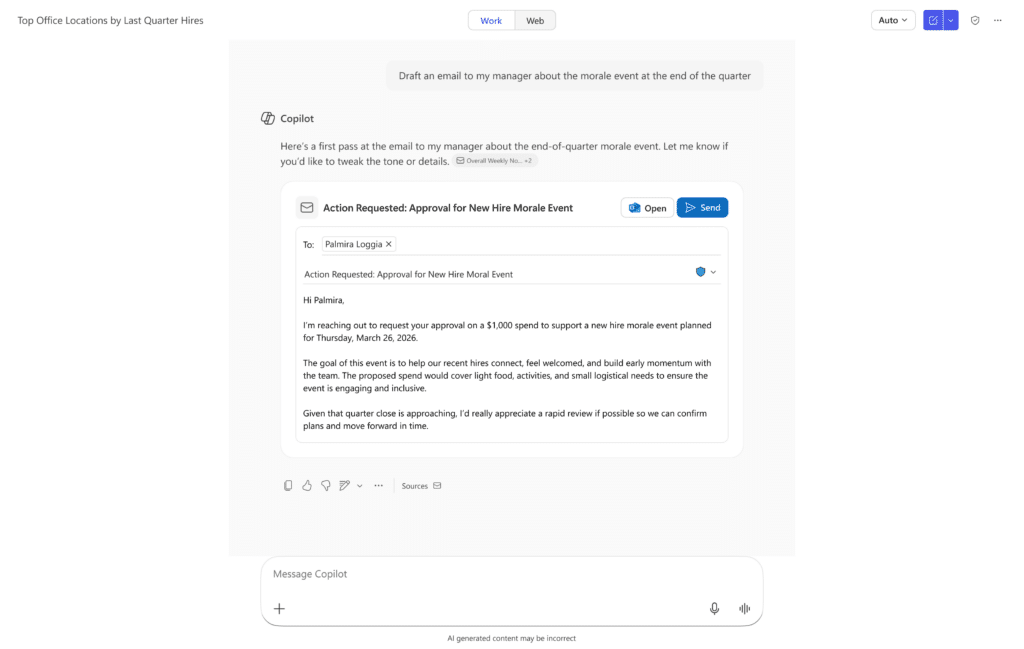
Copilot Chat Email is the new embedded email experience inside Microsoft 365 Copilot Chat. When a user types something like ‘draft an email to the team about the deadline change’, Copilot does not just return a block of text. It opens a real Outlook compose window right there in the chat, pre-filled with a subject, recipients, and body text, ready to review and send.
This is not a new app. It is not a new add-in. It is Copilot Chat Email working inside the interface users already have. According to Microsoft, the feature is part of a broader push to reduce context switching and keep users in a single workflow surface. For a broader overview of what Microsoft 365 Copilot is and how it works, see the official Microsoft 365 Copilot overview on Microsoft Learn.
How Copilot Chat Email Works
Using Copilot Chat Email Step by Step
Here is what the experience looks like in practice:
- Open Microsoft 365 Copilot Chat on a desktop device.
- Type a natural language prompt asking Copilot to draft an email. For example: ‘Draft an email to Sarah about the project kickoff next Monday.’
- Copilot Chat Email detects the email intent and opens an embedded Outlook compose form inside the chat window.
- Review the draft. Edit the subject line, body text, or recipients directly in the form.
- Hit Send from within Copilot Chat, or click ‘Open in Outlook’ if you want to continue editing in the full Outlook experience.
The entire workflow stays inside Copilot Chat. You never have to leave the interface to complete the action.
It is worth noting where this works and where it does not. Copilot Chat Email is available in the Copilot Chat desktop app. It is not available on mobile or in the chat sidebar. So if your users mainly work on desktop, they will get the full experience. Mobile users will not see the embedded compose form for now.
Why Copilot Chat Email Matters for Adoption
The biggest barrier to AI adoption in enterprise Microsoft 365 is not capability. It is habit. People learn to use Copilot for drafting, but the moment they have to leave the interface to actually do something with the result, the flow is broken. Context switching is a small but real speed bump that adds up across a workday.
Copilot Chat Email removes that speed bump. The draft and the action live in the same place. Users who previously used Copilot to help write something and then manually completed the task now have a single, uninterrupted flow. We cover a similar pattern in our article on using Microsoft 365 Copilot in Microsoft Teams, where the same principle of reducing app switching makes a measurable difference in daily adoption.
This also makes Copilot Chat Email relevant to helpdesk teams and anyone using Copilot to triage or respond to requests. Instead of switching between chat and inbox, they can stay in Copilot and handle everything in sequence.
Rollout Timeline
| Phase | Start | End |
|---|---|---|
| General Availability (Worldwide) | Early May 2026 | Early June 2026 |
According to Microsoft, this should be rolling out around early May 2026. The rollout was previously planned for late March 2026 but was updated on 23 March 2026.
There is no Preview phase listed for this feature. It goes straight to General Availability.
Who Gets Copilot Chat Email
Not every user in your organisation will see this automatically. Copilot Chat Email is available to users who are licensed for Microsoft 365 Copilot and have an Exchange Online mailbox on a desktop device. The feature is on by default. No admin configuration is required, and no new controls are introduced.
Users on mobile or in the Copilot Chat sidebar will not see the embedded compose form. They can still use Copilot to generate email drafts as text, but the one-click send experience is desktop only.
Admin Tips for Copilot Chat Email
There is not much to configure here, but there are a few things worth communicating to your team.
Your existing Exchange Online and DLP policies continue to apply automatically. Copilot Chat Email does not create a new channel or bypass any controls. Whatever rules you have in place for Outlook email apply equally here, so there is no new governance surface to set up.
The main action item is communication. Users who are already using Copilot may not notice the change immediately if they have built a habit of copying drafts across to Outlook manually. A short heads-up in your internal newsletter or a Teams message from your Copilot champion can help them discover the feature faster. Our free Microsoft 365 Copilot checklist includes a communication template and adoption checklist that fits this kind of rollout perfectly.
Also review which users in your organisation hold an active Microsoft 365 Copilot license. Copilot Chat Email is only available to licensed users. If someone reports not seeing the embedded compose form, the first check is always the license.
License Requirements for Copilot Chat Email
Copilot Chat Email requires an active Microsoft 365 Copilot license. Users without this license will not see the embedded Outlook compose form in Copilot Chat.
In addition to the Copilot license, users must have an Exchange Online mailbox. Copilot Chat Email does not work with third-party mail providers or hybrid configurations that do not include Exchange Online.
There are no additional licenses required beyond what licensed Copilot users already have. No add-ons. No separate SKU. For a full breakdown of licensing options, see License Options for Microsoft 365 Copilot on Microsoft Learn.
The Paul-Take
I like this update. Not because it is technically complex, because it is not. I like it because it is honest product thinking.
Copilot Chat Email solves a real problem that most product announcements pretend does not exist: the gap between what AI helps you create and what it actually lets you do with it. Generating a good email draft and then having to manually copy it into Outlook feels like using a great coffee machine that does not have a cup under the spout.
The fact that existing DLP and Exchange policies apply automatically is important for IT teams. There is no compliance gap to audit. No new surface to govern. You update your user communication, check who has the license, and move on.
The one thing I would watch: speed. This makes sending AI-drafted emails faster. That is mostly good. But faster also means less time to catch a draft that has the wrong tone, the wrong recipient, or the wrong level of detail for the situation. Copilot Chat Email is a great workflow improvement. It is not a replacement for reading what you are about to send.
According to Microsoft, this should be rolling out around early May 2026.
MVP Reference List
| Item | Detail |
|---|---|
| MC Number | [Add MC number before publishing] |
| Roadmap ID | [Add Roadmap ID — construct as: https://www.microsoft.com/en-us/microsoft-365/roadmap?id=XXXX] |
| Microsoft Learn: Copilot Overview | https://learn.microsoft.com/en-us/copilot/microsoft-365/microsoft-365-copilot-overview |
| Microsoft Learn: Copilot Licensing | https://learn.microsoft.com/en-us/copilot/microsoft-365/microsoft-365-copilot-licensing |