
Facilitator Teams Rooms is the update that finally turns your conference room from a passive screen into an active note-taker. For years, the meetings happening inside a physical room have been the hardest ones to capture. Someone is at the whiteboard, somebody else is nodding, decisions are made, action items are agreed, and then the meeting ends and almost none of that survives. Microsoft is rolling out AI-powered meeting notes with the Facilitator agent to Teams Rooms on Windows, and it changes the equation.
This update is associated with Microsoft 365 Roadmap ID 560318(opens in new window).
What Facilitator Teams Rooms Actually Does
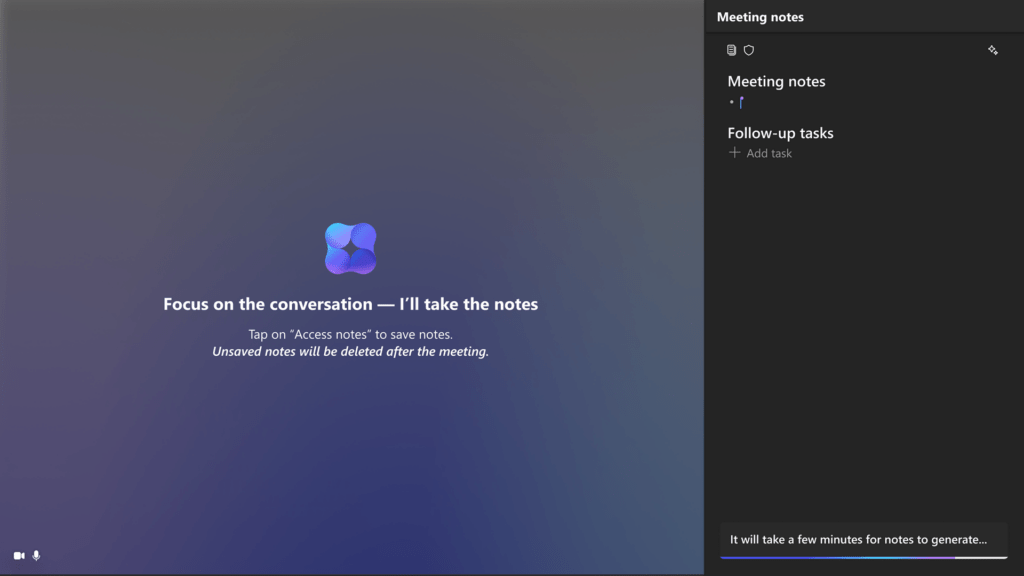
The short version: during an in-person meeting, anyone in the room can press the ‘Take notes’ button on the Teams Rooms console. Facilitator then captures real-time meeting notes, including summaries, decisions, and action items, and shows them on the front-of-room display or touch board. No remote attendee is needed. No laptop is needed. It is a pure in-room experience powered by the same AI that already runs Facilitator in scheduled and hybrid meetings.
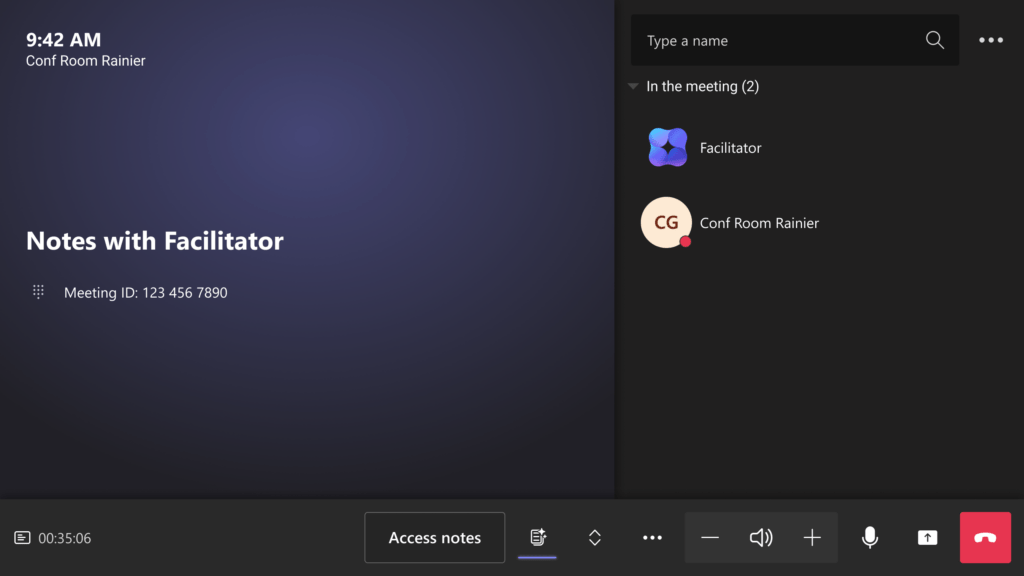
What makes Facilitator Teams Rooms different from existing meeting notes is the storage and access model. Notes are saved to tenant-owned SharePoint Embedded storage, never to the room device. After the meeting, the device retains nothing. To access the notes afterwards, at least one participant needs to add their work account using the ‘Access notes’ button on the console. If nobody adds their account, the notes are deleted automatically. That is a smart, privacy-first default.
After the meeting, the saved notes flow into the meeting recap in the meeting chat, just like notes from any other Teams meeting. Participants with access can view and edit them on the Teams desktop client.
Rollout Timeline for Facilitator Teams Rooms
According to Microsoft, this should be rolling out around late June 2026.
| Rollout Type | Environment | Start | Expected Complete |
|---|---|---|---|
| General Availability | Worldwide and GCC | Late June 2026 | Mid-July 2026 |
This is a General Availability rollout, no separate Preview phase. The feature lights up automatically on rooms that meet the licensing and configuration prerequisites.
How to Enable Facilitator Teams Rooms
The good news is that Facilitator Teams Rooms does not require new admin enablement. The bad news is that it depends on several existing settings being correctly configured. If any of them are off, the ‘Take notes’ button will not work the way you expect.
Step 1: Confirm Teams Rooms Pro Licensing
Facilitator Teams Rooms requires the Teams Rooms Pro license on every room where you want the feature. Walk through your room inventory and confirm. Rooms on the Basic SKU will not get this experience.
Step 2: Allow Facilitator in the Teams Admin Center
Facilitator needs to be allowed at the tenant level. Follow the steps in the Microsoft documentation on allowing Facilitator in the Teams admin center(opens in new window). Without this, no meeting in your tenant gets a Facilitator experience, room-based or not.
Step 3: Enable Loop Components
The notes themselves run on Loop infrastructure. Confirm both of these settings are on:
IsLoopEnabledIsCollabMeetingNotesFluidEnabled
Microsoft documents the relevant settings in the Loop admin configuration guidance(opens in new window).
Step 4: Enable Meeting Transcription
Facilitator generates notes from the audio and transcription stream. Confirm transcription is enabled in your Teams meeting policies(opens in new window). If transcription is off, the AI has nothing to work with.
How Users Start Notes in a Facilitator Teams Rooms Meeting
The user experience is intentionally simple:
- Walk into the room. Start an in-person meeting from the Teams Rooms console.
- Press the ‘Take notes’ button on the console panel.
- Notes appear on the front-of-room display in real time. Decisions and action items are summarised as the conversation continues.
- Before leaving the room, at least one participant presses ‘Access notes’ and signs in with their work account. This claims the notes and keeps them in the meeting recap.
- After the meeting, participants can view and edit the notes via the meeting recap in the meeting chat on the Teams desktop client.
If step 4 is skipped, the notes are auto-deleted. That is a feature, not a bug. It prevents orphaned, ungoverned content from sitting on SharePoint forever.
Admin Tips for Rolling Out Facilitator Teams Rooms
Confirm Teams Rooms Pro on every room. Audit your room licensing before the late June 2026 rollout begins. A single un-licensed room becomes a frustrated meeting organiser.
Brief your helpdesk. The first wave of questions will be ‘where are my notes’ and ‘why did the room not save anything’. The answer is almost always: nobody pressed ‘Access notes’. Make sure the helpdesk has a one-page guide that explains the four-step user flow.
Update your room signage. A small printed card next to the room console saying ‘Tap Take notes to capture decisions’ is a simple change-management win.
Decide who owns the meeting notes by default. Notes appear in the meeting chat of whoever scheduled or signed in to the meeting. For walk-in rooms with no scheduled organiser, the person who signs in via ‘Access notes’ becomes the gatekeeper. Talk to your governance lead about which patterns you want to encourage.
For more context on AI inside Teams meetings, take a look at our earlier deep dive on AI Workflows in Microsoft Teams and how to automate with Copilot(opens in new window), and on the parallel update to Teams annotations on single window sharing(opens in new window), both of which sit alongside Facilitator in the same AI-in-meetings investment.
License Requirements for Facilitator Teams Rooms
To get Facilitator Teams Rooms, your room must hold a Teams Rooms Pro license. Teams Rooms Basic does not include the AI-powered meeting notes experience. Tenant-level Facilitator availability is determined by your Microsoft 365 plan and the admin enablement covered above.
The Paul-Take
Here is the part most rollout plans miss: this is not a feature update, this is a behavioural change for every meeting that happens in a physical room. Most organisations I work with have spent five years optimising hybrid and online meetings, while in-room meetings have stayed analog. People still photograph whiteboards. Someone still gets stuck taking notes on a laptop, which means they cannot really participate. Decisions still vanish two days later.
Facilitator Teams Rooms removes the scribe problem. Nobody has to be the note-taker. The room takes the notes. That sounds small, but it changes the dynamic of every meeting that happens inside it. The senior person stops opting out of note duty. The junior person stops being defaulted into it. Everyone in the room can think instead of type.
But, two real risks. First, governance. Notes generated in a room with no signed-in participant get deleted, which is correct, but rooms used by external visitors or walk-in meetings will lose context unless your organisation builds a clear habit around ‘Access notes’. Second, prerequisites. If you do not have Facilitator allowed, Loop on, and transcription enabled, the button on the console does nothing useful. I have seen tenants where any one of those three is off, sometimes deliberately, sometimes by accident. Audit before you celebrate.
Get the prerequisites right, train the room users on the four-step flow, and you have just upgraded every meeting room into a documenting workspace.