| (Updated) Microsoft Purview | Endpoint Data Loss Prevention: Policy sync and device health AI skillCategory:Microsoft PurviewNummer:MC1381121Status:stayInformed | Updated November 10, 2026: We have updated the timeline. Thank you for your patience. [What and Why] We are introducing Policy Sync and Device Health AI skills for Microsoft Purview Endpoint Data Loss Prevention. These AI-powered capabilities provide real-time visibility into policy deployment across devices and help admins quickly identify and resolve sync issues. By using AI to surface root causes and recommend actions, this feature improves troubleshooting efficiency and increases confidence that policies are enforced consistently across devices. This aligns with our enterprise-ready AI approach by delivering intelligent insights within Microsoft Purview. This message is associated with Microsoft 365 Roadmap ID 562016. [Rollout Schedule] - Public Preview: We will begin rolling out early June 2027 and expect to complete by early June 2027.
- Worldwide: We will begin rolling out early July 2027 and expect to complete by rolling out early July 2027
[Impact on Your Organization] Who is affected - Admins managing Endpoint Data Loss Prevention policies in Microsoft Purview
Platforms/Services - Microsoft Purview compliance portal
- Endpoint DLP
- Security Copilot
What will happen - Admins will see new AI-powered insights for policy sync status and device health:
 - Real-time visibility into DLP policy deployment across endpoints will be available:
 - Impacted devices and sync failures will be identified automatically:
 - Root cause explanations and recommended remediation actions will be provided:
 - The experience will be available within DLP policy and device views in Microsoft Purview.
- The feature requires Security Copilot capabilities to be available in the tenant.
[Action Required/Recommendations] No immediate action is required. To prepare for this feature: - Ensure that Security Copilot is enabled in your organization.
- Confirm that Security Compute Units are provisioned to support AI experiences.
- Verify that admins have appropriate permissions to access DLP policies and device views in Microsoft Purview.
- Review the DLP portal to familiarize your team with where the feature will appear.
- Communicate this update to your security and compliance administrators.
[Compliance considerations] | Question | Answer | | Does the change introduce or significantly modify AI or machine learning capabilities that interact with or provide access to customer data? | Yes. The change introduces AI-powered skills that analyze DLP policy sync status and device health, identify impacted devices, and provide root cause insights along with recommended remediation actions. | | Does the change alter how admins can monitor, report on, or demonstrate compliance activities? | Yes. The change adds new AI-driven insights and visibility into DLP policy deployment and device readiness within Microsoft Purview, enhancing how admins monitor and assess compliance activities. |
|
| (Updated) Microsoft Teams: Users can temporarily pause all notificationsCategory:Microsoft TeamsNummer:MC1465768Status:stayInformed | Updated November 10, 2026: We have updated the timeline. Thank you for your patience. [What and Why:] Microsoft Teams will introduce a new capability that allows users to temporarily pause notifications for a selected period of time. This feature gives users greater control over interruptions, helps reduce notification overload, and enables focused work, meetings, and other activities without requiring changes to existing notification settings. [Rollout Schedule:] - Targeted Release (Worldwide): Rollout begins in mid-September 2026 and is expected to complete by early October 2026.
- General Availability (Worldwide, GCC, GCC High, DoD): Rollout begins in early October 2026 and is expected to complete by end November 2026 (previously late October).
[Impact on Your Organization:] Who is affected: - All Microsoft Teams users.
Platforms: - Microsoft Teams desktop, web, and mobile.
What will happen: - Users will be able to temporarily pause Teams notifications for a selected duration.
- The feature helps users focus on important work and meetings without modifying their existing notification settings.
- Users can access this capability from the profile menu in the upper-right corner of the Teams application.
- Once the selected pause period ends, notifications will automatically resume using the user’s existing notification preferences.
[Action Required/Recommendations:] No admin action is required. Consider informing users about this new capability so they can take advantage of improved notification management and reduced distractions while maintaining their existing notification preferences. [Compliance Considerations:] No compliance considerations identified, review as appropriate for your organization. |
| (Updated) Microsoft Copilot: New ways to work across Microsoft Copilot and Microsoft 365Category:Microsoft Copilot (Microsoft 365)Nummer:MC1479277Status:planForChange | Updated November 9, 2026: We update the Copilot app UI updates section with new details. Thank you for your patience. [What and why:] We are evolving Microsoft Copilot to better connect the tools people rely on with the capablities they need to build, customize, and scale AI across work. Updates include a new Home experience and enhanced Office capabilities in the Copilot app; Code and Autopilot for building solutions and automating work; an enterprise-grade platform for running code; and updates to Copilot Notebooks, Copilot in SharePoint and OneDrive, and Work IQ. [Impact on your organization:] Home in the Copilot app: - When users open the Copilot app, they will land in Home, which brings Chat and Cowork together on one screen. Users can switch between Chat and Cowork in the prompt box. Read more in the blog. These updates will roll out to Frontier in October for all Microsoft 365 users with access to the Copilot app.
- As part of this update, we are making the following updates to the left navigation pane: 1) Agents & Plugins will replace the standalone Agents entry point (called Agents & Skills for some preview users) from Chat and the Customize entry point from Cowork. 2) For users with access to Cowork, Automations from Cowork will move to the Home navigation pane. These updates will roll out to Frontier in October for all Microsoft 365 users with access to the Copilot app.
- Researcher and Analyst will no longer be pinned by default in the Copilot app navigation pane. Users can continue to access these agents from Plugins and can pin them to the navigation pane based on their preferences. Organizations that want these agents to remain pinned for their users can pre-pin them through the Microsoft 365 admin center.
- Chat can complete long-running, multi-step knowledge work, including drafting email, managing meetings, working in Teams, managing OneDrive and SharePoint files, finding people, and creating Word, PowerPoint, Excel, PDF, and HTML files. Sensitive actions require user approval. Users can track and manage their long-running activity from Chat in the Tasks view, accessible in the upper right of the Copilot app navigation pane. These capabilities will roll out to Frontier later this month and are available to users with a Microsoft 365 Copilot license.
- Chat will begin surfacing Skills that are used while generating responses, giving users greater transparency into how Copilot responds. This update will begin worldwide rollout in October and is available to users with a Microsoft 365 Copilot license.
Code: - The new Code experience gives users a dedicated place in the Copilot app to create trackers, dashboards, and apps using natural language. Users can access Code by going to the Code tab in the Copilot app navigation pane. Read more in the blog.
- Code uses usage-based billing. Eligible users require a Microsoft 365 Copilot license and spending policy.
- Code is rolling out to Frontier later this month.
- To prepare: To enable Copilot Code for your tenant, admin must deploy the unified app and set the target channel to beta.
Autopilot: - Autopilot, previously called Scout, is an always-on personal agent in the Copilot app with persistent context, identity, and memory. Users can access Autopilot by going to the Autopilot tab in the Copilot app navigation pane. Read more in the blog.
- Autopilot uses usage-based billing. Eligible users require a Microsoft 365 Copilot license and spending policy.
- We will update this message with rollout timing and admin control details when available.
Copilot app UI updates: Please refer to MC1546354 for more detail. Full Office capabilities in the Copilot app: - Users can use full Word, Excel, and PowerPoint creation, editing, and collaboration capabilities in the Copilot app, side by side with Copilot. Users can also access recent Word, Excel, and PowerPoint files from Library in the Copilot app navigation pane. Read more in the blog.
- Capabilities accessed through Chat are included with the Microsoft 365 Copilot user subscription license. Capabilities accessed through Cowork use usage-based billing.
- These capabilities are rolling out to Frontier later this month.
Copilot Managed Runtime: - Copilot Managed Runtime is an enterprise-grade platform for running code within the Microsoft 365 tenant boundary under IT governance. It supports apps built in Code, Cowork, Copilot Studio, and supported command-line and SDK experiences. Admins can manage these apps in the Microsoft 365 admin center. Read more in the blog.
- Managed Runtime is starting to roll out now into public preview.
Copilot Notebooks updates: - Copilot Notebooks will add task delegation, full Office editing and collaboration, interactive report creation, audio overview updates, model selection, and an updated user experience in the Copilot app and OneNote.
- These updates will roll out to Frontier later this month.
SharePoint and OneDrive updates: - We are announcing the general availability of Copilot in SharePoint. The everyday AI capabilities that have been in public preview stay included with a Microsoft 365 Copilot user subscription license (USL). New agentic capabilities and the ability to work at greater scale than was possible in preview will be available through usage-based billing (UBB) and consume Copilot Credits. We are also introducing general availability of Copilot in OneDrive, which follows the same licensing structure as SharePoint. Read more about Copilot in SharePoint and OneDrive in the blog.
- General availability begins rolling out later this month. Tenant availability may follow as rollout progresses.
- To prepare: No action is required to continue using capabilities included with the Microsoft 365 Copilot user subscription license (USL). Admins can control who can access advanced SharePoint capabilities through UBB by going to Microsoft 365 admin center > Copilot > Cost Management. Existing cost management policies may automatically include newly available services. Existing PowerShell opt-out settings for the Public Preview of Copilot in SharePoint will continue to be honored until November 1st; after that, manage availability through SharePoint site AI settings.
Business Applications in Work IQ: - Work IQ now includes Dynamics 365 Sales, Dynamics 365 Customer Service, and Power Platform data, enabling Copilot to ground responses and tasks on business and productivity data. Read more in the blog.
- These updates will start rolling out in public preview later this month.
- To prepare: Admins can configure Dynamics 365 and Power Platform data sources for Copilot in the Power Platform admin center. Admins can also manage the availability of business applications in Copilot in the Microsoft 365 admin center under Copilot > Settings, and access through the Work IQ Model Context Protocol (MCP) under Agents > Tools.
[Action required / Recommendations:] In addition to the guidance listed in the individual updates above: - A spending policy is required for users to access capabilities available through Usage-based billing. Enable Copilot Credit consumption and configure spending policies in the Microsoft 365 admin center under Copilot > Cost management. Educate users about usage-based billing scenarios and how to request access through IT. Learn more about spending policy and usage-based billing in the blog and message center post titled: Evolving Copilot pricing and new FinOps capabilities for AI.
- Monitor this post for updated availability and deployment details.
|
| Microsoft Purview DLP: Improved setup and Intune multi-admin approval support for unmanaged apps in Edge for BusinessCategory:Microsoft PurviewNummer:MC1489971Status:stayInformed | Updated November 9, 2026: We have updated the timeline. Thank you for your patience. [What and why] Beginning in late November 2026, Microsoft Purview will roll out improvements to the setup and activation experience for inline collection and Data Loss Prevention (DLP) policies that protect interactions with unmanaged cloud apps in Microsoft Edge for Business. This update adds support for organizations that use Microsoft Intune multi-admin approval and provides clearer status information, more detailed error reporting, and remediation guidance in the Microsoft Purview portal. These enhancements help administrators activate protection more efficiently while preserving existing Intune approval controls. [Rollout schedule] - Worldwide: Beginning in late November 2026 (previously early November) and expected to complete by early December 2026 (previously mid-November)
The rollout will occur progressively. Until the update reaches your tenant, Microsoft Purview may continue to display the current setup experience or indicate that Intune multi-admin approval is not supported. [Impact on your organization] Who is affected - Organizations using Microsoft Purview collection or DLP policies to monitor and protect supported activities with unmanaged cloud apps in Microsoft Edge for Business
- Organizations using Microsoft Intune multi-admin approval
- Organizations that require coordination between Purview and Intune administrators
Platforms/services - Microsoft Purview
- Microsoft Intune
- Microsoft Edge for Business
What will happen - Microsoft Purview inline protection for unmanaged apps will support tenants that use Intune multi-admin approval.
- Required Intune configuration changes will continue through your existing multi-admin approval process.
- Microsoft Purview will not bypass Intune approval requirements.
- The Microsoft Purview portal will provide clearer setup status information, more detailed error information, and guidance about actions required to complete activation.
- When Intune administrator assistance is required, a Purview administrator can send a task to the appropriate Intune administrator.
- Sending a task does not grant permissions, bypass approval requirements, or automatically complete requested Intune changes.
- Protection may remain pending or inactive until required Intune approvals or administrator actions are completed.
- You do not need to migrate or recreate existing collection or DLP policies.
- This update does not expand supported applications, browsers, activities, licenses, devices, or cloud environments.
- Existing DLP enforcement behavior remains unchanged.
[Action required and recommendations] No action is required before rollout. After the update reaches your tenant, if Microsoft Purview indicates that administrator action is required: - Review the status and error details in the Microsoft Purview portal to identify the required next step.
- In Microsoft Purview, send a task to the appropriate Intune administrator and have that administrator complete the requested action.
- Return to Microsoft Purview, review the request status, and complete any remaining steps.
- Check again after approximately one hour to confirm the supporting configuration and activation status are complete and that the error no longer appears.
If your organization does not use Intune multi-admin approval and your policies are already active, no action is required. For questions or support, contact your Microsoft account representative or Microsoft Support. Learn more [Compliance considerations] | Question | Answer | | Does the change alter how administrators can monitor, report on, or demonstrate compliance activities, for example, through Microsoft Purview or administrator reporting? | Yes. Administrators will receive clearer setup status information, more detailed error information, remediation guidance, and task-based coordination between Microsoft Purview and Microsoft Intune administrators. |
|
| (Updated) Classic Outlook for Windows: Upcoming visual improvements and a more consistent Outlook experienceCategory:Exchange OnlineNummer:MC1506730Status:planForChange | Updated November 9, 2026: We’ve heard your feedback that you’d like more information about what’s changing in classic Outlook. To help end-users understand recent changes, we’re bringing back the What’s New in-app dialog. The dialog is designed to be nonintrusive and will appear automatically at most once per month in Production on Current Channel. Users can dismiss it at any time and reopen it later by selecting the What’s New button on the ribbon. Administrators can turn off the automated dialog and hide its ribbon button. For more information and configuration instructions, see What’s New in classic Outlook for Windows. [What and why] We’re making updates across Microsoft Outlook experiences to improve clarity and consistency across endpoints. The first updates focus on visual details such as icons, spacing, and alignment, while maintaining familiar ways of working. These updates are part of an ongoing series of improvements across Outlook experiences and are not a replacement for the classic Outlook experience. [Rollout schedule] General Availability (Worldwide): Beginning in mid-November 2026 (previously early November) and expected to complete by late November 2026 - The initial visual updates will roll out to classic Outlook Current Channel. Users may receive individual improvements at different times as the rollout progresses.
- We will provide additional advance notice before larger changes that might affect navigation or workflows, including timing and any preparation required.
[Impact on your organization] Who is affected - Users of classic Outlook for Windows Current Channel
Platforms and services - The initial visual updates apply to classic Outlook for Windows Current Channel.
- We are also improving Outlook on the web, new Outlook for Windows, and Outlook for macOS to reduce unnecessary differences and make familiar capabilities easier to recognize across devices.
What will happen - Users will begin seeing visual refinements to familiar mail and calendar surfaces, including updates to icons, spacing, and alignment.
- These initial updates are intended to improve clarity and consistency without changing how users perform their tasks.
- This change does not replace the classic Outlook experience.
- No admin configuration changes are required for these initial visual updates.
[Action required and recommendations] No admin action is required. We recommend that you: - Inform your help desk that the appearance of some Outlook controls may change as updates roll out.
- Inform users as appropriate.
- Continue to direct users to Outlook’s existing feedback options to share feedback.
[Compliance considerations] No compliance considerations identified. Review as appropriate for your organization. |
| (Updated) Microsoft Teams: Video sharing from OneDrive in Teams eventsCategory:Microsoft TeamsNummer:MC1506734Status:planForChange | Updated November 10, 2026: We have updated the timeline. If you are a tenant in a GCCH or DoD environment, you can safely ignore this message as you are not impacted. Thank you for your patience. [What and why] Microsoft Teams will soon support sharing video directly from OneDrive during Teams events. Organizers and producers using Manage what attendees see can load videos from OneDrive and present them on stage without screen sharing a local media player or embedding videos in PowerPoint. This improvement provides smoother, higher-quality video playback for attendees and simplifies event production through built-in video playback controls. [Rollout schedule] - Targeted Release (Worldwide): Rollout will begin in mid-November 2026 (previously early November) and end in early December 2026.
- General Availability (Worldwide, GCC): Rollout will begin in early December 2026 and is expected to complete by early December 2026.
[Impact on your organization] Who is affected - Teams event organizers and producers using events configured with Manage what attendees see.
Platforms and services - Microsoft Teams
- OneDrive
- Teams events
What will happen - Organizers and producers will be able to select and share videos stored in OneDrive directly within Teams events configured with Manage what attendees see and will have access to built-in controls to start and pause video playback during events.
- Videos can be presented on stage without screen sharing a local media player or embedding videos into a PowerPoint presentation.
- Attendees will experience smoother and higher-quality video playback.
[Action required and recommendations] No action is required. We recommend that you: - Inform Teams event organizers and producers that they can share videos directly from OneDrive in Teams events configured with Manage what attendees see.
- Ensure that organizers and producers store videos in OneDrive with the appropriate permissions before using them in events.
- Review and update internal event production guidance that recommends screen sharing locally played videos or embedding videos in PowerPoint.
[Learn more] We will update this post with new documentation. [Compliance considerations] No compliance considerations identified. Review as appropriate for your organization. |
| (Updated) Microsoft Teams: Automatic recording and transcription options align with admin policiesCategory:Microsoft TeamsNummer:MC1508234Status:stayInformed | Updated November 10, 2026: We have updated the timeline. Thank you for your patience. [What and why] Microsoft Teams is updating the Record and transcribe automatically setting in Meeting options, so meeting organizers see only the automatic recording and transcription options permitted by their assigned Teams meeting policies. This change reduces confusion, improves policy compliance, and helps ensure organizers cannot select options that are unavailable based on organizational settings. As part of this update, Teams will introduce a new Record only option that automatically starts meeting recording without starting transcription. [Rollout schedule] - Targeted Release: Beginning in mid-November 2026 (previously early November) and expected to complete by end of November 2026 (previously mid-November)
- General Availability (Worldwide): Beginning in early December 2026 and expected to complete by mid-December 2026
[Impact on your organization] Who is affected - Teams administrators who manage meeting recording and transcription policies
- Meeting organizers who configure automatic recording or transcription settings in Meeting options
Platforms and services - Teams desktop, web, and mobile clients that support Meeting Options.
What will happen - Meeting organizers will only see automatic recording and transcription options allowed by their effective Teams meeting policy.
- Policy evaluation respects policies assigned directly to a user, inherited through group assignment, or applied through the global policy.
- A new Record only option will be available when recording is permitted by policy.
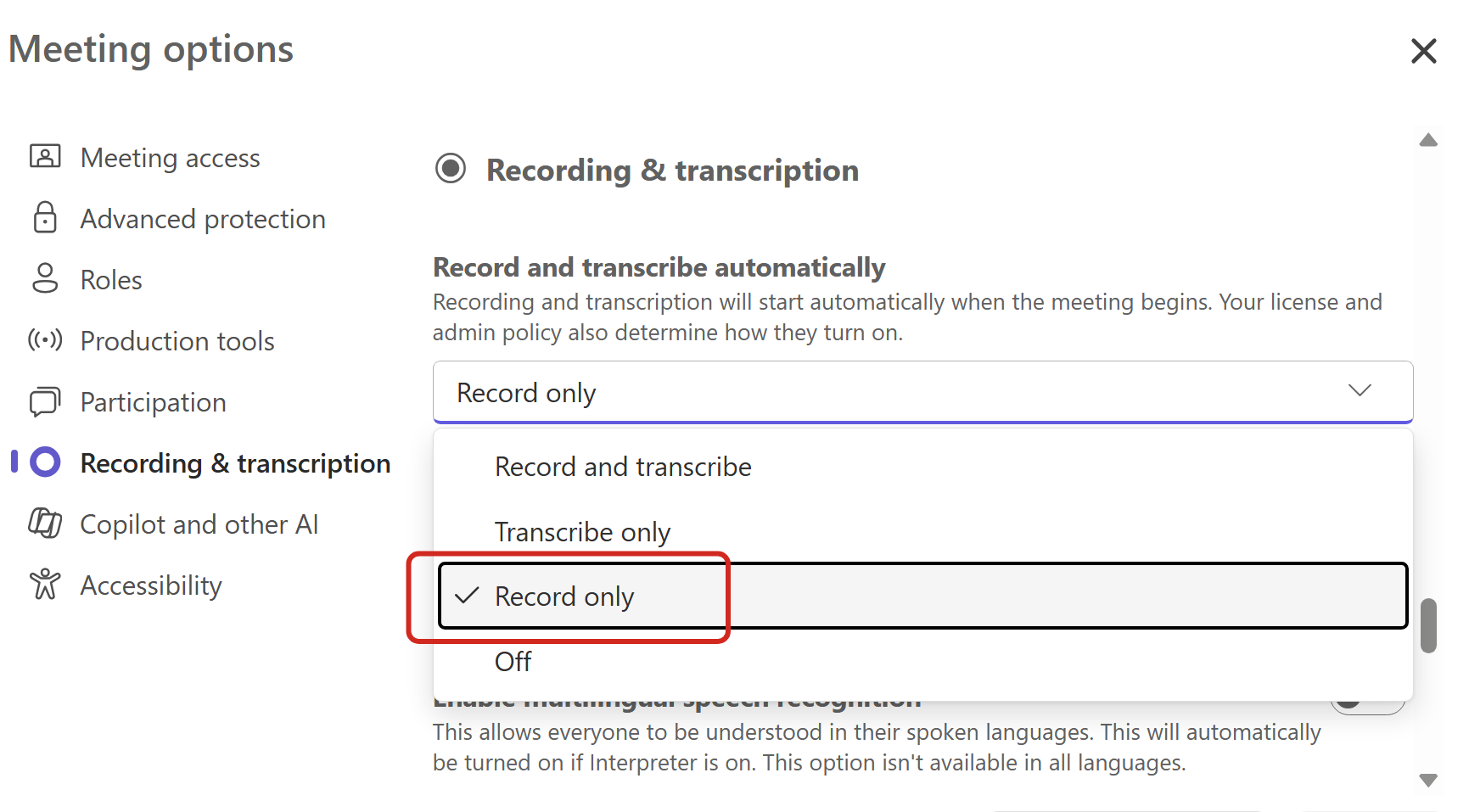
- The available automatic options for each policy combination are shown below:
| Recording policy | Transcription policy | Automatic options available in Meeting Options | | Allowed | Allowed | Record and transcribe; Transcribe only; Record only; Off | | Allowed | Blocked | Record only; Off | | Blocked | Allowed | Transcribe only; Off | | Blocked | Blocked | The automatic setting is not shown |
[Action required and recommendations] No admin action is required; the feature is enabled automatically as part of the service update. We recommend that: - Inform meeting organizers about the new Record only option.
- Communicate that available automatic recording and transcription options are now determined by the organizer’s assigned Teams meeting policies.
- Review recording and transcription policies if you want to understand which options organizers in your organization will see.
[Compliance considerations] No compliance considerations identified. Review as appropriate for your organization. |
| (Updated) Microsoft Teams: Malicious QR code detection in messagesCategory:Microsoft TeamsNummer:MC1526651Status:stayInformed | Updated November 10, 2026: We have updated the timeline. Thank you for your patience. [What and why] Microsoft Teams is extending malicious URL protection to provide near-real-time detection of malicious destinations embedded in QR codes shared in messages. Teams will analyze QR code destinations to identify potential phishing and fraud threats and display an additional warning when malicious content is detected. [Rollout schedule] - General Availability (Worldwide): Beginning in mid-November 2026 (previously early November) and expected to complete by late November 2026 (previously mid-November)
[Impact on your organization] Who is affected - Users who use Microsoft Teams messaging
Platforms and services - Microsoft Teams chats, meeting chats, and channels
What will happen - Teams will decode and evaluate QR code destinations in inline images shared in 1:1 chats, group chats, meeting chats, and channels.
- Detection applies to internal and external communications.
- Images containing QR codes from external senders are already blurred by default. When Teams identifies a malicious QR code, users will also see the warning, “This message contains a link that might be harmful,” and a “Learn about file and link safety” link.
- QR code images from internal senders are not blurred by default. The same warning will appear when Teams detects a malicious QR code.
- For users on Teams mobile in China, QR code images are blurred by default regardless of whether the sender is internal or external, and any messages containing malicious QR code will be blocked.
- Malicious QR code detection is managed by the existing Malicious URL protection setting.
- The setting is enabled by default. Organizations with Malicious URL protection enabled will automatically receive malicious QR code detection as the feature rolls out.
- No separate configuration is available or required for malicious QR code detection.
[Action required and recommendations] No admin action is required. Admins can review or change the existing Malicious URL protection setting in Teams admin center > Settings and policies > Messaging Safety. We recommend that you: - Inform users and help desk staff about the additional warning for detected malicious QR codes.
- Clarify that QR code blurring is a separate precautionary experience and does not mean that Teams has identified a QR code as malicious.
- Review internal documentation about Teams messaging security and update it if necessary.
Learn more (Both to be updated closer to rollout.) [Compliance considerations] No compliance considerations identified. Review as appropriate for your organization. |
| (Updated) Office in Copilot brings the full power of Office into the Microsoft Copilot appCategory:Microsoft Copilot (Microsoft 365)
Microsoft 365 Copilot ChatNummer:MC1530611Status:stayInformed | Updated November 10, 2026: We have updated the timeline. Thank you for your patience. [What and Why:] Now users have the full power of Office in Microsoft Copilot app, so users can create, edit and collaborate on Word, Excel and PowerPoint files, without leaving the app. [Rollout Schedule:] General Availability (Worldwide): We have begun rolling out and expect to complete by mid-November 2026. - Deferred release will start early December 2026
[Impact on Your Organization:] Now with the full value of Office in Copilot, Word, Excel, and PowerPoint is brought in directly into the Copilot experience, allowing users to create, review, edit, and collaborate on Office files without leaving their flow of work. This reduces context switching and makes it easier to move from an idea or conversation to a finished, shareable Office artifact. [Action Required/Recommendations:] No admin action is required. Admins may want to inform users about the new experience and review their existing Microsoft 365 Copilot configuration and policies. [Compliance considerations:] | Question | Answer | | Does the change alter how existing customer data is processed, stored, or accessed? | Yes. Users can now access and edit Office file content through the Copilot experience, with changes synced back to the regular Office apps. | | Does the change introduce or significantly modify AI/ML or agent capabilities that interact with or provide access to customer data? | Yes. Copilot gains expanded capability to read and edit Office document content as part of this feature. | | Does the change provide end users any new way of interacting with generative AI? | Yes. Users can create and edit Word, Excel, and PowerPoint content directly within the Copilot app. | | Does the change include an admin control and can it be controlled through Entra ID group membership? | Yes. This feature is subject to existing Microsoft 365 Copilot configuration and policies, which admins can manage via Entra ID group-based assignment. |
|
| (Updated) Microsoft Teams: Invite attendees to registerCategory:Microsoft TeamsNummer:MC1537353Status:stayInformed | Updated November 10, 2026: We have updated the timeline. Thank you for your patience. [What and Why:] Microsoft Teams is expanding the Invite to register experience for Teams events with registration enabled. Organizers can select people to receive an email invitation with a link to register for the event. [Rollout Schedule:] General Availability (Worldwide, GCC): We will begin rolling out in late November 2026 (previously mid-November) and expect to complete by late November 2026. [Impact on Your Organization:] Invite to register will be available across event access types, including public, organization-wide, and events limited to specific people and groups. For public and organization-wide events, sending an invitation does not change who is eligible to register. For events limited to specific people and groups, the selected audience continues to determine registration eligibility. This update gives organizers a consistent way to proactively invite their intended audience to register for an event. [Action Required/Recommendations:] No special preparation is required. However, if your tenant does not have a custom domain configured for M365 notifications, this capability will be restricted due to spam concerns. Admins should configure their custom domain for M365 notifications to allow full use of this feature. [Compliance considerations:] No compliance considerations identified. Review as appropriate for your organization. |
| Power Platform admin center – Connector inventory in Power Platform inventoryCategory:Power PlatformNummer:MC1546312Status:stayInformed | We are announcing Connector inventory in Power Platform inventory. This feature will reach general availability by November 10, 2026.
How does this affect me?
Connector inventory makes common admin workflows query-driven, identifying every resource affected by a deprecated connector, tracking Premium connector adoption for license decisions, scoping DLP policies to actual usage patterns, and reviewing a resource’s full connector footprint during troubleshooting.
In the Power Platform admin center, a Connectors column appears across the inventory grids: the unified Manage > Inventory page and the resource-specific views under Copilot Studio, Power Apps, and Power Automate. The same data is available programmatically through the Power Platform for Admins V2 connector, the Power Platform inventory API, Power Platform CLI, and Azure Resource Graph, so you can build reports and automate governance.
What action do I need to take?
This message is for awareness, and no action is required.
If you would like more information on this feature, please visit Connector inventory
Connector inventory. |
| Discover usage-based billing (UBB) experiences like Cowork, Code, and AutopilotCategory:Microsoft Copilot (Microsoft 365)Nummer:MC1546354Status:planForChange | [What and why:] As previously announced in MC1479277, we are making usage-based experiences in the Microsoft Copilot app easier to discover. Usage-based billing experiences like Cowork, Code, and Autopilot, will be visible by default to users with a Microsoft 365 Copilot license, even if their organization has not enabled access. Users without an applicable spending policy will see an option to request access or learn more, based on their organization’s settings. Based on customer feedback, we are extending the rollout timeline and introducing an additional admin control that will allow organizations to provide custom guidance to users. These changes give administrators more time to prepare and greater flexibility to manage how users discover and request access to usage-based experiences. [Rollout schedule:] The updated rollout schedule is as follows: - Mid-November 2026: The new admin setting, “Access requests to usage-based billing experiences,” will become available for administrators to configure.
- Mid-December 2026: An additional option will be introduced to the admin setting, allowing administrators to provide a custom URL as part of the Learn more informational experience that directs users to their own organization’s guidance. The option will be available if you select “Specific users” or “No users” in the setting.
- End of January 2027: The new discoverability behavior and admin setting will be enforced. The old setting “Allow users to discover and use AI experiences enabled by usage-based billing” will be retired. This will apply to customers on deferred release at the end of February 2027.
[Impact on your organization:] Who is affected: - Organizations with users licensed for Microsoft 365 Copilot.
Platforms/services: - Microsoft Copilot app and Microsoft 365 admin center.
What will happen: - Entry points for Cowork, Code, and Autopilot will be visible by default to licensed users starting at the end of January 2027.
- Users without an applicable spending policy giving them access to the feature will see an informational experience with an option to “Request access” or “Learn more,” depending on their how their organization has configured the new “Access requests to usage-based billing experiences” admin setting.
- Administrators can configure which users are eligible to request access, including the option to prevent access requests.
- Administrators will be able to provide a custom URL directing users to organizational guidance. Only users who cannot request access will see the secondary URL, “Your organization’s guidance”, as part of the Learn more informational experience.
- The existing setting, “Allow users to discover and use AI experiences enabled by usage-based billing,” will continue to apply until it is retired at the end of January 2027.
Examples of the customizable “Your organization’s guidance” link on the informational experience for Cowork and Code. UI subject to change. 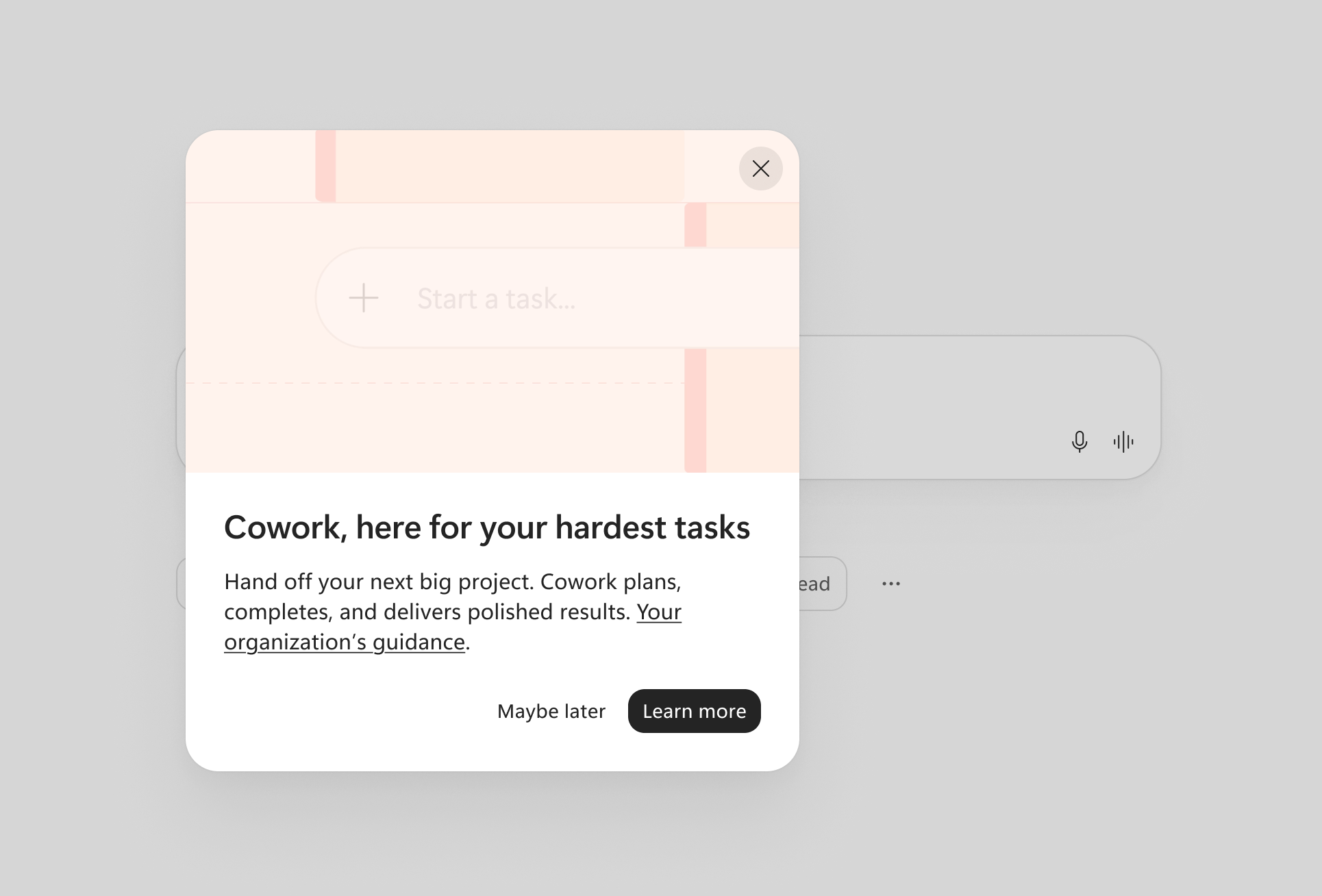
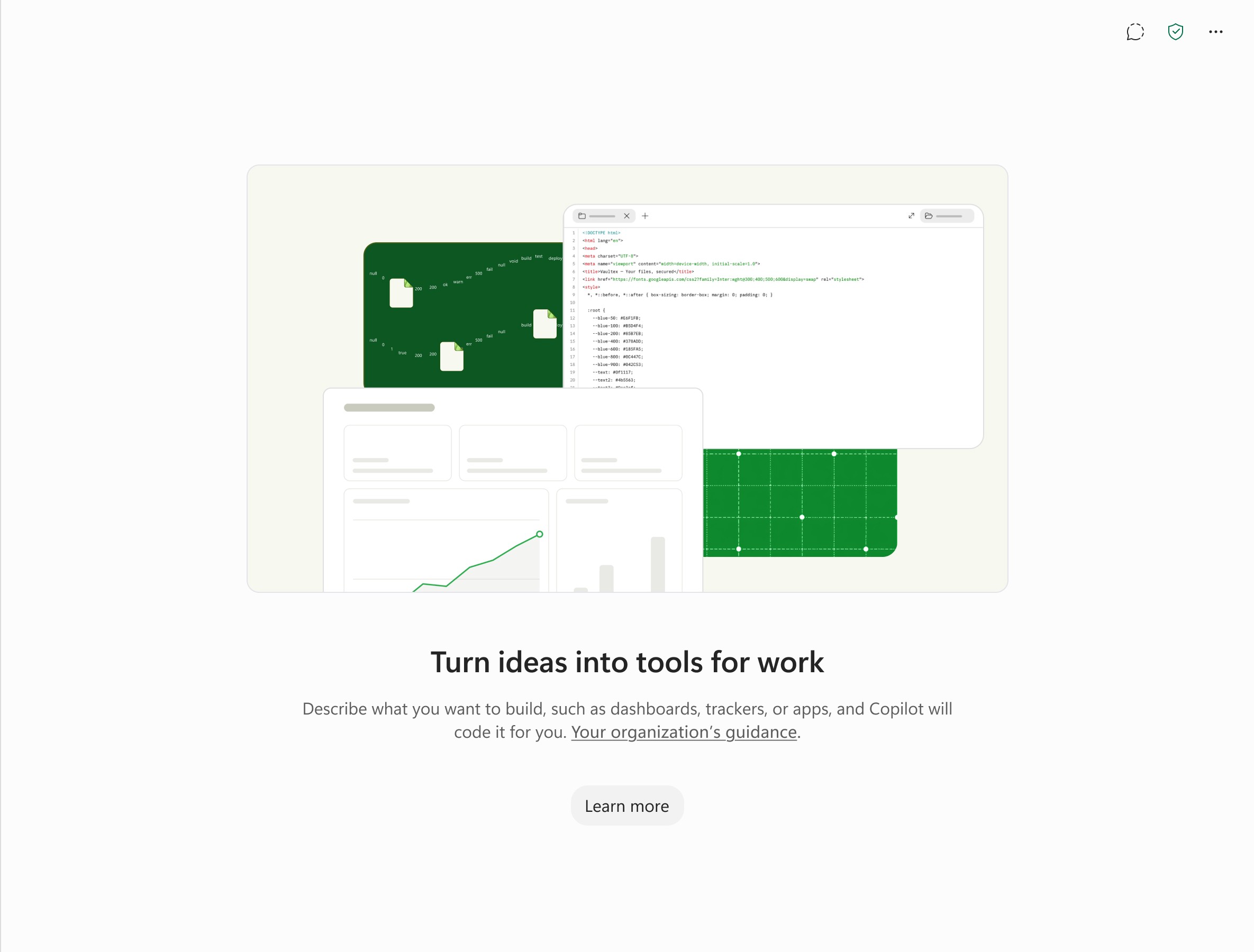
This change does not automatically enable usage-based experiences or initiate billing. Users must have an applicable spending policy and available Copilot Credits before they can use these experiences. [Action required / recommendations:] We recommend that administrators: - Review the new setting in the Microsoft 365 admin center under Copilot > Settings > Access requests to usage-based billing experiences when it becomes available in mid-November. Starting mid-December, you will be able to configure a custom URL in this setting for users who you decide cannot request access.
- Configure access request preferences to determine which users can request access to usage-based experiences.
- Prepare organizational guidance and, beginning in mid-December, configure a custom URL if you want to direct users to information specific to your organization.
- Review spending policies to ensure that access to usage-based experiences aligns with your organization’s requirements.
We recommend reviewing and configuring these settings before the new discoverability behavior is enforced at the end of January 2027. Learn more: Access requests to usage-based billing experiences (This will be updated in mid-Dec to reflect instructions for the custom URL once available in the setting) [Compliance considerations:] This update introduces additional administrative controls for managing access requests and organizational guidance. It does not automatically grant users access to usage-based experiences or change existing spending policy requirements. |
| Microsoft Teams: Retirement of off-network invitations to Teams FreeCategory:Microsoft TeamsNummer:MC1546409Status:planForChange | [What and Why:] Microsoft Teams will retire the invitation flow that allows work or school users to invite people who cannot be found in Teams to create a Teams Free account and join a chat. This change retires the off-network invitation flow (via email or sharing a link to chat) only — not federation with Teams Free. [Rollout Schedule:] Worldwide: We will begin rolling out in early December 2026 and expect to complete by late December 2026. [Impact on Your Organization:] Who is affected: - Users who use the off-network email invitation flow to invite external people to create a Teams Free account and join a chat.
- Users who user share a link to chat flow to invite external people to create a Teams Free account and join a chat.
Platforms/Services: - Microsoft Teams desktop, web and mobile apps
What will happen: - Users will no longer be able to send these onboarding invitations from Teams chats.
- People who need a Teams Free account will need to create one independently or collaborate through another supported method.
- Collaboration with existing Teams Free users remains available, subject to your organization’s external-access policies.
- This change will take effect automatically. No admin action is required to enable the retirement.
[Action Required/Recommendations:] No admin action is required for this change to take effect. However, we recommend updating user guidance and helpdesk documentation before December 6, 2026, to reflect the following alternatives: - For ongoing chat: If recipients do not have a Teams account, they can create a Teams Free account independently or get invited as guests to an existing team. Once their account is discoverable, users can search for their registered email address and start a conversation.
- For team and channel collaboration: No change.
- For meetings: No change.
[Compliance considerations:] No compliance considerations identified. Review as appropriate for your organization. |
| Retirement of Viva Insights (personal insights) and Viva Learning usage reportsCategory:Microsoft 365 suiteNummer:MC1546411Status:planForChange | [What and Why:] The Viva Learning usage report and The Viva Insights personal insights active-user trend chart will be retired from the Microsoft 365 admin center. For Viva Learning, admins can continue to access usage metrics in the Viva Learning app directly. [Rollout Schedule:] General Availability (Worldwide): We will begin rolling out on early November 2026 and expect to complete by mid-November 2026. [Impact on Your Organization:] Who is affected: - Microsoft 365 tenant administrators
- Organizations using Microsoft Viva Insights, or Viva Learning usage reports
Platforms/Services: - Microsoft 365 admin center
- Viva Insights
- Viva Learning
What will happen: - The Viva Insights personal insights active-user trend chart will be retired.
- The Viva Learning usage report will be removed from the Microsoft 365 admin center
- Viva Learning analytics will continue through the Viva Learning reporting experience.
[Action Required/Recommendations:] - Update documentation referencing retired Viva reports.
- Communicate the reporting location change to reporting administrators.
- Use Viva Learning reporting within Viva Learning going forward
[Compliance considerations:] | Does the change include an admin control and, can it be controlled through Entra ID group membership? | Yes. The feature includes or affects admin controls, policies, permissions, roles, authentication, or management settings as described in this message. Review the linked documentation or admin center controls for group-based configuration support. |
|
| Power BI retiring standalone Copilot experiences (preview)Category:Power BI
Microsoft Copilot (Microsoft 365)Nummer:MC1546429Status:planForChange | [What and Why:] Power BI will retire the preview standalone Copilot experience in early January 2027. This includes access from the Power BI Home page, Power BI mobile apps, Microsoft Teams, and app-scoped Copilot. Microsoft has announced Microsoft 365 Copilot in Power BI and Microsoft Fabric (preview), which brings Microsoft 365 Copilot into these products. Beginning December 8, 2026, Microsoft 365 Copilot in Power BI will be enabled by default. [Rollout Schedule:] Microsoft 365 Copilot default-on (Worldwide): December 8, 2026. Retirement (Worldwide): Standalone Copilot will be retired in mid-January 2027. [Impact on Your Organization:] Standalone Copilot will no longer be available from the Power BI Home page, Power BI mobile apps, Microsoft Teams, or within Power BI workspace apps. The associated navigation entry points and settings will be removed, including the standalone Copilot tenant setting and the “Show Copilot in app navigation” setting. Beginning December 8, 2026, Microsoft 365 Copilot in Power BI will be enabled by default, providing an alternative for continued AI-assisted analysis of Power BI data. [Action Required/Recommendations:] Notify affected people in your organization about the retirement. Review Microsoft 365 Copilot in Power BI and Microsoft Fabric (preview), including its availability and requirements for your organization, ahead of the December 8 default-on date, and plan the transition from standalone Copilot as appropriate. [Compliance considerations:] No compliance considerations identified. Review as appropriate for your organization. |
| ‘Add explainer video’ Skill in PPT CopilotCategory:Microsoft 365 apps
Microsoft Copilot (Microsoft 365)Nummer:MC1546430Status:stayInformed | [What and Why:] Use the “Add explainer video” skill in Copilot for PowerPoint. This is a built-in skill rolling out as an experimental skill to Frontier users. Available on desktop, Mac, and web. [Rollout Schedule:] Frontier/Insider (Worldwide): We will begin rolling out on early November 2026 and expect to complete by mid November 2026. [Impact on Your Organization:] Ability to convert a static slide into an animated explainer video. [Action Required/Recommendations:] No admin action is required. [Compliance considerations:] No compliance considerations identified. Review as appropriate for your organization. |
| Action may be required: Claude models in Copilot are coming into the EU Data Boundary and will be enabled by defaultCategory:Microsoft Copilot (Microsoft 365)
Microsoft 365 Copilot Chat
Microsoft Copilot (Power Platform)Nummer:MC1546438Status:planForChange | [What and why:] Claude models from Anthropic in Microsoft Copilot are coming into the EU Data Boundary. Starting in early December 2026, eligible organizations in the European Union (EU) and the European Free Trade Association (EFTA) will be able to use Claude models in Copilot with processing within the EU Data Boundary. Claude models are currently disabled by default for tenants in the EU and EFTA. On December 9, 2026, Microsoft will enable Claude models for tenants that haven’t made a selection for Anthropic under AI providers operating as Microsoft subprocessors in the Microsoft 365 admin center. With Claude models coming into the EU Data Boundary, we’re also simplifying the controls we provide admins by retiring the option to allow Claude models only in Copilot in Microsoft 365 apps. Tenants using this option will move to All users on December 9. Other selections you’ve already made will be respected. If you’re already using Claude models, no action is needed, and processing moves into the EU Data Boundary automatically once available. If you don’t want Claude models enabled by default, an admin can opt out before December 9, 2026. After December 9, admins can also disable the use of Claude models at any time. Claude models in Copilot are covered by Microsoft’s enterprise data protection, and the Microsoft Product Terms and Data Protection Addendum apply, except as otherwise disclosed in Microsoft Learn documentation. [Rollout schedule:] - Early December 2026: Processing for Claude models in Copilot moves into the EU Data Boundary.
- December 9, 2026: Microsoft enables Claude models for tenants that haven’t made a selection, and the option to allow them only in Copilot in Microsoft 365 apps will be retired. Admins can disable Claude models or limit access at any time.
[Impact on your organization:] Who is affected: - Admins of EU Data Boundary-eligible tenants in the EU and EFTA who manage access to AI models in Microsoft Copilot.
- Users in these tenants who will have access to Claude models across Microsoft Copilot experiences and in Microsoft Copilot Studio.
What will happen: - If you haven’t made a selection: Claude models will be enabled for all users on December 9, 2026.
- If you’ve already enabled Claude models: Your user and group assignments don’t change, and processing for these models moves into the EU Data Boundary automatically once available.
- If you’ve allowed Claude models only in Copilot in Microsoft 365 apps: On December 9, 2026, this option will be retired and your selection will move to All users. To turn Claude models off or limit access instead, select No users or Specific users and groups before that date.
- If you’ve disabled Claude models: Your selection will be respected.
- Until early December 2026, Claude models aren’t covered by the EU Data Boundary processing commitment.
- Anthropic models with Data Retention are governed by a separate setting and aren’t part of this change.
[Action required / Recommendations:] - No action is required if you haven’t made a selection and want Claude models enabled for all users on December 9, 2026.
- To opt out or limit access: Before December 9, 2026, go to the Microsoft 365 admin center > Copilot > Settings > View all > AI providers operating as Microsoft subprocessors > Anthropic. Select No users to opt out, or Specific users and groups to limit access to the people you choose. Then select Save.
- You need the AI Administrator or Global Administrator role to change this setting.
- Let your helpdesk and compliance teams know about this change.
[Compliance considerations:] | Admin controls | Tenants that haven’t made an Anthropic selection, or that allow Claude models only in Copilot in Microsoft 365 apps, move to All users, and that option is retired. Other selections (All users, No users, or Specific users and groups) are respected. | | Data processing | Anthropic continues to operate as a Microsoft subprocessor. For eligible tenants, processing for Claude models in Copilot moves into the EU Data Boundary once available. | | AI/ML capabilities | Claude models become available across Copilot experiences for users in tenants that haven’t made a selection or that allow them only in Copilot in Microsoft 365 apps. |
[Learn more:] |
| Microsoft Defender for Office 365: Updated recipient inclusion logic for threat protection policiesCategory:Microsoft Defender XDRNummer:MC1546447Status:stayInformed | [What and why] Microsoft Defender for Office 365 is updating how recipient inclusion conditions are evaluated when targeting threat protection policies. When a policy includes multiple recipient condition types, such as users, groups, and domains, policies will use Match any (OR) logic instead of Match all (AND) logic. This change simplifies policy targeting and reduces the risk that intended recipients are excluded because they do not satisfy every configured recipient condition. [Rollout schedule] - General Availability (Worldwide): We will begin rolling out in early December 2026 and expect to complete by early December 2026.
[Impact on your organization] Who is affected - Administrators who create or modify Microsoft Defender for Office 365 threat protection policies that use recipient inclusion conditions
Platforms and services - Microsoft Defender for Office 365, including policy changes made through the Microsoft Defender portal or Exchange Online PowerShell
What will happen - New policies created after rollout will use Match any (OR) logic by default.
- Existing policies will not be automatically converted during rollout.
- When an administrator modifies an existing policy, that policy will transition to the new recipient inclusion logic.
- The transition from Match all (AND) to Match any (OR) can expand the population to which the policy applies.
- The Microsoft Defender portal will provide warning and confirmation messaging during the transition.
- For changes made through Exchange Online PowerShell, administrators will receive a warning when importing the PowerShell module.
- Existing policies remain unchanged until they are modified, allowing organizations to transition progressively rather than through an automatic tenant-wide conversion.
[Action required and recommendations] Before modifying an existing policy that uses recipient inclusion conditions: - Review the configured users, groups, and domains.
- Review the resulting policy scope because transitioning from Match all (AND) to Match any (OR) can expand the population to which the policy applies.
- Review the warning and confirmation messaging provided in the Microsoft Defender portal or Exchange Online PowerShell before completing the change.
No action is required for existing policies that you do not modify. [Compliance considerations] No compliance considerations identified. Review as appropriate for your organization. |
| (Updated) Microsoft Purview | Endpoint Data Loss Prevention: Policy sync and device health AI skillCategory:Microsoft PurviewNummer:MC1381121Status:stayInformed | Updated November 10, 2026: We have updated the timeline. Thank you for your patience. [What and Why] We are introducing Policy Sync and Device Health AI skills for Microsoft Purview Endpoint Data Loss Prevention. These AI-powered capabilities provide real-time visibility into policy deployment across devices and help admins quickly identify and resolve sync issues. By using AI to surface root causes and recommend actions, this feature improves troubleshooting efficiency and increases confidence that policies are enforced consistently across devices. This aligns with our enterprise-ready AI approach by delivering intelligent insights within Microsoft Purview. This message is associated with Microsoft 365 Roadmap ID 562016. [Rollout Schedule] - Public Preview: We will begin rolling out early June 2027 and expect to complete by early June 2027.
- Worldwide: We will begin rolling out early July 2027 and expect to complete by rolling out early July 2027
[Impact on Your Organization] Who is affected - Admins managing Endpoint Data Loss Prevention policies in Microsoft Purview
Platforms/Services - Microsoft Purview compliance portal
- Endpoint DLP
- Security Copilot
What will happen - Admins will see new AI-powered insights for policy sync status and device health:
- Real-time visibility into DLP policy deployment across endpoints will be available:
- Impacted devices and sync failures will be identified automatically:
- Root cause explanations and recommended remediation actions will be provided:
- The experience will be available within DLP policy and device views in Microsoft Purview.
- The feature requires Security Copilot capabilities to be available in the tenant.
[Action Required/Recommendations] No immediate action is required. To prepare for this feature: - Ensure that Security Copilot is enabled in your organization.
- Confirm that Security Compute Units are provisioned to support AI experiences.
- Verify that admins have appropriate permissions to access DLP policies and device views in Microsoft Purview.
- Review the DLP portal to familiarize your team with where the feature will appear.
- Communicate this update to your security and compliance administrators.
[Compliance considerations] | Question | Answer | | Does the change introduce or significantly modify AI or machine learning capabilities that interact with or provide access to customer data? | Yes. The change introduces AI-powered skills that analyze DLP policy sync status and device health, identify impacted devices, and provide root cause insights along with recommended remediation actions. | | Does the change alter how admins can monitor, report on, or demonstrate compliance activities? | Yes. The change adds new AI-driven insights and visibility into DLP policy deployment and device readiness within Microsoft Purview, enhancing how admins monitor and assess compliance activities. |
|
| (Updated) Microsoft Teams: Users can temporarily pause all notificationsCategory:Microsoft TeamsNummer:MC1465768Status:stayInformed | Updated November 10, 2026: We have updated the timeline. Thank you for your patience. [What and Why:] Microsoft Teams will introduce a new capability that allows users to temporarily pause notifications for a selected period of time. This feature gives users greater control over interruptions, helps reduce notification overload, and enables focused work, meetings, and other activities without requiring changes to existing notification settings. [Rollout Schedule:] - Targeted Release (Worldwide): Rollout begins in mid-September 2026 and is expected to complete by early October 2026.
- General Availability (Worldwide, GCC, GCC High, DoD): Rollout begins in early October 2026 and is expected to complete by end November 2026 (previously late October).
[Impact on Your Organization:] Who is affected: - All Microsoft Teams users.
Platforms: - Microsoft Teams desktop, web, and mobile.
What will happen: - Users will be able to temporarily pause Teams notifications for a selected duration.
- The feature helps users focus on important work and meetings without modifying their existing notification settings.
- Users can access this capability from the profile menu in the upper-right corner of the Teams application.
- Once the selected pause period ends, notifications will automatically resume using the user’s existing notification preferences.
[Action Required/Recommendations:] No admin action is required. Consider informing users about this new capability so they can take advantage of improved notification management and reduced distractions while maintaining their existing notification preferences. [Compliance Considerations:] No compliance considerations identified, review as appropriate for your organization. |
| (Updated) Microsoft Copilot: New ways to work across Microsoft Copilot and Microsoft 365Category:Microsoft Copilot (Microsoft 365)Nummer:MC1479277Status:planForChange | Updated November 9, 2026: We update the Copilot app UI updates section with new details. Thank you for your patience. [What and why:] We are evolving Microsoft Copilot to better connect the tools people rely on with the capablities they need to build, customize, and scale AI across work. Updates include a new Home experience and enhanced Office capabilities in the Copilot app; Code and Autopilot for building solutions and automating work; an enterprise-grade platform for running code; and updates to Copilot Notebooks, Copilot in SharePoint and OneDrive, and Work IQ. [Impact on your organization:] Home in the Copilot app: - When users open the Copilot app, they will land in Home, which brings Chat and Cowork together on one screen. Users can switch between Chat and Cowork in the prompt box. Read more in the blog. These updates will roll out to Frontier in October for all Microsoft 365 users with access to the Copilot app.
- As part of this update, we are making the following updates to the left navigation pane: 1) Agents & Plugins will replace the standalone Agents entry point (called Agents & Skills for some preview users) from Chat and the Customize entry point from Cowork. 2) For users with access to Cowork, Automations from Cowork will move to the Home navigation pane. These updates will roll out to Frontier in October for all Microsoft 365 users with access to the Copilot app.
- Researcher and Analyst will no longer be pinned by default in the Copilot app navigation pane. Users can continue to access these agents from Plugins and can pin them to the navigation pane based on their preferences. Organizations that want these agents to remain pinned for their users can pre-pin them through the Microsoft 365 admin center.
- Chat can complete long-running, multi-step knowledge work, including drafting email, managing meetings, working in Teams, managing OneDrive and SharePoint files, finding people, and creating Word, PowerPoint, Excel, PDF, and HTML files. Sensitive actions require user approval. Users can track and manage their long-running activity from Chat in the Tasks view, accessible in the upper right of the Copilot app navigation pane. These capabilities will roll out to Frontier later this month and are available to users with a Microsoft 365 Copilot license.
- Chat will begin surfacing Skills that are used while generating responses, giving users greater transparency into how Copilot responds. This update will begin worldwide rollout in October and is available to users with a Microsoft 365 Copilot license.
Code: - The new Code experience gives users a dedicated place in the Copilot app to create trackers, dashboards, and apps using natural language. Users can access Code by going to the Code tab in the Copilot app navigation pane. Read more in the blog.
- Code uses usage-based billing. Eligible users require a Microsoft 365 Copilot license and spending policy.
- Code is rolling out to Frontier later this month.
- To prepare: To enable Copilot Code for your tenant, admin must deploy the unified app and set the target channel to beta.
Autopilot: - Autopilot, previously called Scout, is an always-on personal agent in the Copilot app with persistent context, identity, and memory. Users can access Autopilot by going to the Autopilot tab in the Copilot app navigation pane. Read more in the blog.
- Autopilot uses usage-based billing. Eligible users require a Microsoft 365 Copilot license and spending policy.
- We will update this message with rollout timing and admin control details when available.
Copilot app UI updates: Please refer to MC1546354 for more detail. Full Office capabilities in the Copilot app: - Users can use full Word, Excel, and PowerPoint creation, editing, and collaboration capabilities in the Copilot app, side by side with Copilot. Users can also access recent Word, Excel, and PowerPoint files from Library in the Copilot app navigation pane. Read more in the blog.
- Capabilities accessed through Chat are included with the Microsoft 365 Copilot user subscription license. Capabilities accessed through Cowork use usage-based billing.
- These capabilities are rolling out to Frontier later this month.
Copilot Managed Runtime: - Copilot Managed Runtime is an enterprise-grade platform for running code within the Microsoft 365 tenant boundary under IT governance. It supports apps built in Code, Cowork, Copilot Studio, and supported command-line and SDK experiences. Admins can manage these apps in the Microsoft 365 admin center. Read more in the blog.
- Managed Runtime is starting to roll out now into public preview.
Copilot Notebooks updates: - Copilot Notebooks will add task delegation, full Office editing and collaboration, interactive report creation, audio overview updates, model selection, and an updated user experience in the Copilot app and OneNote.
- These updates will roll out to Frontier later this month.
SharePoint and OneDrive updates: - We are announcing the general availability of Copilot in SharePoint. The everyday AI capabilities that have been in public preview stay included with a Microsoft 365 Copilot user subscription license (USL). New agentic capabilities and the ability to work at greater scale than was possible in preview will be available through usage-based billing (UBB) and consume Copilot Credits. We are also introducing general availability of Copilot in OneDrive, which follows the same licensing structure as SharePoint. Read more about Copilot in SharePoint and OneDrive in the blog.
- General availability begins rolling out later this month. Tenant availability may follow as rollout progresses.
- To prepare: No action is required to continue using capabilities included with the Microsoft 365 Copilot user subscription license (USL). Admins can control who can access advanced SharePoint capabilities through UBB by going to Microsoft 365 admin center > Copilot > Cost Management. Existing cost management policies may automatically include newly available services. Existing PowerShell opt-out settings for the Public Preview of Copilot in SharePoint will continue to be honored until November 1st; after that, manage availability through SharePoint site AI settings.
Business Applications in Work IQ: - Work IQ now includes Dynamics 365 Sales, Dynamics 365 Customer Service, and Power Platform data, enabling Copilot to ground responses and tasks on business and productivity data. Read more in the blog.
- These updates will start rolling out in public preview later this month.
- To prepare: Admins can configure Dynamics 365 and Power Platform data sources for Copilot in the Power Platform admin center. Admins can also manage the availability of business applications in Copilot in the Microsoft 365 admin center under Copilot > Settings, and access through the Work IQ Model Context Protocol (MCP) under Agents > Tools.
[Action required / Recommendations:] In addition to the guidance listed in the individual updates above: - A spending policy is required for users to access capabilities available through Usage-based billing. Enable Copilot Credit consumption and configure spending policies in the Microsoft 365 admin center under Copilot > Cost management. Educate users about usage-based billing scenarios and how to request access through IT. Learn more about spending policy and usage-based billing in the blog and message center post titled: Evolving Copilot pricing and new FinOps capabilities for AI.
- Monitor this post for updated availability and deployment details.
|
| (Updated) Microsoft Outlook: Update to default blocked file types in OwaMailboxPolicyCategory:Exchange OnlineNummer:MC1488841Status:planForChange | Updated November 10, 2026: We have updated the timeline. Thank you for your patience. [What and why] To enhance security in Outlook on the web and new Outlook for Windows, we are updating the default list of blocked file types in OwaMailboxPolicy. As part of this update, the .msix and .msixbundle file types will be added to the BlockedFileTypes list in the default OWA Mailbox policy and any custom policies created in your tenant. Most organizations are not expected to be affected by this update because these file types are infrequently used. This update is part of our ongoing efforts to strengthen security and help protect organizations from potentially unsafe file attachments. [Rollout schedule] - General Availability (Worldwide, GCC, GCC High, DoD): Rollout begins in early December 2026 (previously early November) and is expected to complete by mid-December 2026 (previously mid-November).
[Impact on your organization] Who is affected - Exchange Online administrators who manage OWA mailbox policies
- Users who send or receive
.msix or .msixbundle attachments in Outlook on the web or new Outlook for Windows
Platforms and services - Outlook for the web
- New Outlook for Windows
- Exchange Online
What will happen - The
.msix and .msixbundle file types will be added to the BlockedFileTypes list in all OWA Mailbox policies in your organization, including the default policy and any custom policies created in your tenant. - Users who send or receive
.msix or .msixbundle attachments in Outlook on the web or new Outlook for Windows will no longer be able to open or download them.
[Action required and recommendations] No action is required if your organization does not rely on the .msix or .msixbundle file types. If your organization relies on these file types, we recommend that you add them to the AllowedFileTypes property of your users’ OwaMailboxPolicy objects prior to rollout. [Learn more] [Compliance considerations] No compliance considerations identified. Review as appropriate for your organization. |
| Microsoft Purview DLP: Improved setup and Intune multi-admin approval support for unmanaged apps in Edge for BusinessCategory:Microsoft PurviewNummer:MC1489971Status:stayInformed | Updated November 9, 2026: We have updated the timeline. Thank you for your patience. [What and why] Beginning in late November 2026, Microsoft Purview will roll out improvements to the setup and activation experience for inline collection and Data Loss Prevention (DLP) policies that protect interactions with unmanaged cloud apps in Microsoft Edge for Business. This update adds support for organizations that use Microsoft Intune multi-admin approval and provides clearer status information, more detailed error reporting, and remediation guidance in the Microsoft Purview portal. These enhancements help administrators activate protection more efficiently while preserving existing Intune approval controls. [Rollout schedule] - Worldwide: Beginning in late November 2026 (previously early November) and expected to complete by early December 2026 (previously mid-November)
The rollout will occur progressively. Until the update reaches your tenant, Microsoft Purview may continue to display the current setup experience or indicate that Intune multi-admin approval is not supported. [Impact on your organization] Who is affected - Organizations using Microsoft Purview collection or DLP policies to monitor and protect supported activities with unmanaged cloud apps in Microsoft Edge for Business
- Organizations using Microsoft Intune multi-admin approval
- Organizations that require coordination between Purview and Intune administrators
Platforms/services - Microsoft Purview
- Microsoft Intune
- Microsoft Edge for Business
What will happen - Microsoft Purview inline protection for unmanaged apps will support tenants that use Intune multi-admin approval.
- Required Intune configuration changes will continue through your existing multi-admin approval process.
- Microsoft Purview will not bypass Intune approval requirements.
- The Microsoft Purview portal will provide clearer setup status information, more detailed error information, and guidance about actions required to complete activation.
- When Intune administrator assistance is required, a Purview administrator can send a task to the appropriate Intune administrator.
- Sending a task does not grant permissions, bypass approval requirements, or automatically complete requested Intune changes.
- Protection may remain pending or inactive until required Intune approvals or administrator actions are completed.
- You do not need to migrate or recreate existing collection or DLP policies.
- This update does not expand supported applications, browsers, activities, licenses, devices, or cloud environments.
- Existing DLP enforcement behavior remains unchanged.
[Action required and recommendations] No action is required before rollout. After the update reaches your tenant, if Microsoft Purview indicates that administrator action is required: - Review the status and error details in the Microsoft Purview portal to identify the required next step.
- In Microsoft Purview, send a task to the appropriate Intune administrator and have that administrator complete the requested action.
- Return to Microsoft Purview, review the request status, and complete any remaining steps.
- Check again after approximately one hour to confirm the supporting configuration and activation status are complete and that the error no longer appears.
If your organization does not use Intune multi-admin approval and your policies are already active, no action is required. For questions or support, contact your Microsoft account representative or Microsoft Support. Learn more [Compliance considerations] | Question | Answer | | Does the change alter how administrators can monitor, report on, or demonstrate compliance activities, for example, through Microsoft Purview or administrator reporting? | Yes. Administrators will receive clearer setup status information, more detailed error information, remediation guidance, and task-based coordination between Microsoft Purview and Microsoft Intune administrators. |
|
| (Updated) Microsoft Teams: Video sharing from OneDrive in Teams eventsCategory:Microsoft TeamsNummer:MC1506734Status:planForChange | Updated November 10, 2026: We have updated the timeline. If you are a tenant in a GCCH or DoD environment, you can safely ignore this message as you are not impacted. Thank you for your patience. [What and why] Microsoft Teams will soon support sharing video directly from OneDrive during Teams events. Organizers and producers using Manage what attendees see can load videos from OneDrive and present them on stage without screen sharing a local media player or embedding videos in PowerPoint. This improvement provides smoother, higher-quality video playback for attendees and simplifies event production through built-in video playback controls. [Rollout schedule] - Targeted Release (Worldwide): Rollout will begin in mid-November 2026 (previously early November) and end in early December 2026.
- General Availability (Worldwide, GCC): Rollout will begin in early December 2026 and is expected to complete by early December 2026.
[Impact on your organization] Who is affected - Teams event organizers and producers using events configured with Manage what attendees see.
Platforms and services - Microsoft Teams
- OneDrive
- Teams events
What will happen - Organizers and producers will be able to select and share videos stored in OneDrive directly within Teams events configured with Manage what attendees see and will have access to built-in controls to start and pause video playback during events.
- Videos can be presented on stage without screen sharing a local media player or embedding videos into a PowerPoint presentation.
- Attendees will experience smoother and higher-quality video playback.
[Action required and recommendations] No action is required. We recommend that you: - Inform Teams event organizers and producers that they can share videos directly from OneDrive in Teams events configured with Manage what attendees see.
- Ensure that organizers and producers store videos in OneDrive with the appropriate permissions before using them in events.
- Review and update internal event production guidance that recommends screen sharing locally played videos or embedding videos in PowerPoint.
[Learn more] We will update this post with new documentation. [Compliance considerations] No compliance considerations identified. Review as appropriate for your organization. |
| (Updated) Microsoft Teams: Automatic recording and transcription options align with admin policiesCategory:Microsoft TeamsNummer:MC1508234Status:stayInformed | Updated November 10, 2026: We have updated the timeline. Thank you for your patience. [What and why] Microsoft Teams is updating the Record and transcribe automatically setting in Meeting options, so meeting organizers see only the automatic recording and transcription options permitted by their assigned Teams meeting policies. This change reduces confusion, improves policy compliance, and helps ensure organizers cannot select options that are unavailable based on organizational settings. As part of this update, Teams will introduce a new Record only option that automatically starts meeting recording without starting transcription. [Rollout schedule] - Targeted Release: Beginning in mid-November 2026 (previously early November) and expected to complete by end of November 2026 (previously mid-November)
- General Availability (Worldwide): Beginning in early December 2026 and expected to complete by mid-December 2026
[Impact on your organization] Who is affected - Teams administrators who manage meeting recording and transcription policies
- Meeting organizers who configure automatic recording or transcription settings in Meeting options
Platforms and services - Teams desktop, web, and mobile clients that support Meeting Options.
What will happen - Meeting organizers will only see automatic recording and transcription options allowed by their effective Teams meeting policy.
- Policy evaluation respects policies assigned directly to a user, inherited through group assignment, or applied through the global policy.
- A new Record only option will be available when recording is permitted by policy.
- The available automatic options for each policy combination are shown below:
| Recording policy | Transcription policy | Automatic options available in Meeting Options | | Allowed | Allowed | Record and transcribe; Transcribe only; Record only; Off | | Allowed | Blocked | Record only; Off | | Blocked | Allowed | Transcribe only; Off | | Blocked | Blocked | The automatic setting is not shown |
[Action required and recommendations] No admin action is required; the feature is enabled automatically as part of the service update. We recommend that: - Inform meeting organizers about the new Record only option.
- Communicate that available automatic recording and transcription options are now determined by the organizer’s assigned Teams meeting policies.
- Review recording and transcription policies if you want to understand which options organizers in your organization will see.
[Compliance considerations] No compliance considerations identified. Review as appropriate for your organization. |
| (Updated) Microsoft Teams: Malicious QR code detection in messagesCategory:Microsoft TeamsNummer:MC1526651Status:stayInformed | Updated November 10, 2026: We have updated the timeline. Thank you for your patience. [What and why] Microsoft Teams is extending malicious URL protection to provide near-real-time detection of malicious destinations embedded in QR codes shared in messages. Teams will analyze QR code destinations to identify potential phishing and fraud threats and display an additional warning when malicious content is detected. [Rollout schedule] - General Availability (Worldwide): Beginning in mid-November 2026 (previously early November) and expected to complete by late November 2026 (previously mid-November)
[Impact on your organization] Who is affected - Users who use Microsoft Teams messaging
Platforms and services - Microsoft Teams chats, meeting chats, and channels
What will happen - Teams will decode and evaluate QR code destinations in inline images shared in 1:1 chats, group chats, meeting chats, and channels.
- Detection applies to internal and external communications.
- Images containing QR codes from external senders are already blurred by default. When Teams identifies a malicious QR code, users will also see the warning, “This message contains a link that might be harmful,” and a “Learn about file and link safety” link.
- QR code images from internal senders are not blurred by default. The same warning will appear when Teams detects a malicious QR code.
- For users on Teams mobile in China, QR code images are blurred by default regardless of whether the sender is internal or external, and any messages containing malicious QR code will be blocked.
- Malicious QR code detection is managed by the existing Malicious URL protection setting.
- The setting is enabled by default. Organizations with Malicious URL protection enabled will automatically receive malicious QR code detection as the feature rolls out.
- No separate configuration is available or required for malicious QR code detection.
[Action required and recommendations] No admin action is required. Admins can review or change the existing Malicious URL protection setting in Teams admin center > Settings and policies > Messaging Safety. We recommend that you: - Inform users and help desk staff about the additional warning for detected malicious QR codes.
- Clarify that QR code blurring is a separate precautionary experience and does not mean that Teams has identified a QR code as malicious.
- Review internal documentation about Teams messaging security and update it if necessary.
Learn more (Both to be updated closer to rollout.) [Compliance considerations] No compliance considerations identified. Review as appropriate for your organization. |
| (Updated) Office in Copilot brings the full power of Office into the Microsoft Copilot appCategory:Microsoft Copilot (Microsoft 365)
Microsoft 365 Copilot ChatNummer:MC1530611Status:stayInformed | Updated November 10, 2026: We have updated the timeline. Thank you for your patience. [What and Why:] Now users have the full power of Office in Microsoft Copilot app, so users can create, edit and collaborate on Word, Excel and PowerPoint files, without leaving the app. [Rollout Schedule:] General Availability (Worldwide): We have begun rolling out and expect to complete by mid-November 2026. - Deferred release will start early December 2026
[Impact on Your Organization:] Now with the full value of Office in Copilot, Word, Excel, and PowerPoint is brought in directly into the Copilot experience, allowing users to create, review, edit, and collaborate on Office files without leaving their flow of work. This reduces context switching and makes it easier to move from an idea or conversation to a finished, shareable Office artifact. [Action Required/Recommendations:] No admin action is required. Admins may want to inform users about the new experience and review their existing Microsoft 365 Copilot configuration and policies. [Compliance considerations:] | Question | Answer | | Does the change alter how existing customer data is processed, stored, or accessed? | Yes. Users can now access and edit Office file content through the Copilot experience, with changes synced back to the regular Office apps. | | Does the change introduce or significantly modify AI/ML or agent capabilities that interact with or provide access to customer data? | Yes. Copilot gains expanded capability to read and edit Office document content as part of this feature. | | Does the change provide end users any new way of interacting with generative AI? | Yes. Users can create and edit Word, Excel, and PowerPoint content directly within the Copilot app. | | Does the change include an admin control and can it be controlled through Entra ID group membership? | Yes. This feature is subject to existing Microsoft 365 Copilot configuration and policies, which admins can manage via Entra ID group-based assignment. |
|
| (Updated) Microsoft Teams: Invite attendees to registerCategory:Microsoft TeamsNummer:MC1537353Status:stayInformed | Updated November 10, 2026: We have updated the timeline. Thank you for your patience. [What and Why:] Microsoft Teams is expanding the Invite to register experience for Teams events with registration enabled. Organizers can select people to receive an email invitation with a link to register for the event. [Rollout Schedule:] General Availability (Worldwide, GCC): We will begin rolling out in late November 2026 (previously mid-November) and expect to complete by late November 2026. [Impact on Your Organization:] Invite to register will be available across event access types, including public, organization-wide, and events limited to specific people and groups. For public and organization-wide events, sending an invitation does not change who is eligible to register. For events limited to specific people and groups, the selected audience continues to determine registration eligibility. This update gives organizers a consistent way to proactively invite their intended audience to register for an event. [Action Required/Recommendations:] No special preparation is required. However, if your tenant does not have a custom domain configured for M365 notifications, this capability will be restricted due to spam concerns. Admins should configure their custom domain for M365 notifications to allow full use of this feature. [Compliance considerations:] No compliance considerations identified. Review as appropriate for your organization. |
| Microsoft Teams: Retirement of off-network invitations to Teams FreeCategory:Microsoft TeamsNummer:MC1546409Status:planForChange | [What and Why:] Microsoft Teams will retire the invitation flow that allows work or school users to invite people who cannot be found in Teams to create a Teams Free account and join a chat. This change retires the off-network invitation flow (via email or sharing a link to chat) only — not federation with Teams Free. [Rollout Schedule:] Worldwide: We will begin rolling out in early December 2026 and expect to complete by late December 2026. [Impact on Your Organization:] Who is affected: - Users who use the off-network email invitation flow to invite external people to create a Teams Free account and join a chat.
- Users who user share a link to chat flow to invite external people to create a Teams Free account and join a chat.
Platforms/Services: - Microsoft Teams desktop, web and mobile apps
What will happen: - Users will no longer be able to send these onboarding invitations from Teams chats.
- People who need a Teams Free account will need to create one independently or collaborate through another supported method.
- Collaboration with existing Teams Free users remains available, subject to your organization’s external-access policies.
- This change will take effect automatically. No admin action is required to enable the retirement.
[Action Required/Recommendations:] No admin action is required for this change to take effect. However, we recommend updating user guidance and helpdesk documentation before December 6, 2026, to reflect the following alternatives: - For ongoing chat: If recipients do not have a Teams account, they can create a Teams Free account independently or get invited as guests to an existing team. Once their account is discoverable, users can search for their registered email address and start a conversation.
- For team and channel collaboration: No change.
- For meetings: No change.
[Compliance considerations:] No compliance considerations identified. Review as appropriate for your organization. |
| Retirement of Viva Insights (personal insights) and Viva Learning usage reportsCategory:Microsoft 365 suiteNummer:MC1546411Status:planForChange | [What and Why:] The Viva Learning usage report and The Viva Insights personal insights active-user trend chart will be retired from the Microsoft 365 admin center. For Viva Learning, admins can continue to access usage metrics in the Viva Learning app directly. [Rollout Schedule:] General Availability (Worldwide): We will begin rolling out on early November 2026 and expect to complete by mid-November 2026. [Impact on Your Organization:] Who is affected: - Microsoft 365 tenant administrators
- Organizations using Microsoft Viva Insights, or Viva Learning usage reports
Platforms/Services: - Microsoft 365 admin center
- Viva Insights
- Viva Learning
What will happen: - The Viva Insights personal insights active-user trend chart will be retired.
- The Viva Learning usage report will be removed from the Microsoft 365 admin center
- Viva Learning analytics will continue through the Viva Learning reporting experience.
[Action Required/Recommendations:] - Update documentation referencing retired Viva reports.
- Communicate the reporting location change to reporting administrators.
- Use Viva Learning reporting within Viva Learning going forward
[Compliance considerations:] | Does the change include an admin control and, can it be controlled through Entra ID group membership? | Yes. The feature includes or affects admin controls, policies, permissions, roles, authentication, or management settings as described in this message. Review the linked documentation or admin center controls for group-based configuration support. |
|
| Power BI retiring standalone Copilot experiences (preview)Category:Power BI
Microsoft Copilot (Microsoft 365)Nummer:MC1546429Status:planForChange | [What and Why:] Power BI will retire the preview standalone Copilot experience in early January 2027. This includes access from the Power BI Home page, Power BI mobile apps, Microsoft Teams, and app-scoped Copilot. Microsoft has announced Microsoft 365 Copilot in Power BI and Microsoft Fabric (preview), which brings Microsoft 365 Copilot into these products. Beginning December 8, 2026, Microsoft 365 Copilot in Power BI will be enabled by default. [Rollout Schedule:] Microsoft 365 Copilot default-on (Worldwide): December 8, 2026. Retirement (Worldwide): Standalone Copilot will be retired in mid-January 2027. [Impact on Your Organization:] Standalone Copilot will no longer be available from the Power BI Home page, Power BI mobile apps, Microsoft Teams, or within Power BI workspace apps. The associated navigation entry points and settings will be removed, including the standalone Copilot tenant setting and the “Show Copilot in app navigation” setting. Beginning December 8, 2026, Microsoft 365 Copilot in Power BI will be enabled by default, providing an alternative for continued AI-assisted analysis of Power BI data. [Action Required/Recommendations:] Notify affected people in your organization about the retirement. Review Microsoft 365 Copilot in Power BI and Microsoft Fabric (preview), including its availability and requirements for your organization, ahead of the December 8 default-on date, and plan the transition from standalone Copilot as appropriate. [Compliance considerations:] No compliance considerations identified. Review as appropriate for your organization. |
| ‘Add explainer video’ Skill in PPT CopilotCategory:Microsoft 365 apps
Microsoft Copilot (Microsoft 365)Nummer:MC1546430Status:stayInformed | [What and Why:] Use the “Add explainer video” skill in Copilot for PowerPoint. This is a built-in skill rolling out as an experimental skill to Frontier users. Available on desktop, Mac, and web. [Rollout Schedule:] Frontier/Insider (Worldwide): We will begin rolling out on early November 2026 and expect to complete by mid November 2026. [Impact on Your Organization:] Ability to convert a static slide into an animated explainer video. [Action Required/Recommendations:] No admin action is required. [Compliance considerations:] No compliance considerations identified. Review as appropriate for your organization. |
| Action may be required: Claude models in Copilot are coming into the EU Data Boundary and will be enabled by defaultCategory:Microsoft Copilot (Microsoft 365)
Microsoft 365 Copilot Chat
Microsoft Copilot (Power Platform)Nummer:MC1546438Status:planForChange | [What and why:] Claude models from Anthropic in Microsoft Copilot are coming into the EU Data Boundary. Starting in early December 2026, eligible organizations in the European Union (EU) and the European Free Trade Association (EFTA) will be able to use Claude models in Copilot with processing within the EU Data Boundary. Claude models are currently disabled by default for tenants in the EU and EFTA. On December 9, 2026, Microsoft will enable Claude models for tenants that haven’t made a selection for Anthropic under AI providers operating as Microsoft subprocessors in the Microsoft 365 admin center. With Claude models coming into the EU Data Boundary, we’re also simplifying the controls we provide admins by retiring the option to allow Claude models only in Copilot in Microsoft 365 apps. Tenants using this option will move to All users on December 9. Other selections you’ve already made will be respected. If you’re already using Claude models, no action is needed, and processing moves into the EU Data Boundary automatically once available. If you don’t want Claude models enabled by default, an admin can opt out before December 9, 2026. After December 9, admins can also disable the use of Claude models at any time. Claude models in Copilot are covered by Microsoft’s enterprise data protection, and the Microsoft Product Terms and Data Protection Addendum apply, except as otherwise disclosed in Microsoft Learn documentation. [Rollout schedule:] - Early December 2026: Processing for Claude models in Copilot moves into the EU Data Boundary.
- December 9, 2026: Microsoft enables Claude models for tenants that haven’t made a selection, and the option to allow them only in Copilot in Microsoft 365 apps will be retired. Admins can disable Claude models or limit access at any time.
[Impact on your organization:] Who is affected: - Admins of EU Data Boundary-eligible tenants in the EU and EFTA who manage access to AI models in Microsoft Copilot.
- Users in these tenants who will have access to Claude models across Microsoft Copilot experiences and in Microsoft Copilot Studio.
What will happen: - If you haven’t made a selection: Claude models will be enabled for all users on December 9, 2026.
- If you’ve already enabled Claude models: Your user and group assignments don’t change, and processing for these models moves into the EU Data Boundary automatically once available.
- If you’ve allowed Claude models only in Copilot in Microsoft 365 apps: On December 9, 2026, this option will be retired and your selection will move to All users. To turn Claude models off or limit access instead, select No users or Specific users and groups before that date.
- If you’ve disabled Claude models: Your selection will be respected.
- Until early December 2026, Claude models aren’t covered by the EU Data Boundary processing commitment.
- Anthropic models with Data Retention are governed by a separate setting and aren’t part of this change.
[Action required / Recommendations:] - No action is required if you haven’t made a selection and want Claude models enabled for all users on December 9, 2026.
- To opt out or limit access: Before December 9, 2026, go to the Microsoft 365 admin center > Copilot > Settings > View all > AI providers operating as Microsoft subprocessors > Anthropic. Select No users to opt out, or Specific users and groups to limit access to the people you choose. Then select Save.
- You need the AI Administrator or Global Administrator role to change this setting.
- Let your helpdesk and compliance teams know about this change.
[Compliance considerations:] | Admin controls | Tenants that haven’t made an Anthropic selection, or that allow Claude models only in Copilot in Microsoft 365 apps, move to All users, and that option is retired. Other selections (All users, No users, or Specific users and groups) are respected. | | Data processing | Anthropic continues to operate as a Microsoft subprocessor. For eligible tenants, processing for Claude models in Copilot moves into the EU Data Boundary once available. | | AI/ML capabilities | Claude models become available across Copilot experiences for users in tenants that haven’t made a selection or that allow them only in Copilot in Microsoft 365 apps. |
[Learn more:] |
| Microsoft Defender for Office 365: Updated recipient inclusion logic for threat protection policiesCategory:Microsoft Defender XDRNummer:MC1546447Status:stayInformed | [What and why] Microsoft Defender for Office 365 is updating how recipient inclusion conditions are evaluated when targeting threat protection policies. When a policy includes multiple recipient condition types, such as users, groups, and domains, policies will use Match any (OR) logic instead of Match all (AND) logic. This change simplifies policy targeting and reduces the risk that intended recipients are excluded because they do not satisfy every configured recipient condition. [Rollout schedule] - General Availability (Worldwide): We will begin rolling out in early December 2026 and expect to complete by early December 2026.
[Impact on your organization] Who is affected - Administrators who create or modify Microsoft Defender for Office 365 threat protection policies that use recipient inclusion conditions
Platforms and services - Microsoft Defender for Office 365, including policy changes made through the Microsoft Defender portal or Exchange Online PowerShell
What will happen - New policies created after rollout will use Match any (OR) logic by default.
- Existing policies will not be automatically converted during rollout.
- When an administrator modifies an existing policy, that policy will transition to the new recipient inclusion logic.
- The transition from Match all (AND) to Match any (OR) can expand the population to which the policy applies.
- The Microsoft Defender portal will provide warning and confirmation messaging during the transition.
- For changes made through Exchange Online PowerShell, administrators will receive a warning when importing the PowerShell module.
- Existing policies remain unchanged until they are modified, allowing organizations to transition progressively rather than through an automatic tenant-wide conversion.
[Action required and recommendations] Before modifying an existing policy that uses recipient inclusion conditions: - Review the configured users, groups, and domains.
- Review the resulting policy scope because transitioning from Match all (AND) to Match any (OR) can expand the population to which the policy applies.
- Review the warning and confirmation messaging provided in the Microsoft Defender portal or Exchange Online PowerShell before completing the change.
No action is required for existing policies that you do not modify. [Compliance considerations] No compliance considerations identified. Review as appropriate for your organization. |