21-November-2026 Below you will find a collection of news published yesterday. This news consists of Microsoft’s Roadmap when it is updated it will be below with items. Then there will be a section with the message center, if there is anything new there, this will be automatically included. And it contains a piece from blogs that I follow myself and would like to share with you. If I miss something in the blogs that do have an RSS feed, please let me know.
This entire post was automated via Microsoft Flow
have fun reading!
Office 365 Roadmap Updated: 2026-11-21
Additions : 8
Updates : 10
More Details At: www.roadmapwatch.com
Office 365 Roadmap Updated: 2026-11-21
Additions : 1
Updates : 1
More Details At: www.roadmapwatch.com
| New Features | Current Status | |||
|---|---|---|---|---|
| Microsoft Teams: Set and manage meeting timers in Teams Rooms on Windows | In Development | |||
| Updated Features | Current Status | Update Type | ||
| OneNote: Suggested Artifact Creation in Copilot Notebooks | Launched | Status |
Office 365 Roadmap Updated: 2026-11-21
Additions : 3
Updates : 0
More Details At: www.roadmapwatch.com
| New Features | Current Status | |||
|---|---|---|---|---|
| Trigger quality evaluations when a support case is resolved | Launched | |||
| Manage workforce requests in Microsoft 365 Copilot | Launched | |||
| Sampling bulk records for quality evaluation equally by representatives | Launched | |||
Items from the MessageCenter in Microsoft 365
| Power Apps – Feature retirement of Microsoft Dataverse for Teams: migrate before September 15, 2027Category:Power AppsNummer:MC1515294Status:planForChange | We are announcing the retirement of Microsoft Dataverse for Teams, the built-in subset of Dataverse capabilities in Microsoft Teams. Beginning with a regional rollout on November 15, 2026, customers will no longer be able to create new Dataverse for Teams environments. Existing Dataverse for Teams environments will continue to function until the start of a regional rollout on September 15, 2027. Please note that this change does not cancel your Microsoft 365 or Teams subscription, nor does it impact Microsoft Dataverse in Power Platform environments. How does this affect me? We have identified that your tenant has one or more Dataverse for Teams environments. To see them, open the Power Platform admin center and review environments of type Microsoft Teams. Retirement will take place following a scheduled regional rollout beginning on the dates mentioned below:
Apps, flows, agents, and data in Dataverse for Teams environments that have not been migrated prior to regional rollout beginning September 15, 2027, will be deleted. An administrator can recover a deleted environment prior to the regional rollout beginning October 30, 2027. After that date, the environment and its data are permanently deleted and cannot be recovered. Apps and data already hosted in full Dataverse environments are not affected. You will receive in-product notifications and reminder Message center posts before each milestone. What action do I need to take? We recommend Power Platform and Microsoft Teams administrators:
| ||||||||||||
| Power Apps – Information regarding the end of support for Power Apps Developer Plan and unmanaged developer environmentsCategory:Power AppsNummer:MC1515303Status:planForChange | The free Power Apps Developer Plan is being retired. As this plan works only in unmanaged developer environments, these environments are also being retired. Beginning with a regional rollout starting November 15, 2026, users will no longer be able to sign up for the plan or create new unmanaged developer environments. Developer environments that are Managed Environments and use paid licenses will not be affected by this retirement. How does this affect me? We have identified that your tenant has one or more unmanaged developer environments that use the free Power Apps Developer Plan. These environments can be viewed in the Power Platform admin center by navigating to Manage > Environments. Once there, check for unmanaged developer environments labelled as Developer in the Type column. Retirement of the Power Apps Developer Plan and unmanaged environments will take place following a scheduled regional rollout beginning on the dates mentioned below:
Apps, flows, solutions, and data in unmanaged developer environments that have not been migrated prior to the regional rollout beginning December 15, 2026, will be deleted. Administrators can recover a deleted environment prior to the regional rollout beginning January 15, 2027. After that date, the environment and its data are permanently deleted and cannot be recovered. Developer environments that are Managed Environments, and all production and sandbox environments, are not affected by this retirement. Administrators and users will receive in-product notifications before each of the milestones. What action do I need to take? We recommend that Power Platform administrators and makers take the following actions:
| ||||||||||||
| (Updated) Clipchamp/ Copilot ‘Create a video’ experience is going to have an admin control availableCategory:Microsoft Clipchamp Nummer:MC1518034Status:planForChange | Updated November 19, 2026: We have updated the content. Thank you for your patience. [What and Why:] Microsoft Clipchamp is introducing an admin policy control for the Clipchamp AI video creation experience, also known as Clipchamp ‘Generate a video’ or ‘Create a video’ in Copilot Create. This control helps organizations manage which users can access the AI-powered video creation capability. This admin policy will roll-out with default access disabled. Note: As of 19 Nov 2026, the AI video creation feature has been updated to be only available from Clipchamp Home, and removed from Copilot Create & the Clipchamp Editor app. [Rollout Schedule:] General Availability (Worldwide): We will begin rolling out in late November 2026 and expect to complete by early December 2026. [Impact on Your Organization:] Who is affected:
Platforms/Services:
What will happen:
[Action Required/Recommendations:] No action is required if your organization would like to disable access to the Clipchamp Create a video / Generate a video feature. To enable access after rollout, admins can follow the steps in this support article How to enable or disable features in Clipchamp for users in your organization | Microsoft Support and disable the policy ‘Turn off Clipchamp AI video project’. [Compliance considerations:]
—————————-For Processing Do Not Delete—————————— Do you need to update your Service description: No Post Publish Date: 10/14/2026 Change type: Feature Product marketing manager: [email protected] Major Update: No | ||||||||||||
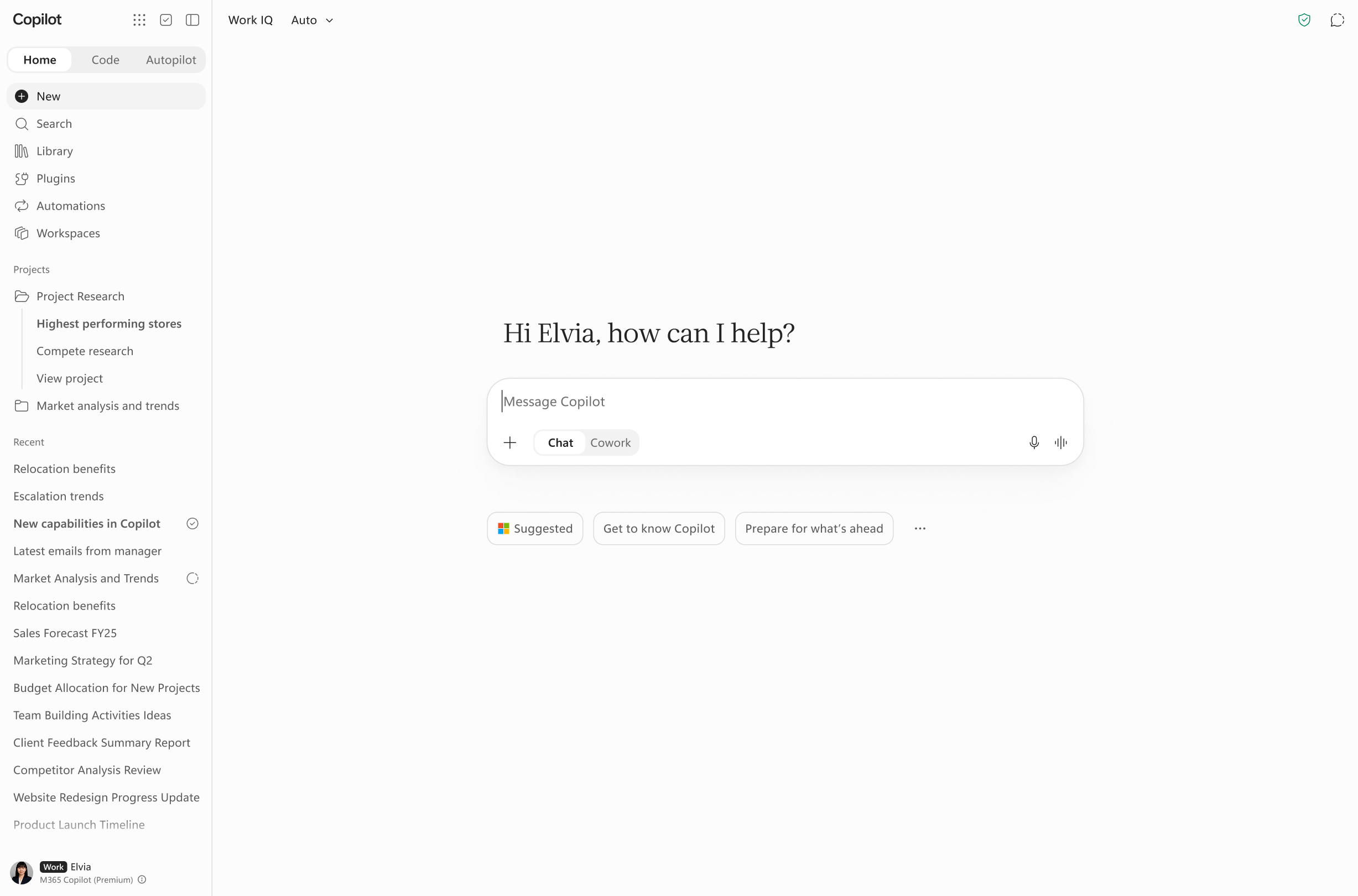
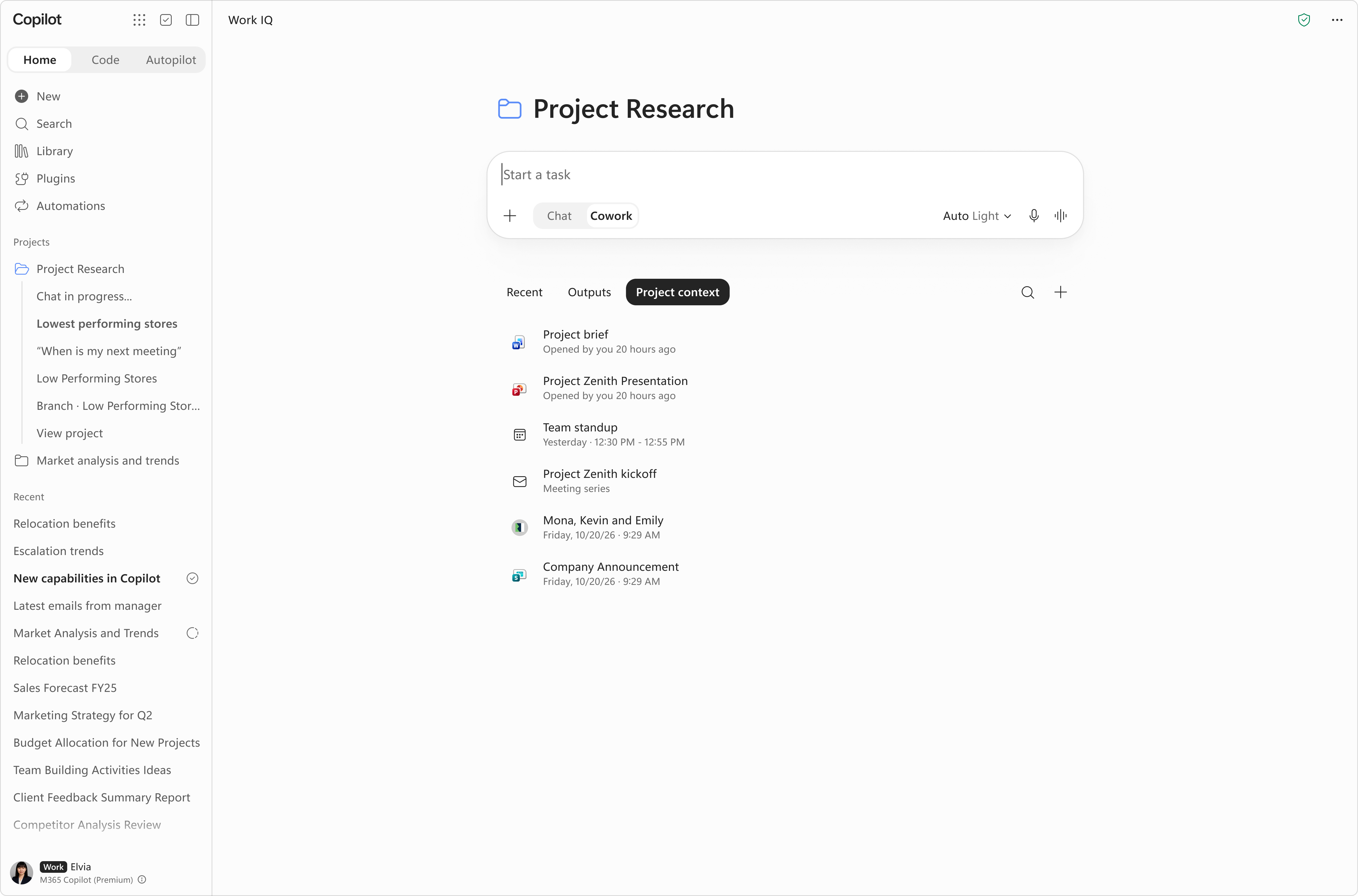
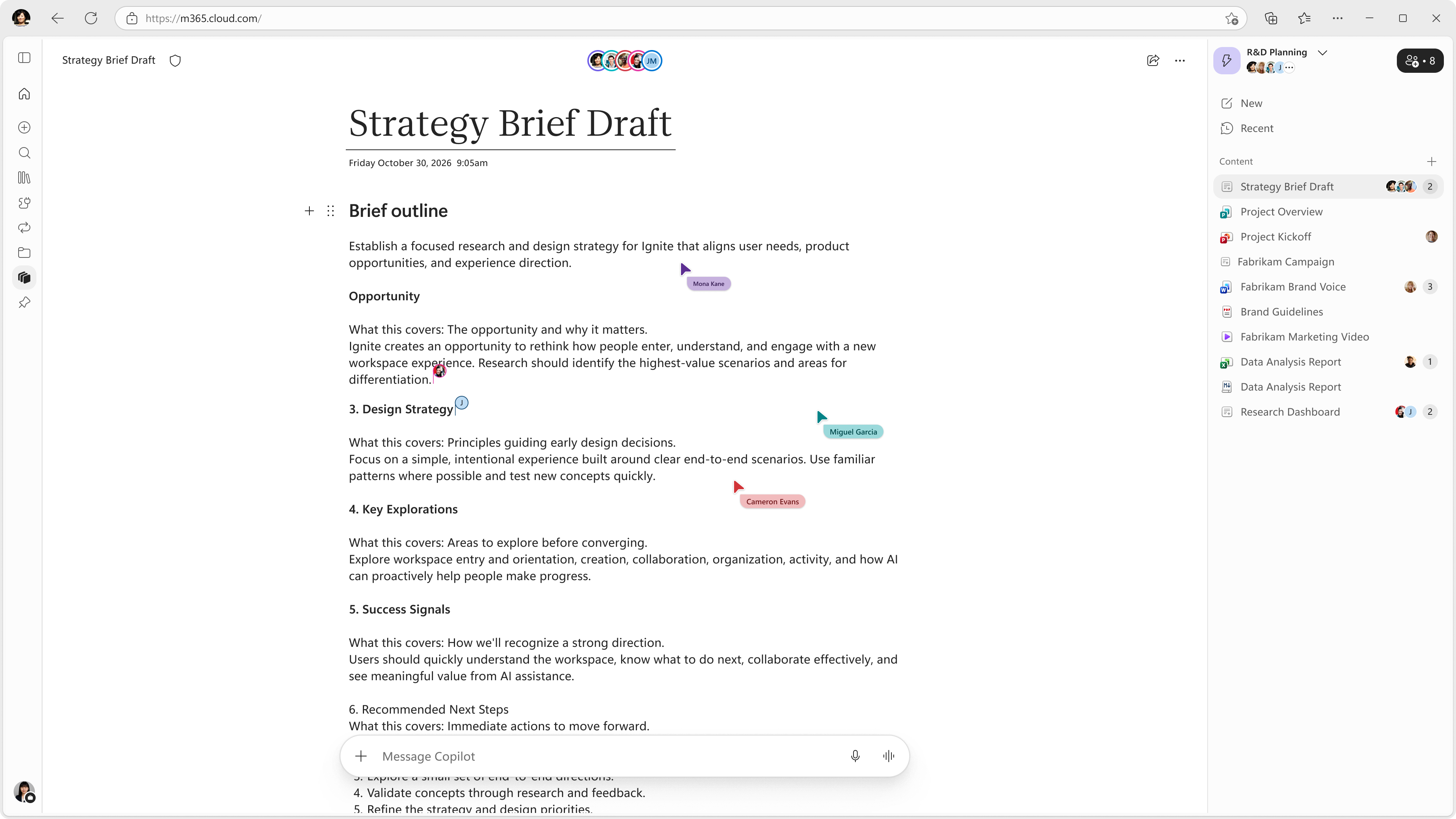
| (Updated) Microsoft Copilot app: Updates to Home and navigationCategory:Microsoft Copilot (Microsoft 365)Nummer:MC1535647Status:stayInformed | Updated November 20, 2026: Copilot Workspaces will roll out to standard release in December 2026, and deferred release by January 2027. Thank you for your patience. Refer to MC1559638 for details on Copilot Workspaces. [What and why] In MC1479277 about updates to the Microsoft Copilot app, we introduced Home as the new starting point that brings Chat and Cowork together, so users can get chat assistance and delegate multi-step tasks in one view. This post builds on that announcement with worldwide rollout timing and the addition of Projects and Workspaces to the Home experience. [Rollout schedule]
[Impact on your organization] Who is affected
Platforms and services
What will happen Projects:
Workspaces:
[Action required and recommendations]
| ||||||||||||
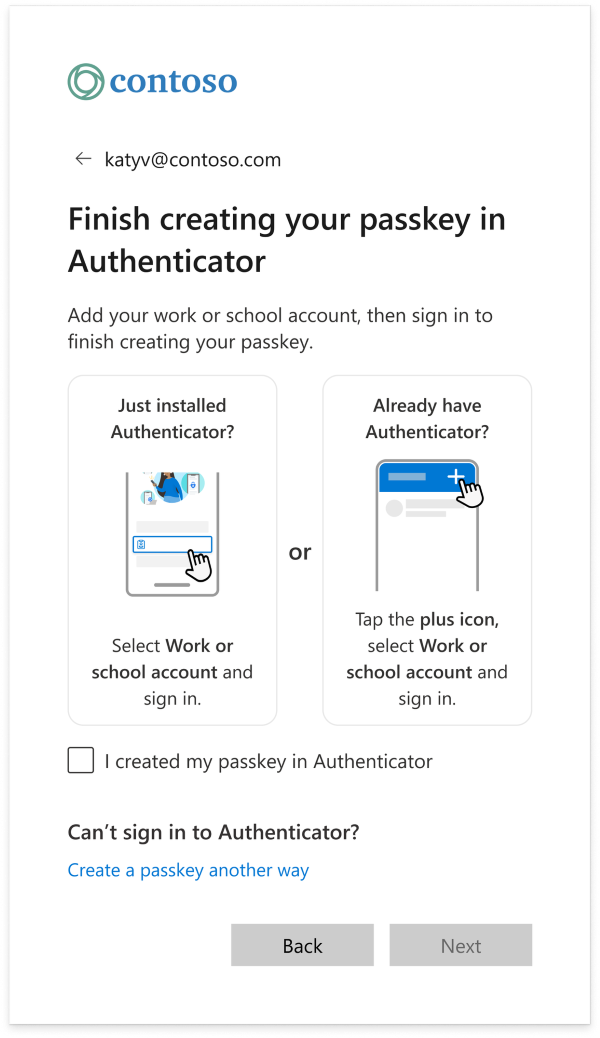
| (Updated) Microsoft Entra: Updated passkey registration experience in My Sign-insCategory:Microsoft EntraNummer:MC1545694Status:stayInformed | Updated November 20, 2026: We have updated the timeline. Thank you for your patience. [What and why] We’re updating the passkey registration experience in My Sign-ins for users registering a passkey in Microsoft Authenticator. Users will see an additional checkbox and updated link text, along with steps to guide users to open Microsoft Authenticator and select the + button to begin registration. If users can’t complete registration directly in Authenticator, the updated link text will help them find the WebAuthn registration flow. [Rollout schedule]
[Impact on your organization] Who is affected
Platforms and services
What will happen
[Action required and recommendations]
[Compliance considerations] No compliance considerations were identified. Review as appropriate for your organization. | ||||||||||||
| Power Platform – Information regarding the end of support for SharePoint temporary authentication URLsCategory:Power PlatformNummer:MC1551122Status:stayInformed | Starting April 1, 2027, SharePoint temporary authentication URLs will no longer be available. Power Apps and Automate functionality that relies on these URLs will break when they are retired. How does this affect me? Any Power Apps app or Power Automate cloud flow that relies upon the temporary authentication URLs will stop working. What action do I need to take? If you are using only native controls, actions, and connectors, and as long as you are not providing pre-authenticated URLs from SharePoint, then there is no action needed. If you have authored a custom control, action, or connector with tempauth URLs, then you will need to ensure you have migrated to the new authentication. This may come up in a few ways such as:
For more information on this, visit Pre-authenticated (tempauth) URLs are retiring: move to Microsoft Entra ID tokens before April 1, 2027. | ||||||||||||
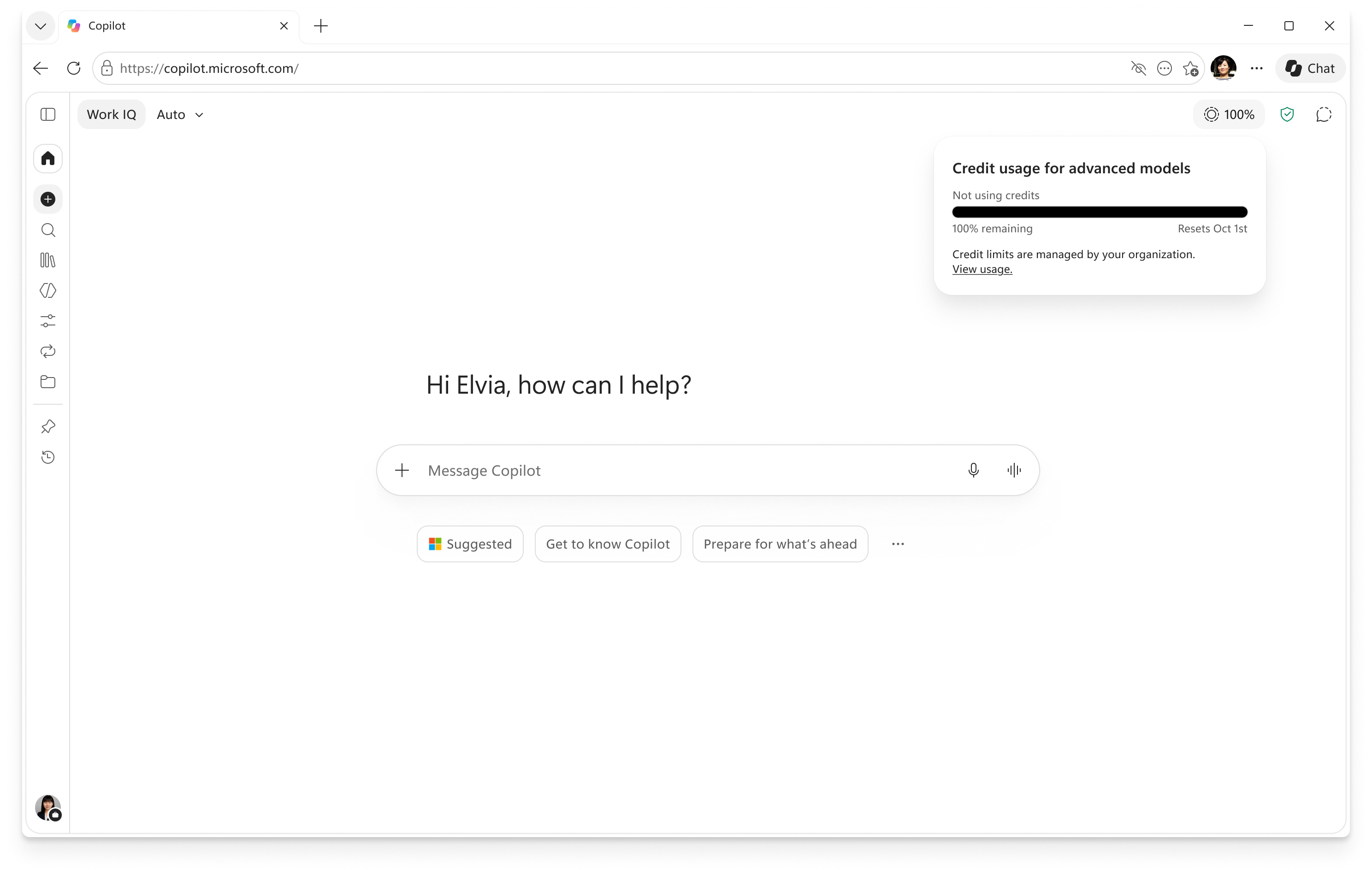
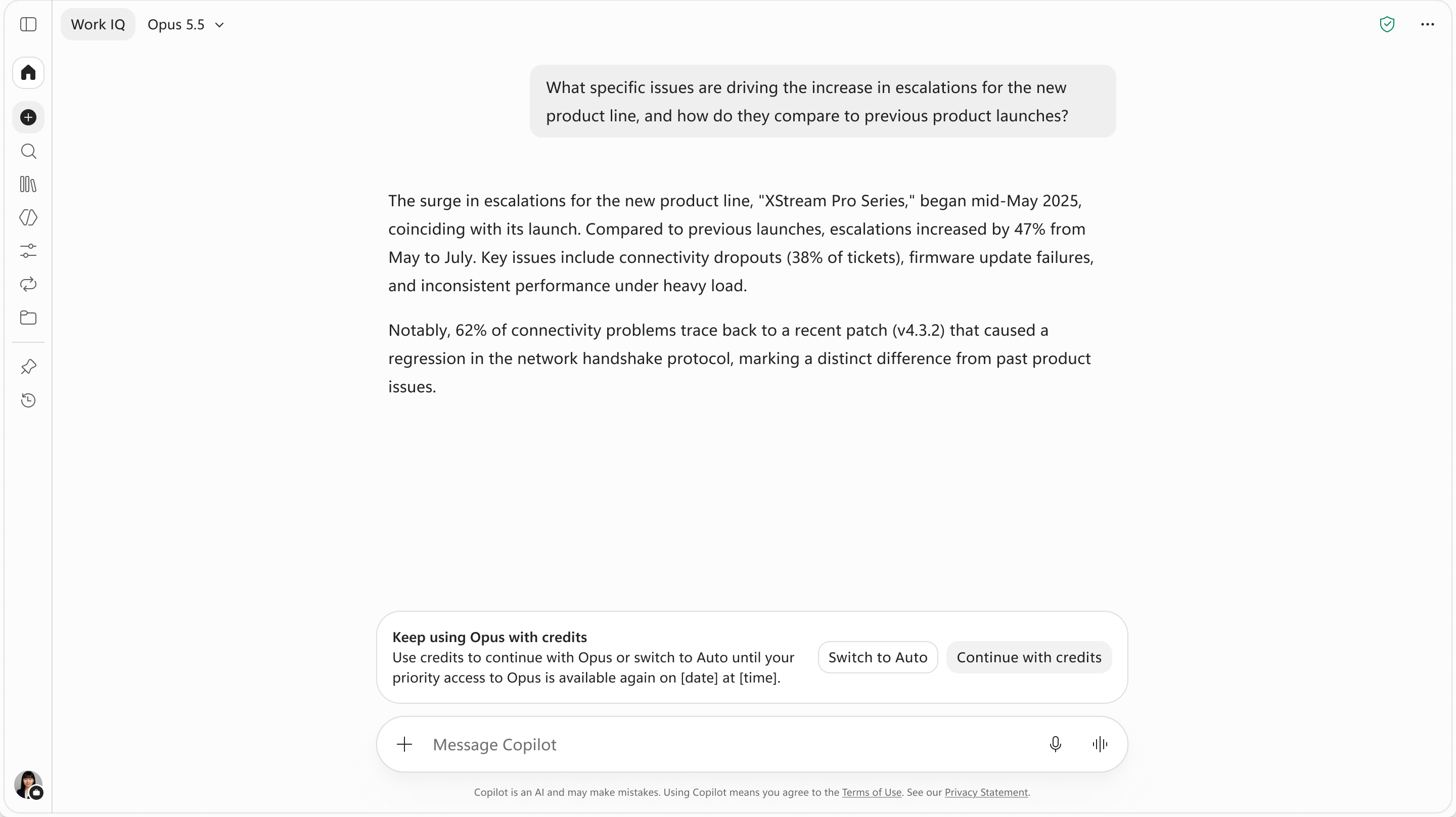
| (Updated) Microsoft Copilot: Continue using models after reaching usage limits with Copilot CreditsCategory:Microsoft Copilot (Microsoft 365)Nummer:MC1557754Status:planForChange | Updated November 20, 2026: We have updated the timeline. Thank you for your patience. [What and Why:] We’re introducing the option to continue using models in Copilot Chat and Office through usage-based billing (UBB) after reaching the usage limits included in a Microsoft 365 Copilot license. After reaching a limit, users can continue with Auto without consuming Copilot Credits or, if they have UBB enabled, can continue with the selected model by consuming Copilot Credits. New credit indicators in the UI help users understand when their work consumes Copilot Credits, while spending policies give administrators control over access and spending. This capability was originally announced in MC1479276 and is rolling out alongside the models available only through usage-based billing announced in MC1519122. Additionally, models offered in Chat and Word, Excel, and PowerPoint will now be visible in the model picker. Models that a user does not have access to will be greyed out and users will not be able to select them. [Rollout Schedule:]
[Impact on Your Organization:] Who is affected: End users with a Microsoft 365 Copilot license. To use models with usage-based billing in Chat and Word, Excel and PowerPoint, users must also have access to available Copilot Credits through an applicable spending policy that includes the Models with usage-based billing in Chat and Office service. Platforms/Services: Copilot Chat in the Microsoft Copilot app and Copilot in Word, Excel, and PowerPoint across web, desktop, and mobile. What will happen:
Image of credit icon and usage details.
Image of banner allowing users to continue with credits if they have UBB enabled. Action Required/Recommendations:
Use these resources to configure and manage access:
[Compliance considerations:]
| ||||||||||||
| (Updated) Continuous interpreter visibility with pop out video in TeamsCategory:Microsoft TeamsNummer:MC1559642Status:stayInformed | Updated November 20, 2026: We have updated the timeline. Thank you for your patience. [What and Why:] Users who work with sign language interpreters in Microsoft Teams meetings will be able to pop out their paired interpreters’ video into a separate window. The window can be resized and moved anywhere on the screen, including to another monitor. Interpreters stay in view while users multitask, share content, or change meeting layouts. This is designed for Deaf and hard-of-hearing (D/HH) users, for whom losing sight of an interpreter means losing access to the conversation. [Rollout Schedule:] Public preview (Worldwide): We will begin rolling out on early December 2026 and expect to complete by late December 2026. General Availability (Worldwide): We will begin rolling out on mid January 2027 and expect to complete by late January 2027. [Impact on Your Organization:] This applies to Teams desktop on Windows and Mac. After this rollout, users can:
The pop-out window only changes the user’s own view, and interpreters stay in the main meeting gallery for everyone else. The window isn’t visible to other participants when the user shares their screen. [Action Required/Recommendations:] You don’t need to do anything to prepare. Consider telling D/HH users and the interpreters who support them about this feature, and update your training and accessibility documentation as needed. To use the feature:
[Compliance considerations:] No compliance considerations identified. Review as appropriate for your organization. | ||||||||||||
| Microsoft Copilot: GPT-6.2 Sol and Astra rolling outCategory:Microsoft Copilot (Microsoft 365)Nummer:MC1560916Status:stayInformed | What and Why To give users more choice and flexibility when working with AI in Microsoft Copilot, we’re expanding the set of AI models available in Microsoft Copilot. GPT-6.2 Astra is rolling out with usage-based billing (UBB) in general availability to Cowork and Microsoft Copilot Studio and in Frontier to Word, Excel, PowerPoint, and Chat. GPT-6.2 Sol is rolling out with usage-based billing in general availability to Cowork and Copilot Studio. It is also rolling out in general availability as part of the Microsoft 365 Copilot user subscription license (USL) to Word, Excel, PowerPoint, and Chat. Limits apply to this model. They are designed to support broad day-to-day AI usage across organizations and are implemented in such a way that the vast majority of users are not expected to reach them. Rollout Schedule General Availability:
Frontier:
Impact on Your Organization Who is affected:
Platforms/Services:
What will happen:
Action Required / Recommendations No action is required for organizations that want users to access these models. Recommended actions:
Compliance Considerations
| ||||||||||||
| Microsoft Teams mobile: Updated app bar and More menu on iOS and iPadOSCategory:Microsoft TeamsNummer:MC1560919Status:stayInformed | [What and Why:] To align with Apple’s updated design guidance for tab bars in iOS and iPadOS 26, we’re updating the app bar and More menu in Microsoft Teams for iOS and iPadOS. [Rollout Schedule:] General Availability (Worldwide): We will begin rolling out on December 10, 2026 and expect to complete by December 16, 2026. General Availability (GCC): We will begin rolling out on December 10, 2026 and expect to complete by December 16, 2026. General Availability (GCC High): We will begin rolling out on December 10, 2026 and expect to complete by December 16, 2026. [Impact on Your Organization:]
This change applies to devices running iOS/iPadOS 26 or later. Devices on earlier versions will continue to see the current experience. [Action Required/Recommendations:] No action is required. If your organization pins apps through app setup policies, consider reviewing their order so the four most important apps appear first on mobile. You may also want to update internal help documentation and let your users know about the change. [Compliance considerations:] No compliance considerations identified, review as appropriate for your organization. | ||||||||||||
| Copilot video creation in Clipchamp Video Hub is now live in Frontier PublicCategory:Microsoft Clipchamp Nummer:MC1560920Status:planForChange | [What and Why:] Copilot video creation is coming to the Clipchamp Video Hub. It turns documents, ideas and work content into videos that make complex information easier to understand and act on. Users start with a prompt, a document from OneDrive, or relevant work context, then preview the video in chat and refine it through conversation until they’re happy with it. This is a usage-based billing (UBB) feature. Each video and subsequent refinements use Copilot Credits, billed through Copilot Credits usage-based billing in the Microsoft 365 admin center. To enable access, admins must enable Anthropic models and configure Copilot Credits spending policies for intended users. Key features:
How to get started: Admins first turn on Copilot video creation in a spending policy that includes the right users, in Copilot > Cost management in the Microsoft 365 admin center. Users can then:
[Rollout Schedule:] Public Preview (Frontier public): available as of November 17, 2026. General Availability (Worldwide): Expected February (timing subject to final confirmation). [Impact on Your Organization:] Users included in eligible spending policies can create and refine videos from work content in Clipchamp Video Hub. Video creation and refinements consume Copilot Credits and appear in Copilot cost management reporting. Governance:
Known limitations at preview:
[Action Required/Recommendations:] If you plan to enable this capability, confirm Anthropic models are enabled and update Copilot Credits spending policies to include Copilot video creation with Clipchamp for intended users. Review internal readiness guidance for admins and support teams before broader enablement. [Compliance considerations:] No compliance considerations identified, review as appropriate for your organization. | ||||||||||||
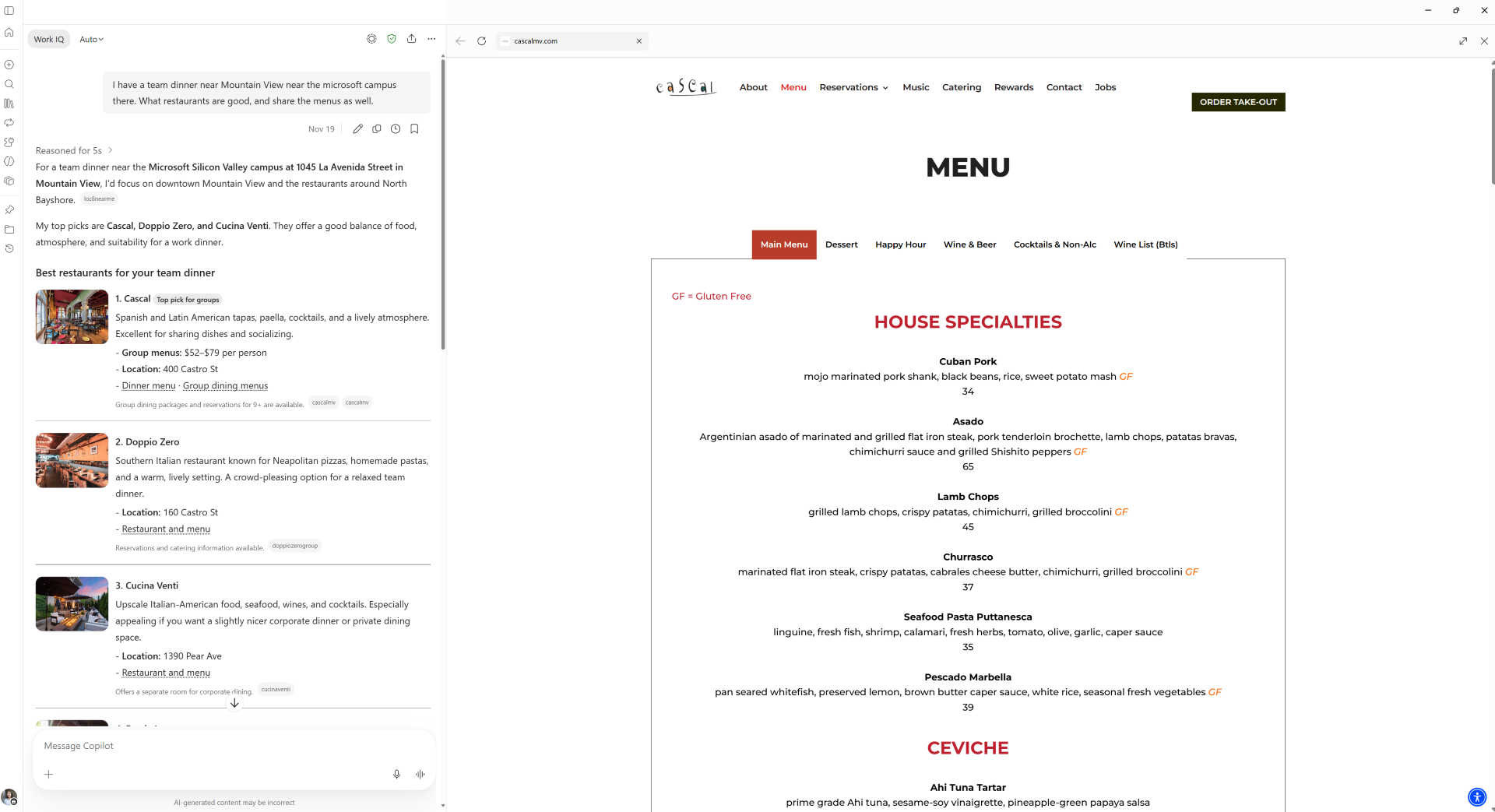
| Microsoft Copilot: In-app browsing will be enabled by default in the desktop appCategory:Microsoft Copilot (Microsoft 365)Nummer:MC1560922Status:planForChange | [What and why] We are enabling in-app browsing by default in the Microsoft Copilot desktop app for Windows and Mac. As we announced in MC1474455, this feature allows users to open websites shared in Copilot chat directly within the desktop app, side by side with their Copilot conversation. Previously optional, this experience will be enabled by default, helping users access web content and Copilot responses in one place and reduce context switching. [Rollout schedule]
[Impact on your organization] Who is affected
Platforms and services
What will happen
[Action required and recommendations] No action is required to enable in-app browsing. If your organization wants to disable or manage this experience:
If no changes are made, in-app browsing will remain enabled by default. [Learn more] We will update this message with updated documentation. [Compliance considerations] No compliance considerations identified. Review as appropriate for your organization. | ||||||||||||
| Enhanced prompt categories for Microsoft 365 Copilot in Microsoft Copilot Dashboard and Agent 365 Business AnalyticsCategory:Microsoft Viva Microsoft Copilot (Microsoft 365)Nummer:MC1560923Status:stayInformed | [What and Why:] Enhanced prompt categories for Microsoft 365 Copilot provide a detailed view into Copilot Chat usage by users with a Microsoft 365 Copilot license. Copilot Chat prompts are classified into 13 categories and 41 subcategories, which show how users apply Copilot Chat in their work. The enhanced categories replace the four legacy prompt categories in the Microsoft Copilot Dashboard: “Ask and find,” “Catch up,” “Draft and brainstorm” and “Other.” With this update, leaders and adoption teams can:
[Rollout Schedule:] General Availability (Worldwide): We will begin rolling out on mid December 2026 and expect to complete by end of December 2026. [Impact on Your Organization:] The four legacy categories are being retired. “Ask and find,” “Catch up,” “Draft and brainstorm” and “Other” will be removed from the Copilot Dashboard and replaced by the enhanced categories. Enhanced prompt categories apply to Copilot Chat usage by users with a Microsoft 365 Copilot license. Usage of Microsoft 365 Copilot Chat by users without a Microsoft 365 Copilot license isn’t included. You’ll find the new categories in these places: Microsoft Copilot Dashboard
Agent 365 Business Analytics
The dashboard uses the same prompt category names across tenants; no user input prompt text is shown. Anyone who already has Copilot Dashboard or Agent 365 business analytics can view the enhanced prompt categories. There’s no separate setting to configure. This change is on by default. [Action Required/Recommendations:] We recommend that you update guidance and training materials that refer to the legacy categories. No admin action is required. [Compliance considerations:] No compliance considerations identified, review as appropriate for your organization. | ||||||||||||
| Microsoft Teams: Tenant policy controls who can record and transcribeCategory:Microsoft TeamsNummer:MC1560924Status:planForChange | [What and Why:] Teams administrators can use a policy to configure who may start recording and transcription. The policy supports two participant scopes: organizers and co-organizers, or organizers, co-organizers, and presenters. For each scope, administrators can specify whether meeting organizers can or cannot change the setting. This provides a centrally managed default or enforced restriction for meetings organized by users assigned the policy, reducing the need for per-meeting configuration. [Rollout Schedule:] Targeted Release (Worldwide): We will begin rolling out in mid-December 2026 and expect to complete by mid-December 2026. General Availability (Worldwide): We will begin rolling out in late December 2026 and expect to complete by late December 2026. General Availability (GCC): We will begin rolling out in late December 2026 and expect to complete by late January 2027. General Availability (GCC High): We will begin rolling out in mid-February 2027 and expect to complete by late February 2027. General Availability (DoD): We will begin rolling out in mid-February 2027 and expect to complete by early March 2027. [Impact on Your Organization:] A new Who can record and transcribe policy control will be available in the Recording & transcription section of the applicable Teams meeting policy in the Teams admin center. The default value is Organizers, co-organizers, and presenters. Organizers can change, which preserves the current behavior. Administrators can select one of the following four options in a single dropdown:
These configurations remain subject to existing recording and transcription availability controls and any sensitivity label that configures this option.
[Action Required/Recommendations:]
[Compliance considerations:] No compliance considerations identified. Review as appropriate for your organization. | ||||||||||||
| Updates to Workforce Insights Agent (Frontier) for Admins in Microsoft 365 CopilotCategory:Microsoft Copilot (Microsoft 365)Nummer:MC1560929Status:stayInformed | [What and why] We are adding new capabilities to Workforce Insights Agent (Frontier) in Microsoft 365 Copilot, enabling organizations to get grounded and contextually relevant responses in Copilot from their organizational data. The agent now provides administrators with an additional dedicated workspace to configure organizational definitions, data descriptions and business context. In the agent, admins can also validate how AI reason over those contexts in people and organizational queries and ask the agent to help diagnose gaps or issues where the responses are different than expected. As the changes rolling out, configurations applied in Workforce Insights Agent will start to apply across some Copilot experiences, with the plan to extend availability across all Copilot experiences in the future. Review the Workforce Insights Agent roadmap and documentation for more details. [Rollout schedule]
[Impact on Your Organization] Who is affected
Platforms and services
What will happen
• AI Administrators and Organizational Data Administrators should review deployment scope and configuration for the intended audience. [Action Required / Recommendations] Before enabling or expanding use:
Learn more
[Compliance considerations] Workforce Insights Agent is not designed for behavioral monitoring, performance management or employment decisions. Administrators are responsible for local legal and business requirements, data protection obligations and Works Council guidelines. Configure available controls to align with these requirements and business practices.
| ||||||||||||
| Low-latency alerts and metrics in MonitorCategory:Power PlatformNummer:MC1560951Status:stayInformed | We are announcing the ability to evaluate alert rules and review supported metrics for business-critical resources every hour in Monitor, helping admins identify potential issues sooner. This feature will enter public preview on November 23, 2026. How does this affect me? When creating or editing an alert rule for a supported app, flow, or agent, admins can set the Data review period to 1 hour. Monitor will evaluate the selected metric after new hourly data becomes available, and the alert can trigger when the configured threshold is crossed. Admins can also switch the metric chart to an hourly view to review activity from the previous 24 hours. These alerts follow an hourly evaluation schedule and are not real-time alerts. The following products and metrics are supported in the Power Platform admin center experience of Monitor:
What action do I need to take? This message is for awareness, and no action is required. If you choose to use this feature, consider configuring hourly alert rules for the business-critical resources where identifying an issue on the same day is most important. For more information about this feature, please visit: | ||||||||||||
| Power Platform Monitor – Route alert notifications to connector-backed destinationsCategory:Power PlatformNummer:MC1560957Status:stayInformed | We are announcing the ability to route Power Platform Monitor alert notifications to Microsoft Teams, SMS, work item tracking systems, and other connector-backed destinations in Power Platform. This feature will reach public preview on November 20, 2026. How does this affect me? Tenant admins can use the new When an alert fires trigger in the Power Platform for Admins V2 connector to create a Power Automate cloud flow that runs when an opted-in Monitor alert fires. The flow can send alert details to any supported connector-backed destination. For example, it can:
During public preview, this capability supports custom alert rules created in the Power Platform admin center that uses a 24-hour data review period. Support for hourly, low-latency alert rules and environment admins is planned for a future release. Existing email notifications will continue to function as they do today. Your organization will not experience any changes unless a tenant admin creates a cloud flow using the new trigger. What action do I need to take? This message is for awareness, and no action is required. If you would like more information on this feature, please visit Route alert notifications to any connector-backed destination (preview). | ||||||||||||
| Copilot Studio – Create Dataverse agent users with Microsoft Entra agent ‘s user accountCategory:Microsoft Copilot (Power Platform)Nummer:MC1560996Status:stayInformed | We are announcing the ability to create Dataverse agent users with Microsoft Entra agent’s user account in Copilot Studio. This feature will reach general availability on December 8th, 2026. How does this affect me? This feature enables you to securely deploy agents to access and interact with Dataverse data by using enterprise-managed Microsoft Entra agent identities. It enables agents to be provisioned as Dataverse agent users with dedicated, least-privileged security roles based on their intended capabilities. The feature ensures agents have only the access required to perform tasks autonomously or on behalf of users. By using identity-based role assignment and full auditing of agent-driven actions, you can enforce security and compliance policies across both human users and agents while maintaining traceability of data access and changes within Dataverse environments. What action do I need to take? This message is for awareness, and no action is required. If you would like more information on this feature, please visit Create Entra agent users (preview). | ||||||||||||
| Generate documents from the Agent node in workflowsCategory:Microsoft Copilot (Power Platform)Nummer:MC1561859Status:stayInformed | We are announcing the ability to generate documents from the Agent node in workflows within Copilot Studio. This feature will reach general availability on December 3, 2026. How does this affect me? With this feature, the Agent node can now return files that the agent generates, such as PDF, Word, Excel, PowerPoint, and CSV, as workflow outputs. Key functionality of this feature includes:
This message is for awareness, and no action is required. | ||||||||||||
| Run Python code as a workflow stepCategory:Microsoft Copilot (Power Platform)Nummer:MC1561862Status:stayInformed | We are announcing the ability to use the Code node to run Python as a step in a workflow for logic that expressions and connectors cannot handle in Copilot Studio. This feature will reach general availability on December 1, 2026.
How does this affect me? Makers can add Python steps to workflows for data transforms, file parsing and conversion (e.g. PDF to text, CSV, or XML), and calls to APIs that don’t have a connector. The code can be generated using natural language using AI, or Makers can write and edit the code by hand. Code runs in a Microsoft-managed sandbox environment and consumes Copilot Credits. Code steps are unable to make outbound API calls. What action do I need to take? This message is for awareness, and no action is required. |