
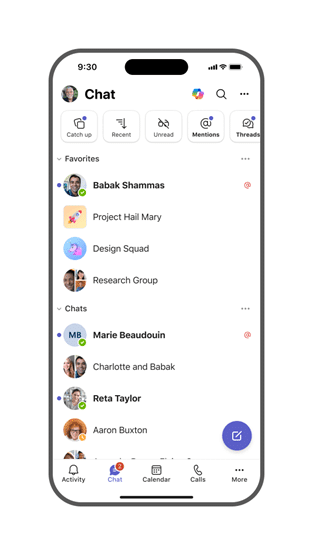
Teams Catch up is the new consolidated mobile view Microsoft is rolling out to help users triage what actually needs their attention, instead of scrolling endlessly through chats and channels on a phone. According to Microsoft (Roadmap ID 558108), the rollout for Teams Catch up starts in early April 2026 for Targeted Release and reaches General Availability worldwide in early May 2026.
For anyone who has tried to manage a busy Teams workload from a mobile device, this is a meaningful shift. Mobile Teams has historically been a place where you receive notifications, not a place where you efficiently work through them. Teams Catch up changes that.
What Teams Catch up Actually Does
Teams Catch up pulls together the conversations you most likely need to act on into a single, mobile-optimised card layout. Instead of jumping between Activity, Chat, and Teams tabs, you get one consolidated stream that surfaces:
- @mentions directed at you across chats and channels
- Replies in channels and threads you follow
- Chats and meeting chats where action may be required
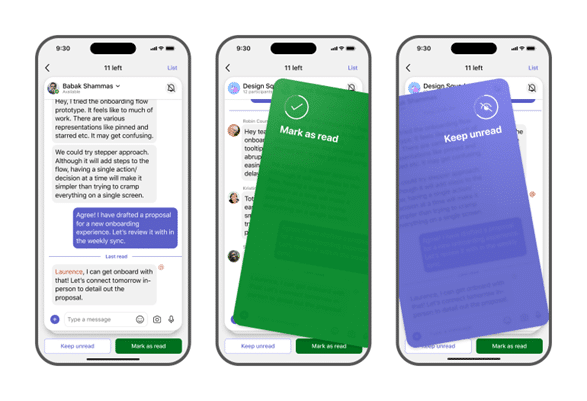
Each item appears as a card. You can swipe to take quick actions, mark as read, archive, or open the full thread. This is the same triage pattern that has worked in Outlook mobile for years, finally arriving in Teams.
Why Teams Catch up Matters for Mobile Users
The problem Teams Catch up solves is not new. Mobile users have always faced a triage gap. Desktop has rich filters, the Activity feed, and now Copilot-driven summaries. Mobile had a list of red dots and a long scroll. Teams Catch up acknowledges that mobile triage needs its own native experience, not a shrunken-down desktop view.
For knowledge workers who travel, work hybrid, or simply check Teams between meetings on their phone, this is the first time the mobile client treats triage as a first-class workflow.
Rollout Timeline
According to Microsoft, this should be rolling out around April and May 2026.
| Rollout Type | Environment | Start | Expected Complete |
|---|---|---|---|
| Targeted Release | Worldwide | Early April 2026 | Early April 2026 |
| General Availability | Worldwide | Early May 2026 | Early May 2026 |
How to Use Teams Catch up
Once Teams Catch up reaches your tenant, the experience appears automatically inside the Teams mobile app, no settings required.
To work with the new view:
- Open Microsoft Teams on your iOS or Android device
- Navigate to the new Catch up entry point in the bottom navigation
- Review the cards Microsoft surfaces, ordered by likely importance
- Swipe left or right on a card to take action, mark as read, dismiss, or open the full thread
- Tap a card to drop into the conversation if you need full context
The card-based layout is designed for one-handed use, which matters when you are catching up between meetings or on the move.
Admin Tips for Teams Catch up
This is a default-on feature, no admin configuration is required to enable Teams Catch up. That does not mean there is nothing to do.
- Communicate before the feature lands. A 2-minute internal note saves your helpdesk a flood of ‘what is this new screen on Teams’ tickets in early April.
- Update internal training material. If your organisation has Teams quick-start guides or onboarding docs for mobile users, refresh them before May to reflect the new triage view.
- Encourage mobile adoption. This is a good moment to reach out to teams that have been desktop-only and remind them that mobile Teams has finally caught up on triage.
- No policy changes required. Existing notification, channel, and chat policies continue to apply, Catch up only changes the surface, not the data.
For broader mobile and channel governance context, my earlier write-up on Teams Private Channels finally getting full app support(opens in new window) covers how channel-level features are evolving in parallel. And if you want to see how Microsoft is layering similar quality-of-life updates into meetings, my piece on Teams annotations on single window sharing(opens in new window) walks through the same default-on, low-admin-lift pattern.
License Requirements
Teams Catch up is part of the standard Microsoft Teams mobile experience. It is included in any Microsoft 365 commercial plan that includes Teams, such as Microsoft 365 Business Basic, Business Standard, Business Premium, E3, and E5.
For the official Microsoft documentation on Teams mobile, see Get started with Teams mobile(opens in new window) and Manage notifications in Teams(opens in new window) for related user guidance.
Compliance Considerations
No compliance considerations have been flagged by Microsoft for Teams Catch up. The feature is a presentation layer over data your users already have access to, no new data is created, no new sharing occurs. Existing retention, eDiscovery, and DLP policies on chats and channels continue to apply unchanged. Review as appropriate for your organisation.
The Paul-Take on Teams Catch up
Mobile Teams has been the suite’s weakest link for triage for years. Desktop got every shiny new feature, mobile got notifications and a list. Microsoft is finally fixing that with Teams Catch up, and the pattern they picked, swipeable cards in priority order, is the right one. It is what Outlook mobile has been doing well for a long time.
Here is the honest part. Teams Catch up will only matter if your users actually open the mobile app. If your organisation has spent years training people to ignore mobile Teams because the experience was poor, a single feature ship is not going to undo that habit. The feature is enabled by default, but adoption is not.
My recommendation: when this lands in early May 2026, do not let it ship into a void. Send a short note to your users, include a screenshot of the new Catch up view, and tell them why they should open the app on their phone again. The feature is good enough to deserve five minutes of internal communication.
For organisations that have already invested in mobile-first Teams adoption, this is a low-risk, high-value upgrade that lands without admin work. That is exactly the kind of update I want to see Microsoft ship more of.
MVP Reference List
- Microsoft 365 Roadmap ID: 558108(opens in new window)
- Get started with Teams mobile (Microsoft Learn): https://learn.microsoft.com/en-us/microsoftteams/get-started-with-teams-mobile-clients(opens in new window)
- Manage notifications in Teams (Microsoft Support): https://support.microsoft.com/en-us/office/manage-notifications-in-microsoft-teams-1cc31834-5fe5-412b-8edb-43fecc78413d(opens in new window)