
Customer Connect booking is the feature that finally turns a website conversation into a confirmed meeting without a single back-and-forth email. Microsoft is adding appointment booking to Customer Connect in Microsoft Teams, and for small businesses that live and die by their website leads, this is a quietly important upgrade.
If you have ever watched a hot prospect cool off while you traded ‘does Thursday work?’ messages, you already understand the problem this solves. Let’s walk through what is changing, how to set it up, who needs a license, and whether it actually deserves your attention.
What Customer Connect Booking Actually Does
Customer Connect (previously released under the name Live Chat in Teams) already lets visitors start a conversation with your business from a widget embedded on your website. The new Customer Connect booking capability adds the missing step: scheduling.
A website visitor can now book a follow-up meeting directly from the embedded widget. The moment they do, two things happen automatically:
- The appointment is added to the assigned staff member’s Outlook calendar
- The appointment is posted to the Customer Connect requests channel in Teams, with the appointment details attached
That second point is the part people underestimate. Every booking lands in a shared Teams channel, so your team has a single, visible record of incoming consultations instead of meetings buried in individual calendars.
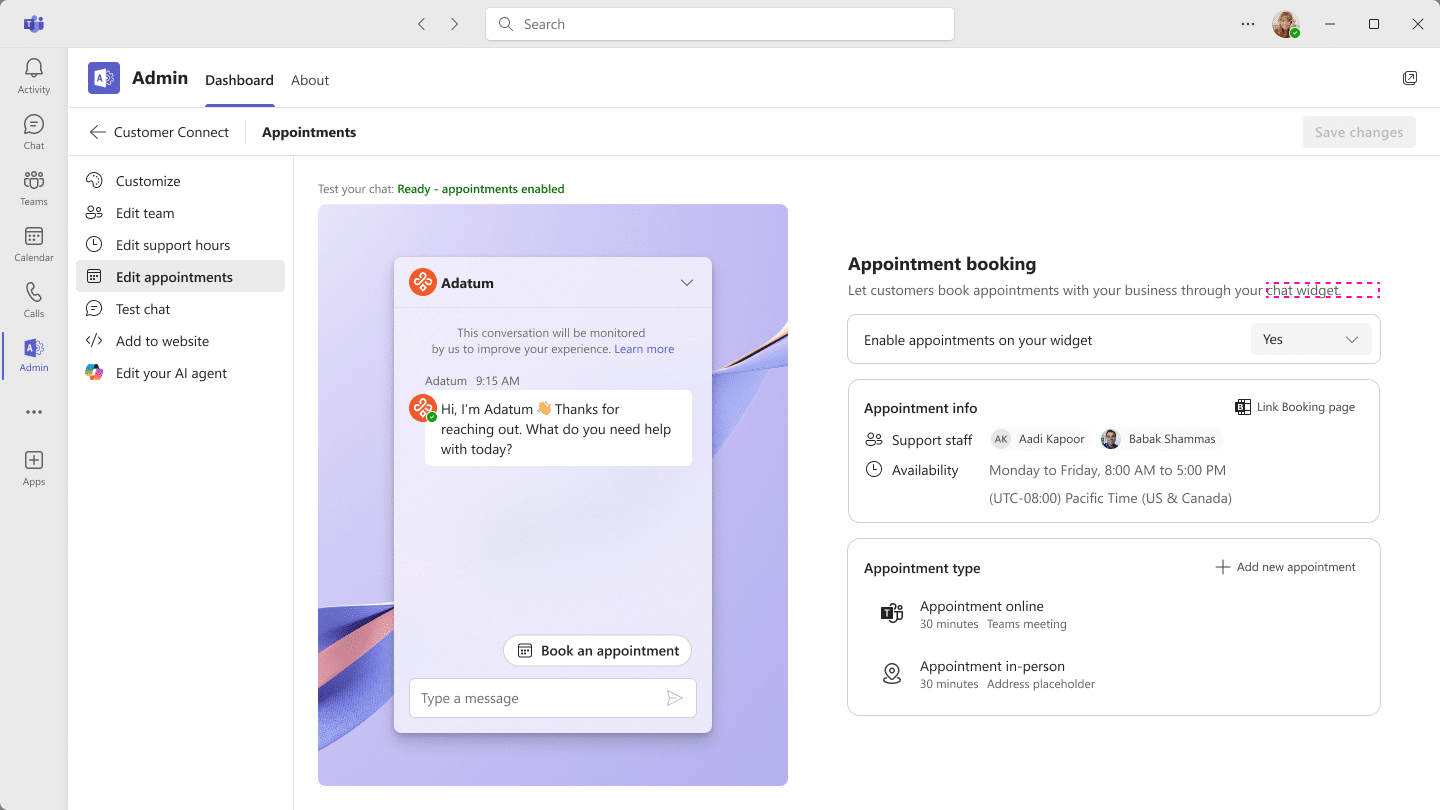
Nothing changes in your existing experience until an admin enables and configures appointment scheduling. So if you are not ready, you lose nothing by waiting.
Why Customer Connect Booking Matters for Small Businesses
Most small businesses do not lose deals because their offer is weak. They lose them in the gap between interest and a booked slot. Customer Connect booking closes that gap.
- Faster conversion. A live chat becomes a scheduled consultation in a couple of clicks, while the visitor is still engaged.
- No manual calendar juggling. Staff availability is defined once, and the widget only offers times that actually work.
- Shared visibility. Because every booking posts to the requests channel, nothing slips through the cracks of a personal inbox.
- Scale without chaos. Each tenant can assign up to 25 users as Customer Connect support agents, so the load spreads across a team rather than landing on one person.
This is the same collaboration-in-Teams philosophy we have seen across recent updates, like the way Microsoft keeps tightening in-meeting controls and the Teams share panel. The pattern is consistent: take a task that used to require switching tools and pull it into Teams where the work already happens.
Rollout Timeline
Here is how the Customer Connect booking rollout breaks down.
| Audience | Start | Expected completion |
|---|---|---|
| General Availability (Worldwide) | Early May 2026 | Mid-July 2026 |
| General Availability (GCC) | Early May 2026 | Mid-July 2026 |
According to Microsoft, this should be rolling out around May to July 2026. Note that Microsoft updated this timeline on 15 June 2026, extending the completion date to mid-July.
How to Enable Customer Connect Booking
Setting this up is an admin task, and it follows a clear order.
Step 1: Get Customer Connect Booking Running First
If you have not set up Customer Connect in Teams yet, start there. You cannot add appointment scheduling to something that does not exist. Microsoft’s setup guide is at aka.ms/CustomerConnectSetup.
Step 2: Enable Appointment Scheduling
Once Customer Connect is live, enable appointment scheduling from the admin app in Teams at aka.ms/AdminAppInTeams.
Step 3: Configure Your Appointment Settings
This is where you do the real work. In the settings you can:
- Add or remove staff members who are eligible for appointments
- Define staff availability hours
- Create, edit, or remove the appointment types you offer customers
Take the availability hours seriously. The single most common mistake with any booking tool is leaving default hours in place and then watching meetings appear on evenings and weekends you never intended to offer.
Admin Tips
- Audit your appointment types first. Decide what you actually want customers to book (discovery call, support session, demo) before you expose options in the widget.
- Right-size your agent list. You get up to 25 support agents per tenant. Assign the people who genuinely handle inbound, not everyone.
- Brief your staff. Anyone bookable should know that a website visitor can land a meeting on their calendar automatically. Surprise meetings erode trust fast.
- Update your helpdesk documentation. Microsoft explicitly calls out reviewing internal support processes and updating guidance. Do it now, not after the first confused agent raises a ticket.
- Mind the naming. Documentation may still refer to both ‘Customer Connect’ and ‘Live Chat in Teams’ while the rename finishes, so do not panic if you see both terms.
If you are thinking about how inbound requests get triaged across a busy team, it pairs well with the way Teams is improving catch-up and mobile triage for staying on top of incoming activity.
License Requirements
Customer Connect booking is aimed squarely at small and mid-sized businesses. You need one of the following licenses:
- Microsoft 365 Business Basic
- Microsoft 365 Business Standard
- Microsoft 365 Business Premium
There are no additional compliance considerations flagged for this change, though as always you should review against your own organisation’s policies.
The Paul-Take
The Paul-Take: this is a small feature with an outsized effect on revenue, and that is exactly why I like it. The hardest moment in any sale is not the pitch, it is the scheduling. Every consultant reading this has lost a warm lead to a slow email thread. Customer Connect booking removes that friction at the precise point where it costs you money, and it does it inside Teams where your team is already working.
Is it going to replace a dedicated booking platform for a high-volume operation? No. But for a small business turning website conversations into consultations, it is close to free value sitting inside a licence you already pay for. My only caution is the one I keep repeating: configure availability hours and appointment types before you switch it on. Get that wrong and the convenience turns into a calendar full of meetings you did not want. Get it right, and you have quietly closed the gap that was costing you clients.
MVP Reference List
- Message Center: Customer Connect appointment booking (naming reference MC1287369)
- Microsoft 365 Roadmap ID 557172: view roadmap entry
- Set up Customer Connect: aka.ms/CustomerConnectSetup
- Admin app in Teams: aka.ms/AdminAppInTeams