Microsoft Roadmap, messagecenter and blogs updates from 11-07-2026

het nieuws van Microsoft message center roadmap en blogs - KbWorks - SharePoint and Teams Specialist

11-July-2026 Below you will find a collection of news published yesterday. This news consists of Microsoft’s Roadmap when it is updated it will be below with items. Then there will be a section with the message center, if there is anything new there, this will be automatically included. And it contains a piece from blogs that I follow myself and would like to share with you. If I miss something in the blogs that do have an RSS feed, please let me know.

This entire post was automated via Microsoft Flow
have fun reading!

Office 365 Roadmap Updated: 2026-07-10

Items from the MessageCenter in Microsoft 365

(Updated) Microsoft 365 Copilot: Structured document generation with Forms
Category:Microsoft Copilot (Microsoft 365)
Nummer:MC1218000
Status:stayInformed

Updated July 10, 2026: We have updated the timeline. Thank you for your patience. 

[Introduction]

We are introducing structured document generation with Microsoft Forms in SharePoint. This capability will help organizations generate standardized, compliant documents through simple form-driven experiences. It will reduce manual effort, improve template consistency, and support governance across high-volume document workflows. Creating and configuring structured document forms will require a Microsoft 365 Copilot license.

This message is associated with Microsoft Roadmap ID 545896.

[When this will happen]

Public Preview: We began rolling out opt-in in mid-February 2026 and completed by end of March 2026. Starting June 15, the public preview will be on by default.

General availability (Worldwide): We will begin rolling out September 2026 (previously July) and expect to complete by end of September 2026 (previously end of July).

[How this affects your organization]

Who is affected:

  • All Microsoft 365 tenants using SharePoint Online
  • Users with a Microsoft 365 Copilot license who will create structured document forms

What will happen:

  • Users with a Microsoft 365 Copilot license will be able to create structured document forms linked to approved SharePoint templates.
  • Business teams will be able to maintain and enforce template governance while enabling document generation across the organization.
  • Users will be able to generate consistent, compliant documents by completing a form.
  • Existing SharePoint permissions, governance policies, and information management controls will continue to apply.
  • Document generation through published forms will be available based on standard SharePoint permissions.
  • The feature will be on by default; no admin action will be required.

Screenshot 1 – Review and refine AI-suggested fields before publishing:

 94a3afccf84ea52b225be8516b92cff34747980a - KbWorks - SharePoint and Teams Specialist

Screenshot 2 – Edit content and apply advanced template customizations, including conditional sections in Word:

 4fd2e98696f90cfd6011e24e501a409206f5dca1 - KbWorks - SharePoint and Teams Specialist

[What you can do to prepare]

No admin action is required. You may choose to:

  • Inform business stakeholders who manage templates and document workflows.
  • Review opportunities to streamline document processes with form-driven generation.
  • Update internal documentation or training materials if needed.

Watch the video: Generate documents by filling in the form (18 seconds)

[Compliance considerations]

No compliance considerations identified. Review as appropriate

(Updated) SharePoint: AI citations analytics for documents and pages
Category:SharePoint Online
Nummer:MC1247902
Status:stayInformed

Updated July 10, 2026: We have updated the timeline. Thank you for your patience. 

[Introduction]

We are adding AI citations analytics to SharePoint to help site owners understand how their SharePoint documents, news posts, and pages are referenced by Microsoft Copilot and other AI agents. These insights will help organizations track content value, identify high‑impact information, and understand how AI‑powered workflows use SharePoint content. Users must have the appropriate Microsoft Copilot licenses to use the AI features that may generate citations.

This message is associated with Microsoft 365 Roadmap ID 480725.

[When this will happen]

General Availability (Worldwide): Rollout will begin start of August 2026 (previously start of July) and will complete by end of August 2026 (previously end of July).

[How this affects your organization]

Who is affected:

  • SharePoint Online site owners, content authors, and admins.
  • Users who have Microsoft Copilot licenses for the experiences that may generate citations.

What will happen:

The following updates will appear in SharePoint:

  • SharePoint Popular content in Site Usage will display documents, news posts, and pages ranked by how often they are cited by Copilot or AI agents.
  • SharePoint page analytics will include a new Total citations card showing the number of times a page or news post is referenced in Copilot or agent responses.
  • SharePoint file statistics will include a new AI citations metric displayed alongside existing metrics such as views and viewers.
  • A new AI citations analytics page will appear under Site Usage. It will provide:
    • The number of users who consume site content through Copilot and AI agents.
    • The total number of citations for the site.
    • The most frequently cited documents, news posts, and pages.

Supported agents include Microsoft 365 Copilot, Copilot in Word, Excel, PowerPoint, Teams, Loop, Planner, SharePoint Knowledge Agent, and SharePoint custom agents.

This feature will be on by default and will not require admin action to enable.

Screenshot 1 – AI citations aggregated across site content in the Site analytics view: 

user settings


Screenshot 2 – AI citations shown for an individual SharePoint page or news post in Page analytics:

 user settings

[What you can do to prepare]

No admin action is required before the rollout.

You may want to:

  • Inform site owners and content authors about the new analytics.
  • Review your SharePoint usage and analytics processes to understand how the new AI citation metrics may support governance, content lifecycle planning, and content strategy.
  • Update internal documentation or training materials.
  • Provide guidance to users on Copilot licensing requirements if your organization centrally manages those licenses.

[Compliance considerations]

No compliance considerations identified. Review as appropriate for your organization.

(Updated) Microsoft Purview: Migration tool in Unified Catalog to migrate classic glossary terms
Category:Microsoft Purview
Nummer:MC1280564
Status:stayInformed

Updated July 9, 2026: We have paused rollout of this feature at this time. We will communicate via Message center when we are ready to proceed. We apologize for any inconvenience. 

[Introduction]

Data Governance Admins and Data Stewards can use a built‑in migration tool in Microsoft Purview Unified Catalog to migrate classic glossary terms, associated term templates, and asset and column relationships into Unified Catalog. After migration, glossary terms can be managed in Unified Catalog and associated with business concepts and data assets.

This message is associated with Microsoft 365 Roadmap ID 558683.

[When this will happen]

  • Public Preview: We will begin rolling out in late April 2026 and expect to complete by late April 2026.
  • General Availability (Worldwide): We will communicate via Message center when we are ready to proceed.

[How this affects your organization]

Who is affected

  • Data Governance Admins
  • Data Stewards
  • Organizations using classic glossary terms in Microsoft Purview, along with Unified Catalog

What will happen

  • Admins can choose to use the built‑in migration tool to migrate classic glossary terms to Unified Catalog.
  • Migration includes:
    • Classic glossary terms
    • Associated term templates
    • Asset and column relationships
  • Admins who do not need migration can skip the process and use glossary terms only in Unified Catalog.
  • In both cases, classic glossary terms will become read‑only.
  • After migration or switching, Unified Catalog glossary terms can be used to curate assets and columns.

user settings

user settings

[What you can do to prepare]

  • Determine whether your organization uses classic glossary terms.
  • Decide whether to:
    • Migrate classic glossary terms to Unified Catalog, or
    • Abandon classic glossary terms and use Unified Catalog glossary terms only.
  • If you choose migration:
    • Review the detailed migration documentation.
    • Plan and execute the migration when your organization is ready for all required steps.

Links to detailed migration documentation will be added to the Unified Catalog glossary terms overview documentation when the feature enters public preview.

[Compliance considerations]

QuestionAnswer
Does the change alter how existing customer data is processed, stored, or accessed?Yes. Classic glossary terms, associated term templates, and asset and column relationships may be migrated and stored in Microsoft Purview Unified Catalog instead of the classic glossary location.
Does the change include an admin control?Yes. Data Governance Admins choose whether to migrate classic glossary terms using the built‑in migration tool or skip migration and switch to Unified Catalog glossary terms.

(Updated) Planner is now available in Outlook and Microsoft 365 Copilot
Category:Exchange Online Planner
Nummer:MC1309747
Status:planForChange

Updated July 10, 2026: We have updated the timeline. Thank you for your patience. 

[Introduction]

We’re making it easier for users to manage tasks where they already work. The Microsoft Planner experience is now available directly in Outlook (web and the new Outlook for Windows) and in the Microsoft 365 Copilot app. This change reduces context switching by allowing users to view and manage tasks and plans alongside email, calendar, and Copilot experiences.

This update is based on customer feedback requesting tighter integration between task management and daily productivity workflows.

This message is associated with Microsoft 365 Roadmap ID 513278.

[When this will happen]

General Availability (Worldwide): We expect rollout to start late July 2026 and complete by end of July 2026. 

[How this affects your organization]

Who is affected

  • All Microsoft 365 tenants
  • Users who access Outlook on the web, the new Outlook for Windows, or the Microsoft 365 Copilot app

What will happen

  • The Planner experience will be available directly within Outlook (web and new Outlook for Windows).
  • Users can view and manage:
    • Personal tasks
    • Shared plans
  • Tasks and plans can be accessed alongside email and calendar workflows.
  • Where licensed and enabled, users can access Planner through Microsoft 365 Copilot experiences.
  • This feature is enabled by default.
  • Existing Microsoft 365 permissions, Planner settings, and Copilot policies are respected.
  •  A Microsoft 365 Copilot (Premium) license is not required to use the Planner app in Outlook.
  • There is no change to where Planner data is stored.

[What you can do to prepare]

No admin action is required.

You may consider:

  • Informing users that Planner is now accessible within Outlook and the Microsoft 365 Copilot app.
  • Updating internal documentation or helpdesk guidance to reflect this new access point.
  • Encouraging users to explore Planner for managing tasks and plans.
  • Monitoring adoption and feedback using existing usage and feedback channels.

Learn more: Microsoft Planner | Microsoft Support

[Compliance considerations]

No compliance considerations identified. Review as appropriate for your organization.

(Updated) Microsoft Teams: In‑meeting toggle to turn Meeting AI on or off
Category:Microsoft Teams Microsoft 365 Copilot Chat
Nummer:MC1319216
Status:stayInformed

Updated July 9, 2026: We have updated the timeline. Thank you for your patience. 

[What and Why]

Microsoft Teams will introduce a new in-meeting toggle that allows licensed meeting organizers and presenters to turn Meeting AI (including Copilot, Facilitator, and meeting recap) on or off during a live meeting. This change builds on existing Meeting AI behavior and provides real-time flexibility to control when AI is active.

Licensed organizers and presenters can capture insights when discussions are valuable and turn off AI when conversations shift to sensitive topics. The toggle respects existing tenant policies and compliance controls.

This message is associated with Microsoft 365 Roadmap ID 558286.

[Rollout Schedule]
  • Targeted Release: We will begin rolling out mid-August 2026 (previously early July) and expect to complete by late August 2026 (previously mid-July).
  • General Availability (Worldwide): We will begin rolling out late August 2026 (previously mid-July) and expect to complete by early September 2026 (previously end-of-July).
[Impact on Your Organization]

Who is affected

  • All Microsoft 365 tenants with Meeting AI (Copilot and/or Facilitator) enabled by policy and in Meeting Options
  • Licensed organizers and presenters in Teams Meetings
Platforms / Services
  • Microsoft Teams (Desktop, Web, and Mobile)
  • Microsoft 365 Copilot (Meeting AI, Facilitator, recap)
What will happen
  • A new Meeting AI toggle will appear in the Teams meeting toolbar: 

    user settings

  • Licensed organizers and presenters can turn Meeting AI on or off during meetings: 

    user settings

  • Toggles are shown only when Meeting AI is allowed by policy.
  • An AI status indicator will show participants whether Meeting AI is active.

Existing tenant policies and meeting options are respected:

  • If Meeting AI is disabled by policy, the toggles will not appear.

When Meeting AI is turned off:

  • Copilot, Facilitator responses, and Notes will no longer be generated.
  • Previously generated artifacts remain available and governed by retention policies.
  • If AI is used without transcription, speech-to-text data stops and Recap is not generated.

Important: Transcription Dependency

  • When AI is used with transcription, they remain coupled:
    • Turning on Meeting AI automatically turns on transcription and generates a recap.
    • Starting transcription automatically enables Meeting AI and recap.
  • To prevent Meeting AI usage, transcription and Meeting AI must remain off.
No changes to
  • Meeting options configured before meetings
  • Recording, transcription, and sensitivity labels behavior
  • Retention and compliance policies
  • Licensing requirements for Copilot and Meeting AI
[Action Required / Recommendations]

No action is required for this rollout.

Recommended actions:

  • Update internal training and documentation to explain:
    • Where the Meeting AI toggle appears
    • Who can use the toggle (licensed organizers and presenters)
  • Communicate to end users:
    • Starting transcription automatically enables Meeting AI and recap
    • Meetings that must avoid AI should not use transcription
  • Prepare helpdesk teams to support user questions about:
    • Controlling Meeting AI during meetings
    • Understanding transcription-related behavior
[Compliance Considerations]

No compliance considerations identified. Review as appropriate for your organization.

(Updated) Power BI integration with Microsoft 365 Copilot
Category:Power BI Microsoft Copilot (Microsoft 365)
Nummer:MC1323266
Status:planForChange

Updated July 9, 2026: We have updated the timeline. Thank you for your patience. 

[What and Why:]

Beginning in mid-June 2026, Microsoft 365 Copilot will be able to answer user questions using Power BI reports and semantic models for customers enrolled in Frontier. Copilot will ground responses in Power BI data, including scenarios where users share a specific report and scenarios where Copilot finds the right report automatically. The experience is built to work within existing security and permission models.

[Rollout Schedule:]

Starting mid-June 2026, data answering capabilities grounded in Power BI content will be available in Frontier tenants:

  • Frontier Private: June 15, 2026 (applied to TAP, TAP Subset, and AIX00)
  • Frontier Public (Entra): June 18, 2026
  • Worldwide: Starting mid-August 2026, expected to complete by late August 2026

[Impact on Your Organization:]

  • Who is affected: Organizations using Microsoft 365 Copilot and Power BI that are enrolled in Frontier
  • Platforms/Services: Microsoft 365 Copilot, Power BI, Microsoft Fabric
  • Licensing requirements:
    • Microsoft 365 Copilot (Premium) license is required to use this feature.
    • Use of Fabric content, including Power BI reports, will be subject to the usual Power BI licensing to view content in the service.
    • Users are not required to have access to Fabric Copilot. 
  • What will happen:
    • Users can ask Copilot questions grounded in Power BI reports and semantic models.
    • Responses respect existing Power BI and Microsoft 365 permissions.
    • The feature is enabled by default. Admins can disable the feature through the Microsoft 365 admin center.
    • To generate responses, Microsoft 365 Copilot will search and retrieve data stored in Fabric, which means user query data from Microsoft 365 Copilot will be shared with Fabric. Fabric operates separately from Microsoft 365 Copilot and is subject to different commitments. Data processed in Fabric is subject to Fabric’s Product Terms

      Screenshot: Before and after improvement in Copilot responses with Power BI data grounding:

      user settings

[Action Required / Recommendations:]
  • No action is required.
  • Admins can disable the feature in the Microsoft 365 admin center. At the time of release, this control will be available on the Copilot settings page under the setting Fabric data in Microsoft 365 Copilot.  

[Compliance considerations:]

QuestionExplanation
Does the change store new customer data, if so, where, and is the data cached or permanently stored?Fabric grounding data used by Microsoft 365 Copilot to answer user questions are stored in Substrate and governed by applicable compliance and data policies.
Does the change alter how existing customer data is processed, stored, or accessed?Query data from Microsoft 365 Copilot is shared with and processed in Fabric to retrieve the information needed for Copilot to generate responses. 
Does the change introduce or significantly modify AI/ML capabilities interacting with customer data?Microsoft 365 Copilot gets an additional grounding source through Power BI reports and semantic models.
Does the change provide end users a new way of interacting with generative AI?Users can ask natural‑language questions and get answers grounded in Power BI data. 
Does the change include an admin control, and can it be controlled through Entra ID or admin settings?Admins can disable the feature through the Microsoft 365 admin center.
(Updated) Microsoft Teams: Known issue affecting screen sharing on macOS
Category:Microsoft Teams
Nummer:MC1392559
Status:planForChange

Updated July 10, 2026: We have updated the timeline. Thank you for your patience. 

[What and Why:]

We are informing you of a known issue affecting screen sharing reliability in Microsoft Teams on macOS under certain system conditions and on older macOS versions (earlier than macOS Tahoe 26.4). Users may experience scenarios such as blank or black screen sharing, unexpected interruptions, or failures to start sharing sessions. To help users recover more quickly and reduce meeting disruption, Teams will begin surfacing in-product guidance when a failure is detected and direct users to relevant documentation and recommended remediation steps, including updating macOS where applicable.

[Rollout Schedule:]

  • Update to the latest macOS version now.
  • We will begin rolling out in-product guidance for screen sharing failures in late July 2026 (previously late June) and expect to complete by mid-August 2026 (previously mid-July)

[Impact on Your Organization:]

Who is affected:

  • Users in GCC, GCC High, and DoD environments who use Microsoft Teams on macOS
  • Users on older macOS versions (earlier than macOS Tahoe 26.4)
  • Users whose devices are experiencing system constraints, such as low memory or disk pressure
  • IT admins and helpdesk teams that support macOS device update policies and Teams troubleshooting

Platforms/Services:

  • Platform: macOS
  • Service: Microsoft Teams
  • Cloud instances: GCC, GCC High, DoD

What will happen:

  • Users may encounter screen sharing issues such as:
    • Blank or black screens during sharing.
    • Unexpected interruptions during sharing sessions.
    • Failure to start screen sharing.
  • When a failure is detected:
    • Users will see an in-product message prompting them to retry sharing.
    • Where applicable, users will be prompted to update their macOS version.
  • Updated documentation will outline common causes and remediation steps.
  • Updating to macOS Tahoe 26.4 or later resolves the issue.
  • As a mitigation, users can enable:
    • Teams Settings > General > Screen sharing > Use Mac OS native sharing.
    • No restart is required after changing this setting.
  • This guidance experience is enabled by default; no admin configuration is required.

[Action Required/Recommendations:]

Action is recommended:

  • Identify users running macOS versions earlier than macOS Tahoe 26.4.
  • Communicate this known issue and expected symptoms to users.
  • Recommend updating affected devices to macOS Tahoe 26.4 or later where possible.
  • Review device management policies to ensure updates can be applied.
  • Update internal helpdesk documentation to include:
    • Symptoms of screen sharing failures.
    • macOS update as the primary resolution.
    • Alternative mitigation using Mac OS native sharing.
  • Prepare support teams to assist users who require elevated privileges to update macOS.
  • Suggested helpdesk message: If screen sharing in Teams on macOS shows a blank screen, stops unexpectedly, or fails to start, retry sharing and ensure the device is updated to macOS Tahoe 26.4 or later. You can also enable “Use Mac OS native sharing” in Teams under Settings > General > Screen sharing.

[Compliance considerations:]

No compliance considerations identified, review as appropriate for your organization.

(Updated) Microsoft Teams: New Events templates with “Optimize for large audience” and policy-based behavior
Category:Microsoft Teams
Nummer:MC1401303
Status:stayInformed

Updated July 10, 2026: We have updated the timeline. Thank you for your patience. 

[What and Why:]

Microsoft Teams is updating the new Events scheduling experience to ensure that Events continue to respect the existing CsTeamsEventsPolicy. With new Events templates, organizers will see a new option called Optimize for large audience. When enabled, the event uses the familiar Teams town hall attendee experience—designed for large audiences—so events can scale beyond 1,000 attendees while continuing to follow your organization’s policy settings.

[Rollout Schedule:]

  • Targeted Release (Worldwide): We will begin rolling out in early June 2026 and expect to complete by mid-June 2026.
  • General Availability (Worldwide): We will begin rolling out in mid-July 2026 (previously late June) and expect to complete by end of July 2026 (previously late June).

[Impact on Your Organization:]

Who is affected:

  • Teams admins managing CsTeamsEventsPolicy
  • Organizers scheduling Events, including town halls and webinars, using the new Events templates
  • Any event over 1,000 attendees (Optimize for large audience will be automatically enabled) or any event where Optimize for large audience is enabled

Platforms/Services:

  • Microsoft Teams (Events scheduling experience)
  • Teams admin policies / PowerShell (CsTeamsEventsPolicy enforcement)

What will happen:

  • A new Optimize for large audience option will be available in new Events templates.
  • When Optimize for large audience = ON, organizers may scale their event beyond 1,000 and the attendee experience will be optimized for large audiences: attendees can pause and rewind live content, attendees cannot turn on their camera or mic on demand, and attendees will utilize the eCDN if applicable. This is similar to the current Town hall attendee experience today.
  • Events over 1,000 attendees will have Optimize for large audience automatically turned ON.
  • When Optimize for large audience = ON, the event will respect all town hall settings in CsTeamsEventsPolicy, including AllowTownhalls, TownhallEventAttendeeAccess, AllowedTownhallTypesForRecordingPublish, TownhallChatExperience, RecordingForTownhall, TranscriptionForTownhall, TownhallMaxResolution, HighBitrateForTownhall, and UseMicrosoftECDN.
  • When Optimize for large audience = OFF, the event will be governed by webinar policy settings.
  • Town hall template events will follow town hall settings unless Optimize for large audience is turned OFF.
  • Webinar template events will follow webinar policy settings unless Optimize for large audience is turned ON.
  • All other non–town hall / non-webinar policy settings will continue to apply to Events, including the Registration setting.

[Action Required/Recommendations:]

No action is required if you want Events to behave the same way your organization currently uses town halls and webinars.

  • Review CsTeamsEventsPolicy to ensure town hall and webinar settings align to your organization’s intended experience—especially if you run events near or above 1,000 attendees.
  • Notify helpdesk and event support teams of the policy enforcement behavior to reduce scheduling-related tickets.

Learn more: Set-CsTeamsEventsPolicy | Microsoft Learn (will be updated before GA rollout)

[Compliance considerations:]

No compliance considerations identified, review as appropriate for your organization.

[FAQ:]

Question: Will this feature effect regular meetings?
Answer: No. This will only affect Events created via the Teams Calendar or the Events App. This will also affect events created via the Webinar and Town hall templates.

Question: Can an organizer enable ‘Optimize for large audience’ for their event if the town hall policy is Disabled? Can they enable that option if they use the Webinar template?
Answer: No. Only organizers who have the town hall policy setting enabled can optimize an event for scale and hold events above 1,000 users. Even if the user attempt to schedule the event via the Webinar template, they may not optimize their event for a large audience (and subsequently have over 1,000 participants) if their town hall policy setting is disabled. 

Question: Is the ‘Optimize for Large Audience’ available on the Events scheduling form?
Answer: Yes. If the user has their town hall policy setting enabled, they may enable the ‘Optimize for Large Audience’ toggle when scheduling an Event (note that this does not include meetings). 


OpenAI models will soon be available as a subprocessor in Microsoft 365 Copilot
Category:Microsoft 365 suite Microsoft Copilot (Microsoft 365) Microsoft 365 Copilot Chat
Nummer:MC1422074
Status:planForChange

[What and why:]

To enable OpenAI-operated models in Microsoft 365 Copilot, Microsoft has onboarded OpenAI as a subprocessor, creating the foundation for more model flexibility and quicker access to new AI model innovations. This includes OpenAI’s new family of models, beginning with GPT-5.6, which is now available in Microsoft 365 Copilot. These models are governed by the Microsoft Product Terms and the Data Protection Addendum (DPA), with the same enterprise-grade security, compliance, and data protection commitments you already rely on, except as otherwise disclosed in Microsoft Learn documentation. This setting does not apply to OpenAI models operated by Microsoft Azure OpenAI.

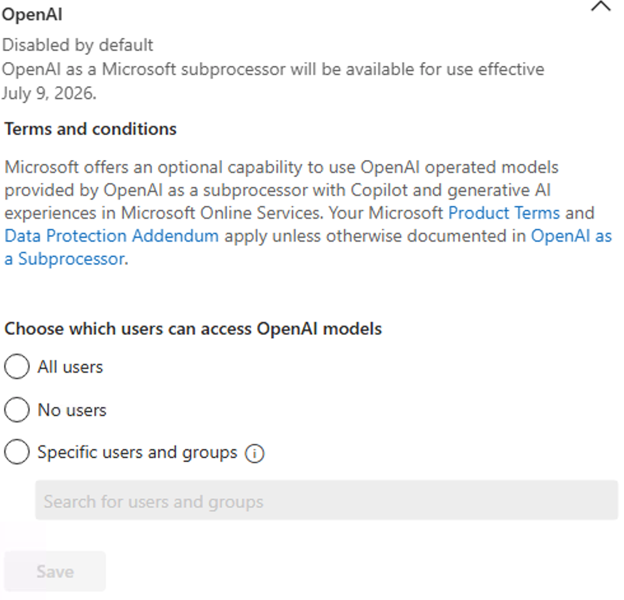
The setting will initially be disabled by default on July 9, 2026. Admins can review and configure the setting at any time in the Microsoft 365 admin center. For eligible customers, if no action is taken prior to July 24, 2026, the setting will be automatically enabled. Admins who do not wish to enable access to OpenAI-operated models should select “No users” before the setting is enabled. 

OpenAI-operated models in the Microsoft 365 admin center are designed to provide administrators with the option to access new AI model capabilities as they become available.

[Rollout schedule:]

  • Worldwide (General Availability): The OpenAI subprocessor setting will begin rolling out in the admin center on July 9, 2026, and become enabled by default for your tenant on July 24, 2026.

[Impact on your organization:]

Who is affected

  • Admins managing Microsoft 365 Copilot and Microsoft Copilot Studio
  • Microsoft 365 Copilot and Microsoft Copilot Studio users

Platforms / services

  • Microsoft 365 Copilot 
  • Copilot in Microsoft 365 apps
  • Microsoft Copilot Studio

What will happen

  • A new admin setting in the Microsoft 365 admin center lets eligible customers enable or disable OpenAI-operated models.
  • This setting will be initially Disabled by default, for your tenant, admins can choose to enable to use OpenAI-operated model for quicker access to the latest AI model innovation.
  • Selecting “No users” prevents use of OpenAI models running on OpenAI infrastructure—some Microsoft 365 Copilot features may be unavailable as a result.
  • Prompts and responses continue to receive enterprise data protection aligned with Microsoft 365 commitments

openai subprocessor settings - KbWorks - SharePoint and Teams Specialist

[Action required / recommendations:]

Admin action required. If no action is taken prior to July 24, 2026, the setting will be automatically enabled.

If you prefer to enable OpenAI as a subprocessor, follow the steps in OpenAI as a subprocessor in Microsoft Online Services to enable the setting.

Learn more

Leave a Comment

Your email address will not be published. Required fields are marked *

Scroll to Top

Get The Paul Take

My no-fluff read on Microsoft 365, Teams, SharePoint and Copilot. Real lessons from real rollouts, and what I would actually do. Once every two weeks.

No spam. Unsubscribe anytime.